Read the task list
What you achieve: You see at a glance where you still need to report time, where something needs approval and where photos are attached.
The task list is the start screen of the app. Each card stands for a task from the project plan on which you or your people are scheduled.
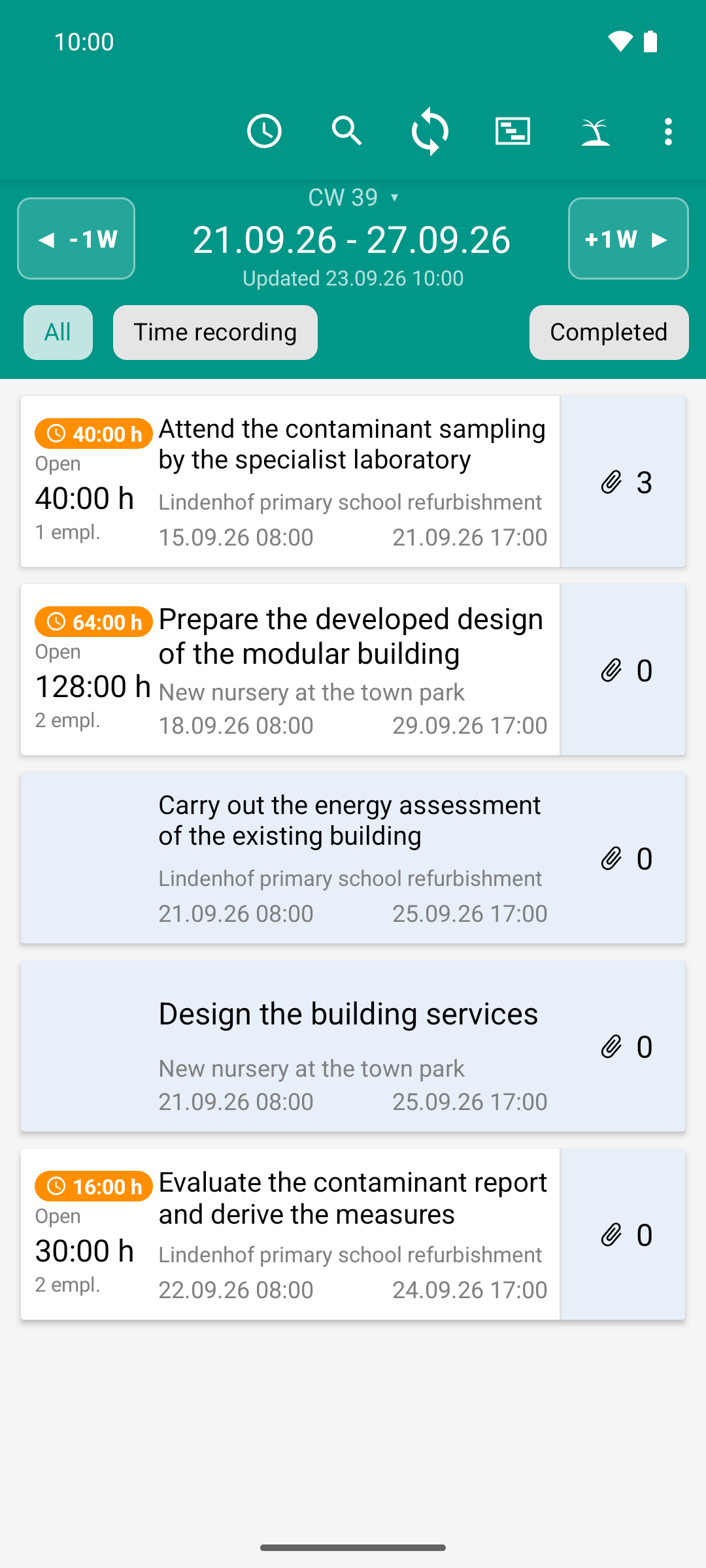
The task list is the starting point: one card per task with project, period, open hours and the number of photos. The orange badge shows where hours are still to be reported.
The header
Which icons you see depends on your permissions. If an icon is missing, you are not allowed to use that function; this is not an error.
Icon |
Effect |
|---|---|
Clock |
Backlog filter: shows only tasks on which time still needs to be reported, from all weeks. White = off, orange = on. |
Circle with tick |
Approval filter: shows only tasks with times that you are allowed to approve. Only with the permission to approve times. |
Magnifying glass |
Search for tasks. |
Circular arrows, possibly with a number |
Sync counter: the number tells you how many changes have not yet reached the server. Tapping it starts the sync right away. |
Plan board |
Opens the Plan board. Only for the project lead. |
Palm tree |
Opens Vacation requests. |
Three dots |
Menu with the Settings. |
The header of the task list shows no title. The space belongs to the icons.
The timeline
Below the header you see the calendar week and the date range. The buttons on the left and right move back or forward by the Period of time selected in the settings; their labels show the step size, for example -1W and +1W. The Updated line shows the last sync.
Below that, you choose the view:
All — all tasks you are allowed to see.
Time recording — only tasks you can report time on.
Completed — also shows finished tasks. By default they are hidden.
The app remembers your choice.
Read a card
Place on the card |
Meaning |
|---|---|
Orange hours with a clock, top left |
Backlog: planned hours up to and including today that have not been reported yet. If the field is missing, everything up to today has been reported. |
Open with an hour value |
Remaining effort: what is still to be done on the task, including coming days. It goes down as soon as time is reported. |
Over plan +X h (orange) |
More time was reported than planned. |
N empl. |
Number of employees you see on this task. All numbers on the card refer only to these people, not to the entire staffing of the project. |
Turquoise hours with a tick, bottom left |
Reported hours that you are allowed to approve. Only with the permission to approve times. |
Name, project, start and end |
The task, the project and the period of the task. |
Note: … |
A note someone wrote with their report. |
Blue column on the right with a paper clip and a number |
Number of photos and documents on the task. Only with the permission to view documents. |
Cards with an all-blue background and no hours field are tasks on which you only see documents but do not report time. Pale cards have no open effort left; you can still report on them.
What tapping and swiping do
Gesture |
Effect |
|---|---|
Tap the card |
Opens the task’s time recording. |
Tap the blue column |
Opens the task’s document list. |
Swipe the card to the right (orange) |
Reports the backlog as planned, see Catch up on backlog. |
Swipe the card to the left (turquoise) |
Approves the reported hours, see Review and approve time. |
Pull the list down |
Fetches the latest data from the server. |
While you swipe, the background shows in advance what will happen. If it is gray and has no text, nothing happens. After each swipe, Undo is shown briefly.