Approve time on the plan board
What you achieve: You see on the plan board which tasks have time entries waiting for your approval, and you approve them there without switching to the task list.
Before you start
You have the permission to approve time in Rillsoft Integration Server. Without this permission, the approval column and the filter are missing; both only appear once the app knows your permissions. Permissions are granted by the administration of Rillsoft Integration Server.
The plan board of a project is open (see Read the project plan on the tablet).
The task list has loaded the week that contains the time entries. The plan board takes the open time entries from there and does not load them itself. So first move to this week in the task list.
Steps
Find the approval column in the table. Its header shows a circle with a tick; it is directly before the Photos column with the paper clip. A number in this column gives the open time entries of the task.
Optional: In the header, tap the same circle with a tick (Only awaiting approval). The icon turns orange, and the plan board shows only tasks with open time entries, together with their subprojects.
Tap the number in the approval column of a task, or tap its bar. The detail view opens from the bottom.
In the section Pending time entries, read for each person the reported days with planned time and reported time, below them a reported remaining effort and the note.
Approve what is correct with the turquoise tick:
on a day, on a person’s block, or with All in the header of the section,
on the remaining effort row; this confirms the remaining effort and the note together.
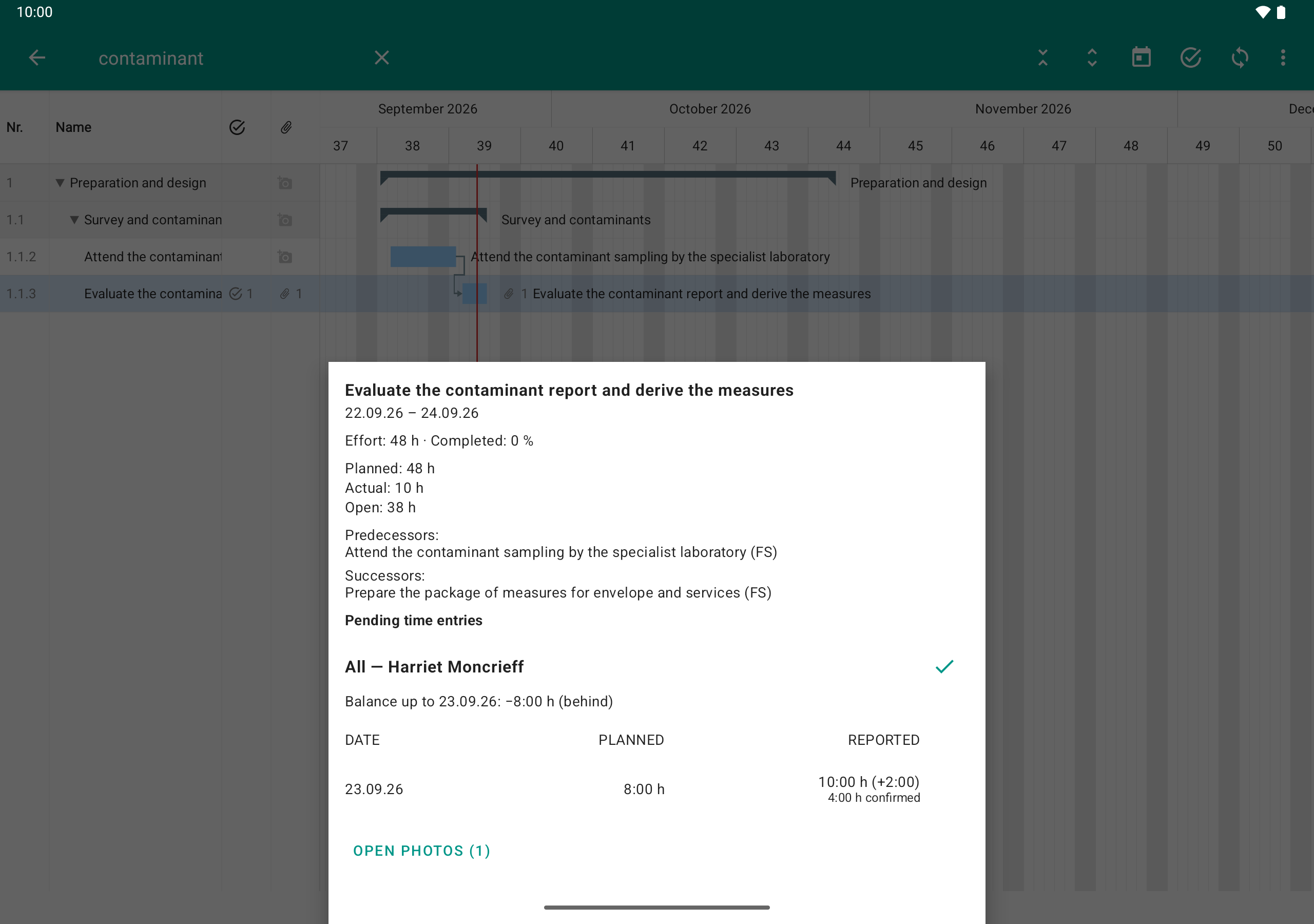
A tap on the bar opens the detail view. The team lead sees Moncrieff’s ten hours, two over plan, and approves right here without switching to the task list.
Result
The approved entries disappear from the section. When everything is approved, the section Pending time entries is hidden. The detail view stays open and still shows dates, effort, links and Open photos. In the table, the number on the task disappears, and with the filter switched on, the task drops out of the view.
Good to know
Approval works exactly as in the task list, also without network (see Review and approve time and Approve time without network).
Only time entries that have reached Rillsoft Integration Server are counted, including reported remaining effort and notes.
Tasks that are not in your task list show no number, even if time entries are open there. You approve these on the web in Rillsoft Integration Server (Time sheet).
The chart does not show the number of open time entries, only the table does.
The filter stays on until you tap it again. A running search takes precedence over the filter.