Report time for several people
What you achieve: As shift lead or team lead, you report the time of your whole team with one entry and record deviations of individual people separately.
Before you start
You may report for several people who are assigned to the task. Whom you may report for is set in Rillsoft Integration Server (Organization chart, Roles and permissions).
The app decides by itself
When you tap the task card, the app checks for how many of the assigned people you may report:
for one (usually yourself): Time recording opens for this person, without a name bar.
for several: Time recording opens with a name bar, all people are selected.
for none: “No employees you are authorized to record time for.” appears.
Steps
Tap the task card. At the top is the name bar with one name chip per person, all selected. If everyone worked the same hours, each shift is shown as one row. The duration in it is the total over all selected people, and so is the effort card.
Adjust the times once if needed (with -/+ or by tapping the time). The change applies to all people in this row.
Tap the paper plane (Send) in the row or in the header row of the day. The app reports for each person individually.
If one person’s hours were different:
Tap their name chip. They are deselected, their shifts disappear from the list, and the totals drop.
Adjust the time for the remaining people and send.
Tap the name chip again. Their open shift is now shown separately.
Report their time: either leave only their name chip selected, or long-press the name chip. This opens time recording for this person only, without a name bar. Use the arrow at the top left to go back.
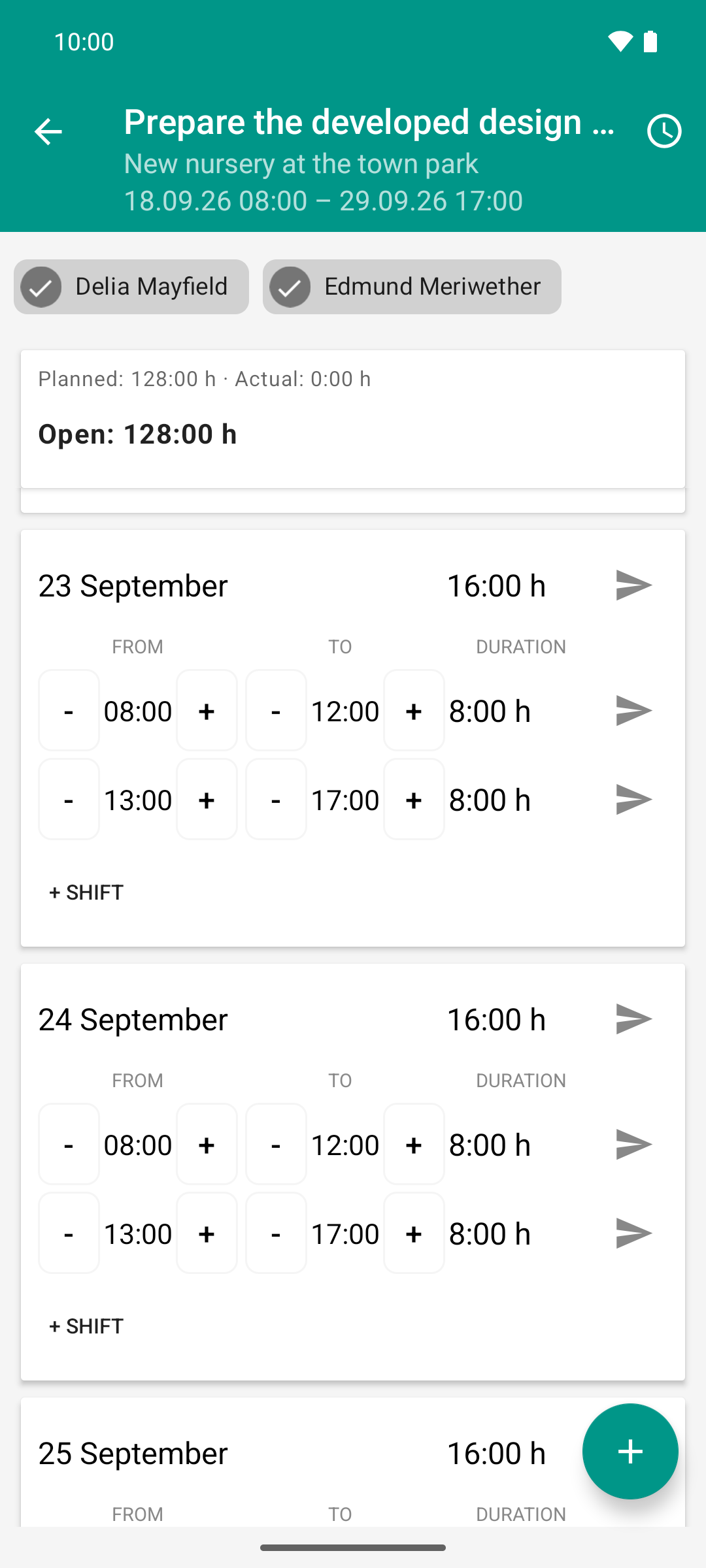
Whoever reports for several people sees a name bar. As long as everyone works the same hours, each shift is one row: 8 hours means two people times four.
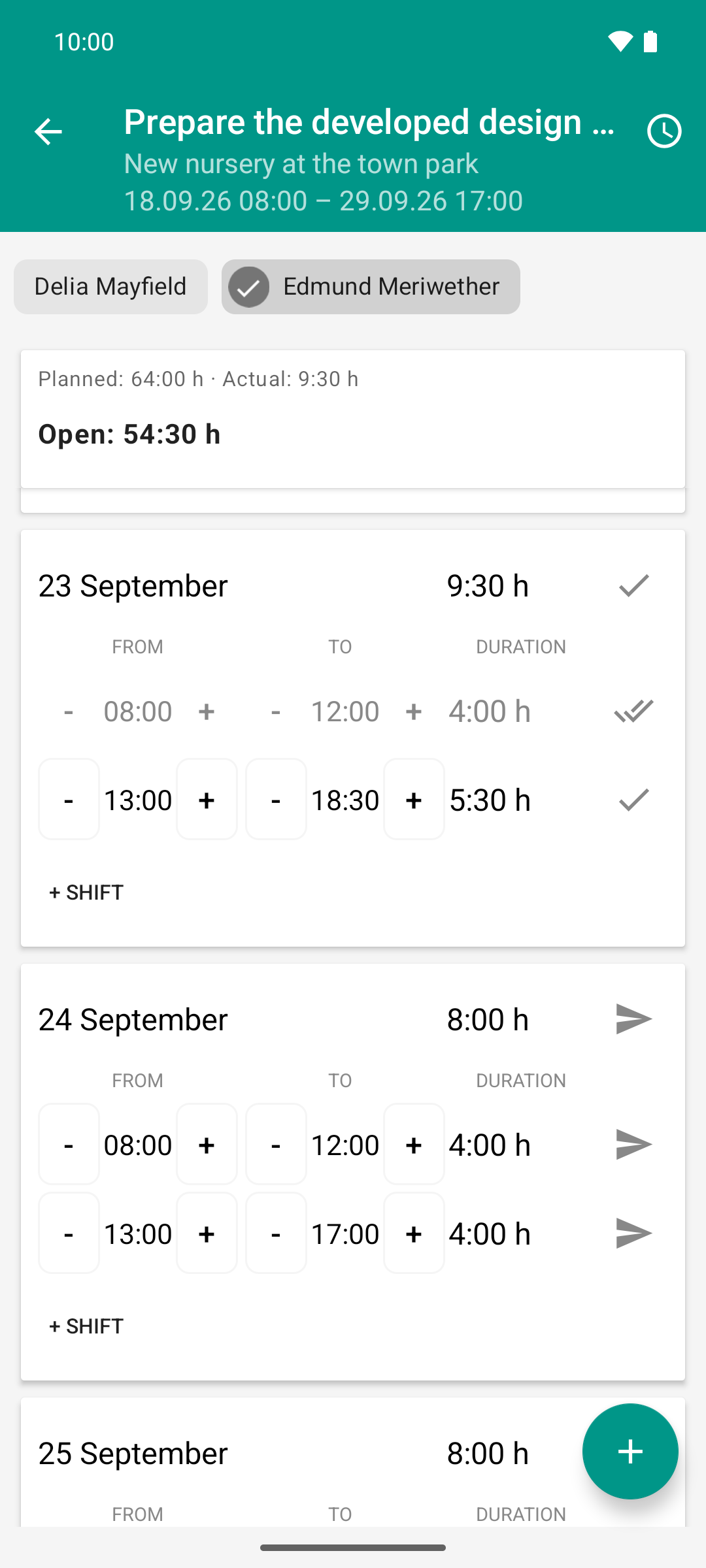
Mayfield is deselected, and for Meriwether the day ends at 18:30: the day total drops from 16 to 9:30 hours, one person instead of two, but an hour and a half longer. The morning matched the plan and is confirmed, the longer shift waits for approval.
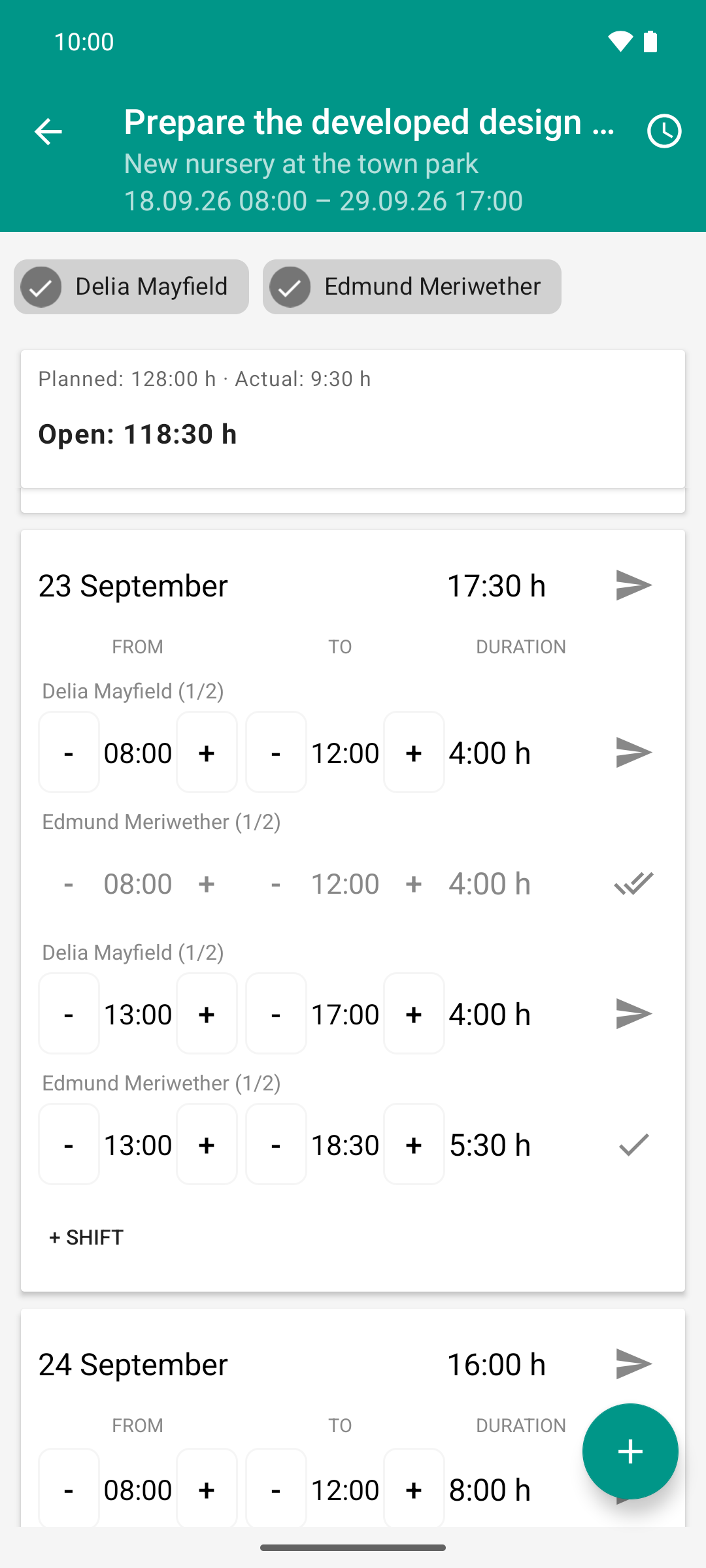
Mayfield is selected again, and the day shows the difference: each shift is now listed per person. Mayfield’s shifts until 17:00 are waiting for their paper plane, Meriwether’s are already sent.
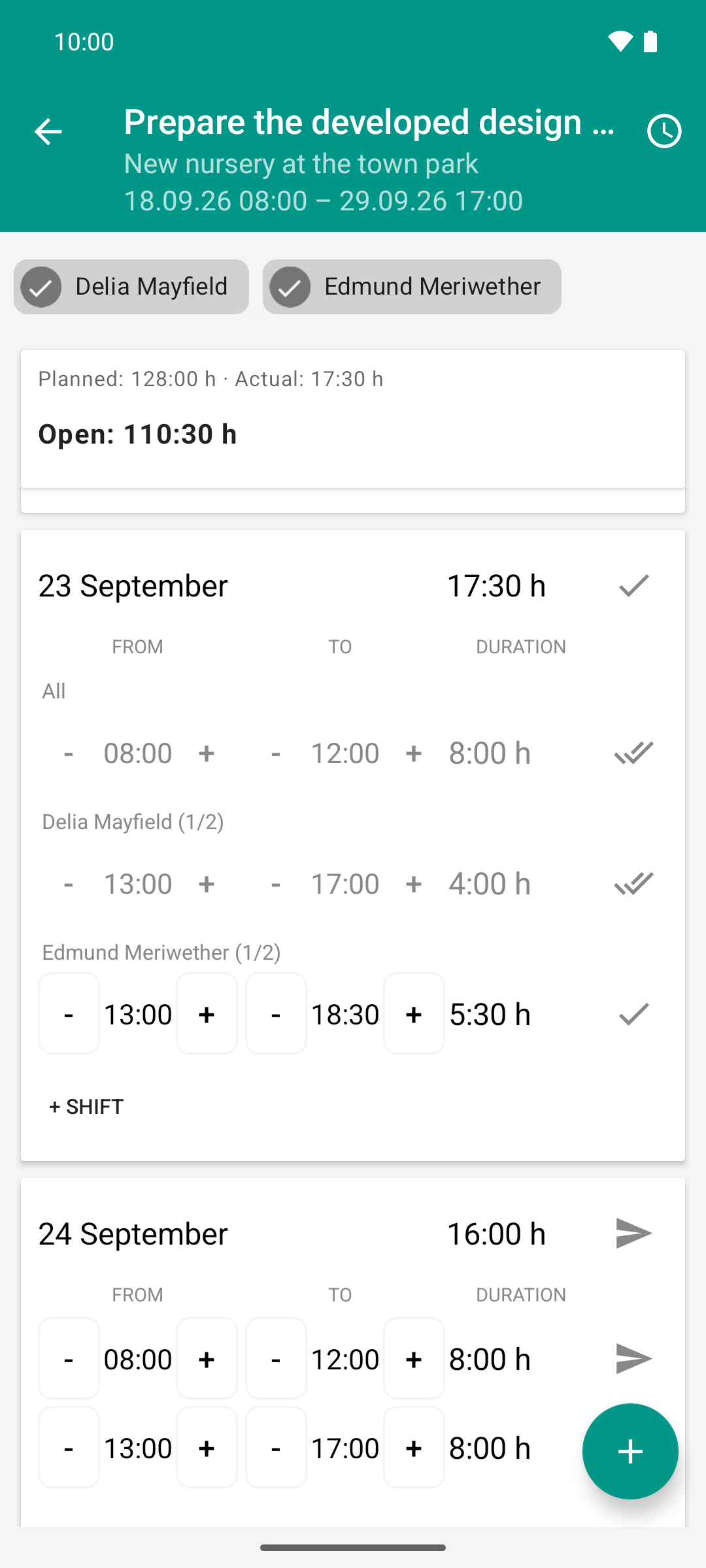
Mayfield’s day is reported: the paper planes have become double ticks, because eight hours as planned are confirmed right away. The shared morning is one row “All” again, only Meriwether’s long shift waits for approval.
Result
Each person has their own report on the server, even though you tapped only once.
If people differ from each other on a day, each group carries a header row with names and a counter, e.g., “Delia Mayfield (1/2)”. The part in which everyone matches is called “All”.
Each row has its own icon: paper plane, clock, ✓ or ✓✓.
Good to know
Header rows show deviations, not the selection. As long as all selected people have the same entries, there is no header row. If times and icons match again later (e.g., when all are confirmed), the rows merge by themselves.
One name chip always stays selected. The last one cannot be deselected; it springs back.
Sending and changing times affect exactly the people of the tapped row, never others.
+ Shift and the + button at the bottom right (add day) act for each selected person individually. If this does not work for everyone, the app reports “Applied to N of M employees”.
Only unreported days (clock icon in the top bar) and the effort card refer to the selected people.
With the permission to approve time, the tick ✓ of a sent row is teal. Tapping it approves this row (see Review and approve time).