Report overtime and have it approved
What you achieve: You report a day on which you worked longer than planned, and the team lead approves the extra hours in the app.
An example from week 39 of 2026 shows the difference between a report that matches the plan and one that someone has to decide on: Harriet Moncrieff (site supervision) has eight planned hours on each of three days on the task “Evaluate the contaminant report and derive the measures” in the project Lindenhof primary school refurbishment. On Tuesday she works as planned, on Wednesday ten hours instead of eight. Delia Mayfield (team lead) approves the Wednesday.
Before you start
The person reporting has the permission to report time.
The person approving has the permission to approve time for the reporting person.
Both permissions are granted in Rillsoft Integration Server (Roles and permissions).
Steps
Tuesday: report as planned (employee)
Tap the task card. Time recording shows Tuesday with two planned shifts, 08:00–12:00 and 13:00–17:00.
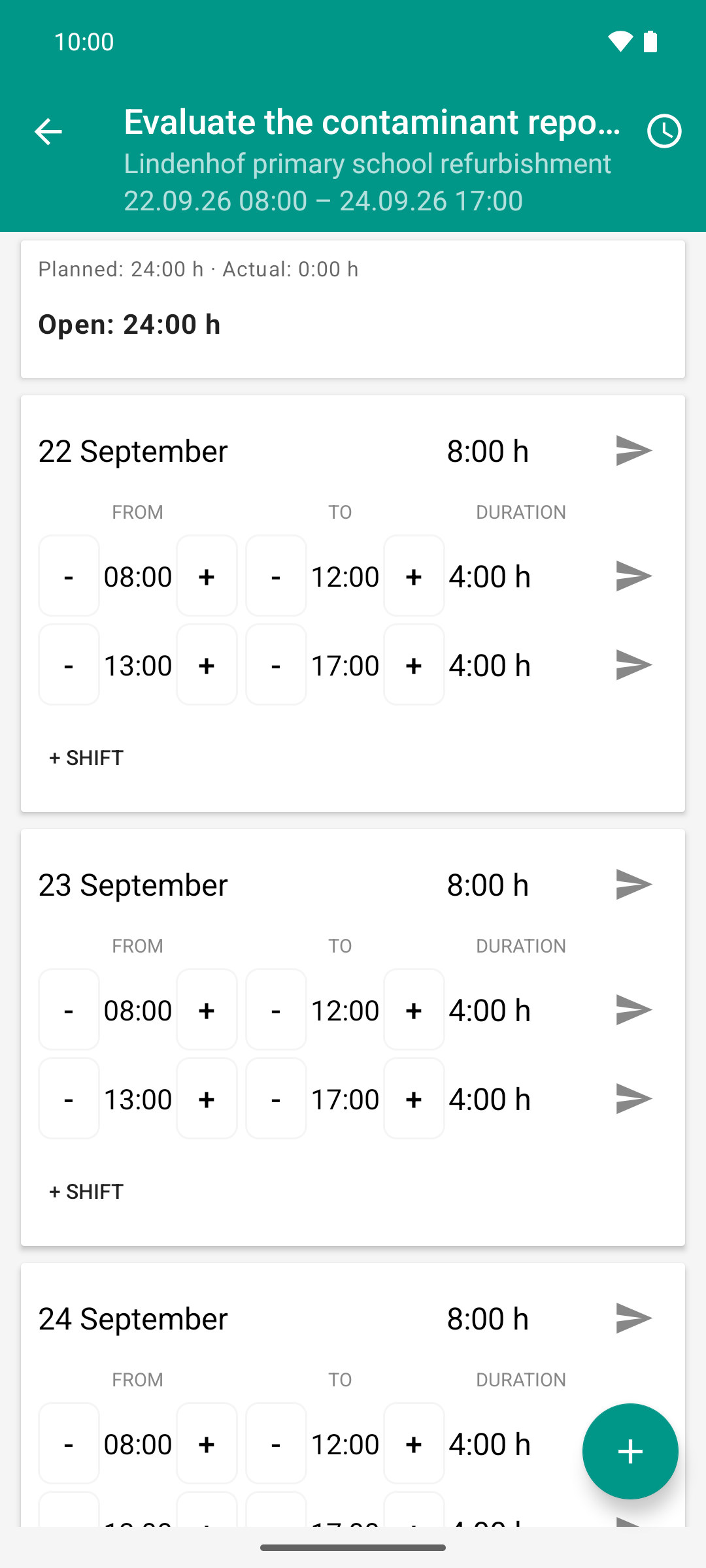
Tuesday before anything is reported: the plan expects eight hours, actual is 0:00 h, the full 24:00 h of the task are open.
Tap the paper plane (Send) in the header row of Tuesday. The day matches the plan, and the server confirms it right away: two ticks ✓✓.
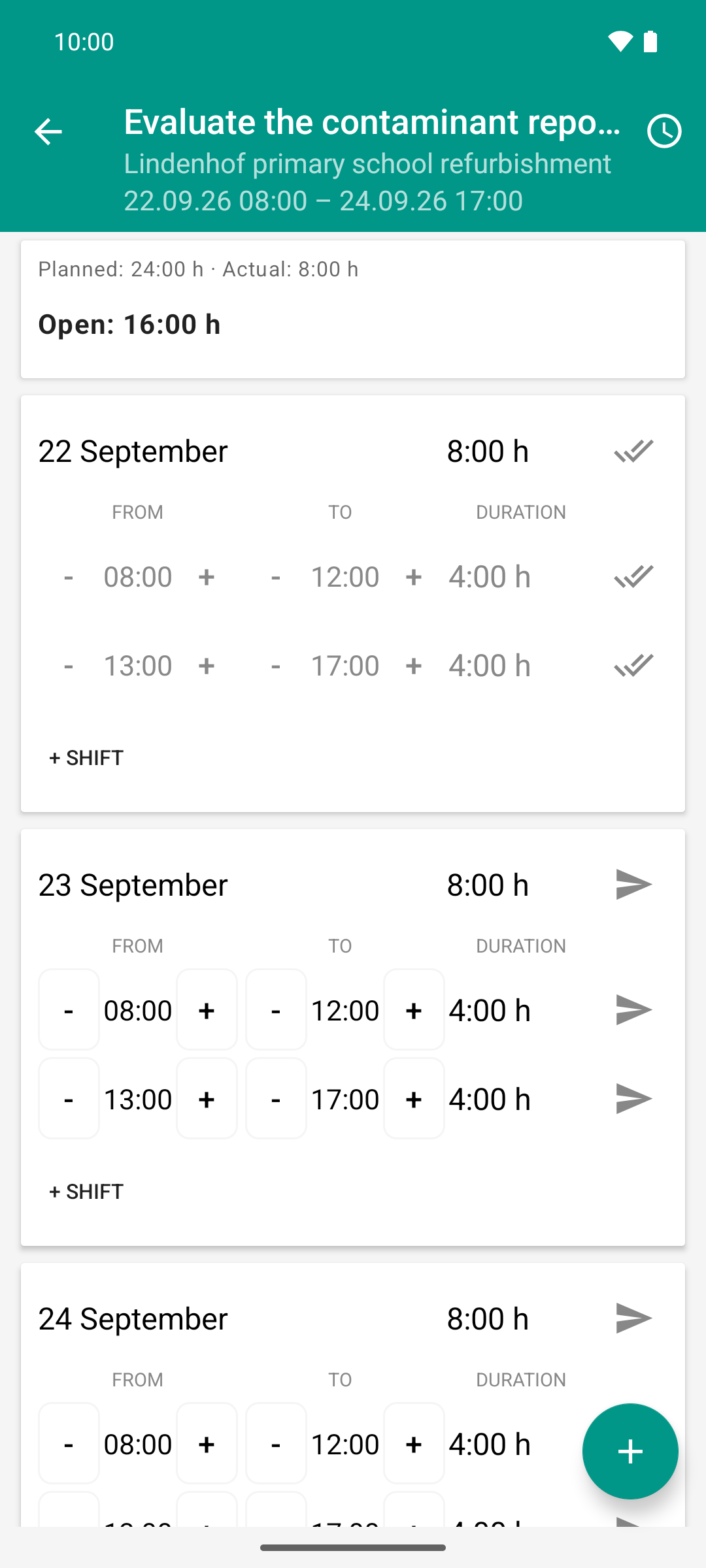
One tap on the day arrow reports the day as planned. Compared to image 1, actual rose from 0:00 h to 8:00 h - and the double tick shows it is already approved, without the team lead stepping in.
Wednesday: report more than planned (employee)
On Wednesday, in the afternoon shift, raise the end (column To) with + until 19:00 is shown. Each tap moves the time by the step from the settings. Or tap the time and pick it directly. Duration and day total update immediately (here 10:00 h).
Tap the paper plane in the header row of Wednesday.
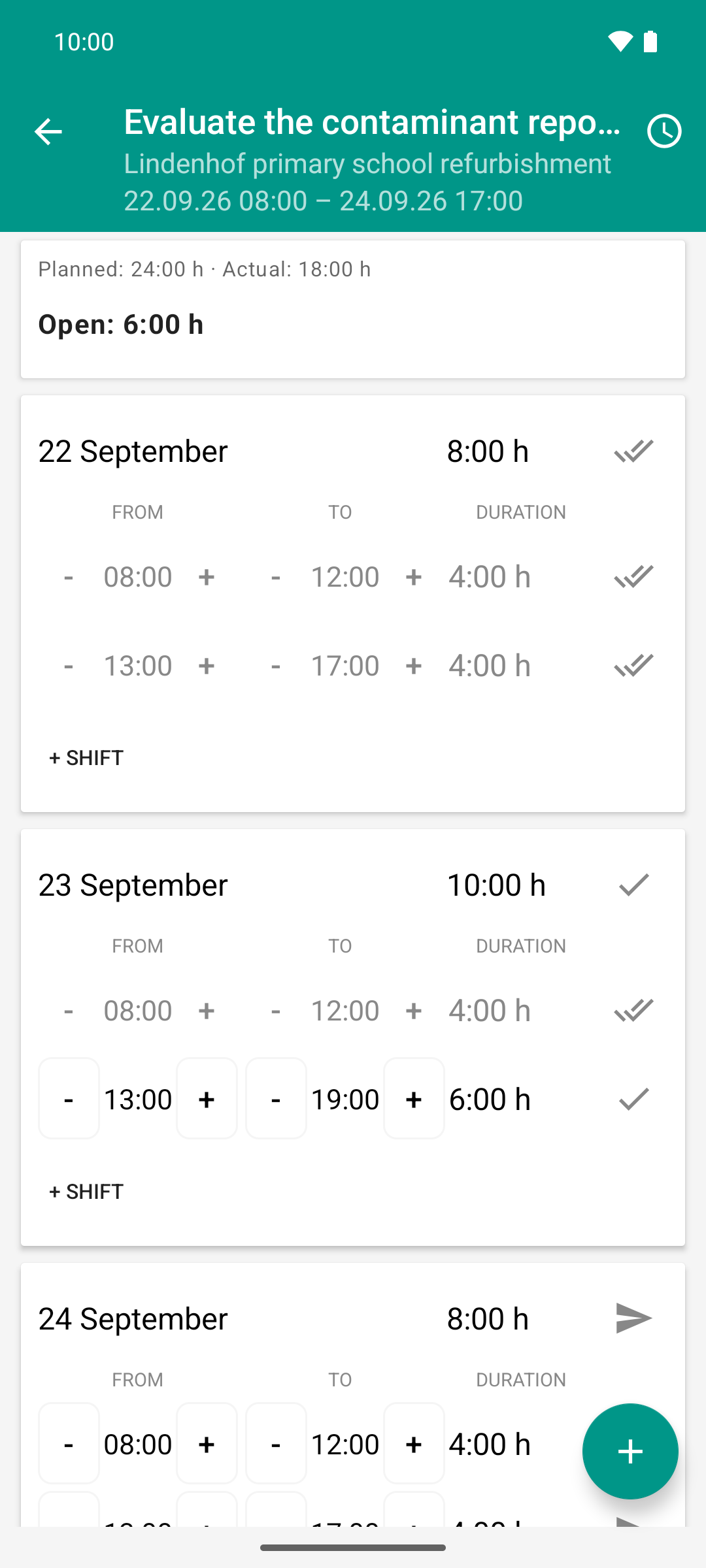
On Wednesday two extra hours are worked: the shift ends at 19:00, the day reaches 10:00 h. Actual rises from 8:00 h to 18:00 h; the planned morning is confirmed at once, the longer afternoon waits.
Approve Wednesday (team lead)
In the task list, tap the tick icon (“Approval filter”) in the top bar. It turns orange. The list now shows all tasks with open time entries, regardless of the week.
Tap the task card (or the teal hours field with the tick in a circle). The approval view Pending time entries opens from the bottom.
Check: the table DATE · PLANNED · REPORTED shows the day with “10:00 h (+2:00)” against 8:00 h planned, below it “4:00 h confirmed”.
Tap the teal tick to the right of the name.
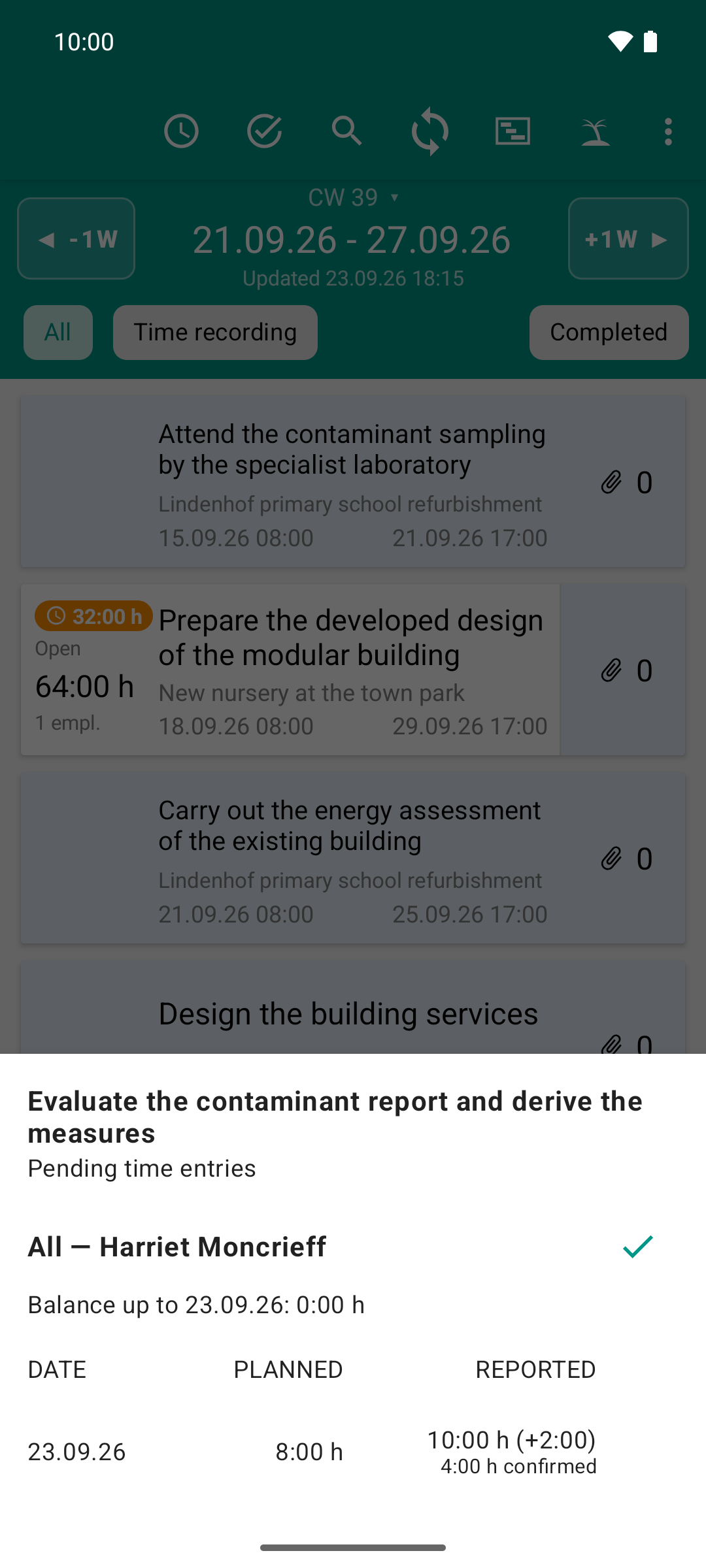
Only what deviates from the plan comes up for decision: Wednesday with ten hours, “+2:00”. Four of them are already confirmed; the rest is approved here.
Result
After step 4: the morning shift carries two ticks ✓✓ (matches the plan, confirmed right away). The extended afternoon shift and the header row of the day carry one tick ✓: sent, waiting for approval. The effort card shows Actual 18:00 h, Open 6:00 h.
After step 8: the block disappears from the approval view. If nothing is open anymore, the view closes, and the task drops out of the filtered list. For the employee, all shifts show two ticks ✓✓ and are locked.
Good to know
Whether the server confirms reports by itself and how much deviation it tolerates is set by your tenant. In the example, it confirms reports that match the plan and leaves the two extra hours open. See Automatic approval.
“Over plan”: If the reported time exceeds the total planned time of the task, the task card shows “Over plan +X h” in orange instead of “Open”. In the example, this is not yet the case on Wednesday (18 of 24 hours): the overtime of the single day is seen only by the team lead, in the row “10:00 h (+2:00)”.
Hint when sending: If you report time although “Open” is already at 0, the hint “Over plan — adjust remaining effort / note?” appears once, with Adjust. With it you can adjust the remaining effort and give a reason for the overtime (see Report remaining effort and a note). You can also ignore the hint.
Approval is final. A confirmed shift can no longer be changed in the app.