Read the project plan on the tablet
What you achieve: You open the plan of a project as a bar chart and see subprojects, tasks, milestones and their links at a glance.
The plan board is built for a tablet in landscape format. On a phone everything works, but you see only a small part of the bar chart.
Before you start
You have the permission to view project plans in Rillsoft Integration Server (usually the project lead). Only then does the Plan board icon (a bar chart) appear in the header of the task list. The icon only appears once the app knows your permissions, that is, after the first sync.
The project selection only lists projects you are allowed to read in Rillsoft Integration Server.
Steps
In the header of the task list, tap the Plan board icon.
The first time, the project selection appears with tenant and period for each project. Tap the project. You can refresh the list by pulling it down.
The plan board loads. The project name appears below the title in the header.
Move around in the plan:
Dragging in the chart moves the plan horizontally and vertically. The calendar header and the table move along exactly.
The two-finger gesture (spreading or pinching) zooms the time axis in three levels. At the smallest level, the header shows only month and calendar week.
The calendar icon (Today) jumps to the present in one step: the red today line is on the left of the view, and the table shows the first task that is still running today or starts next.
Each tap on one of the two arrow icons collapses or expands one level of subprojects. You collapse a single subproject with the triangle in front of its name.
Tap a row of the table. It is highlighted in blue in the table and the chart; if its bar is outside the visible section, the chart brings it into view.
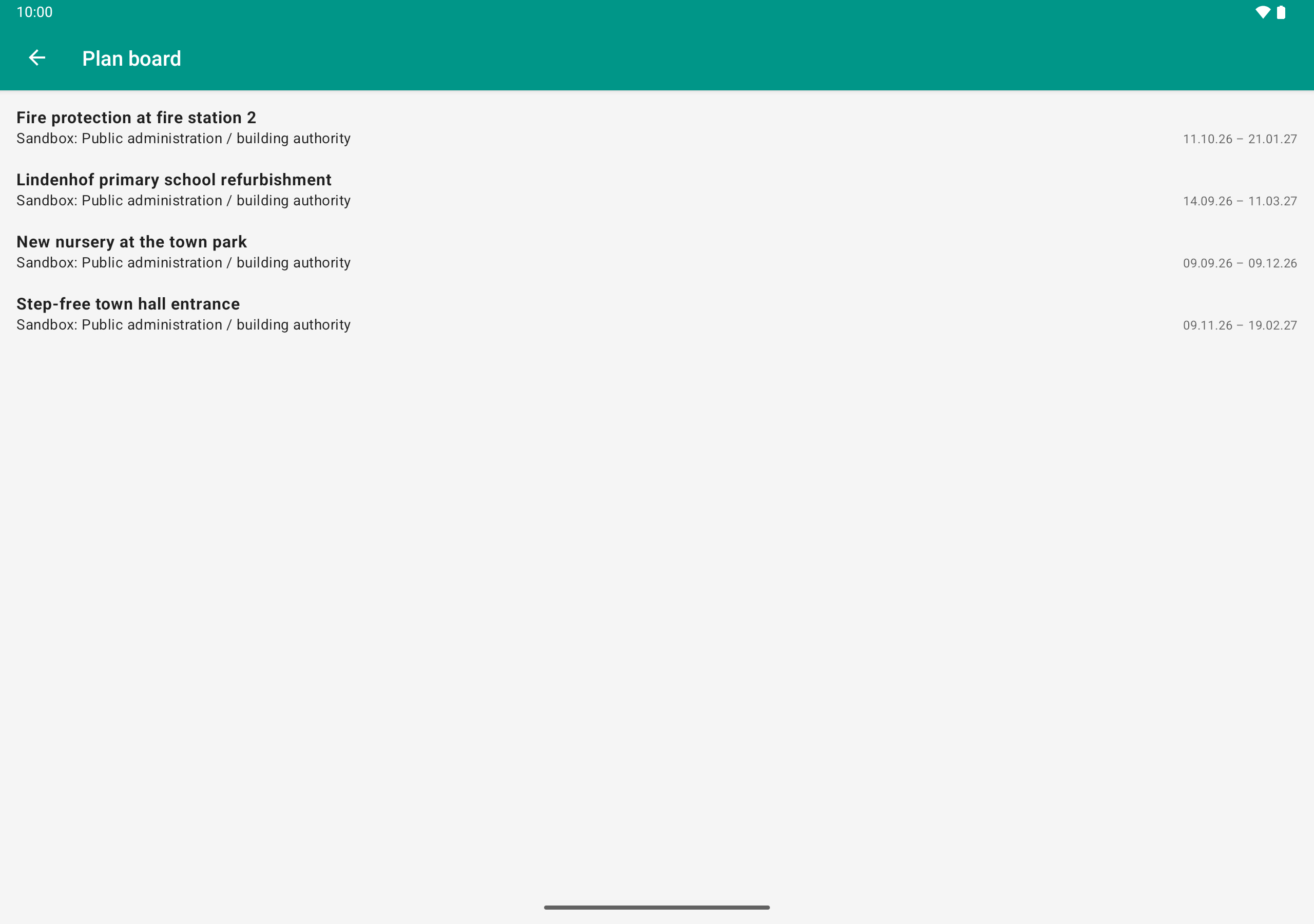
On first opening, the plan board asks for the project. Only what the user may read is offered; next time the chosen project opens directly.
Result
The plan board has three areas:
Table on the left: Nr. (dot-separated outline such as 1, 1.1, 1.1.1), Name and further columns such as Start, Finish, Effort in hours and Completed in percent. On the far right is the Photos column with the paper clip; with the permission to approve time, a column with pending time entries comes before it. The project itself is not a row of its own.
Calendar header at the top: month, calendar week and day.
Chart on the right: bars for tasks (the fill shows the progress), a bracket for subprojects, a diamond for milestones, and the name to the right of each bar. Lines with arrowheads show the links. Weekends have a gray background, and a red line marks today.
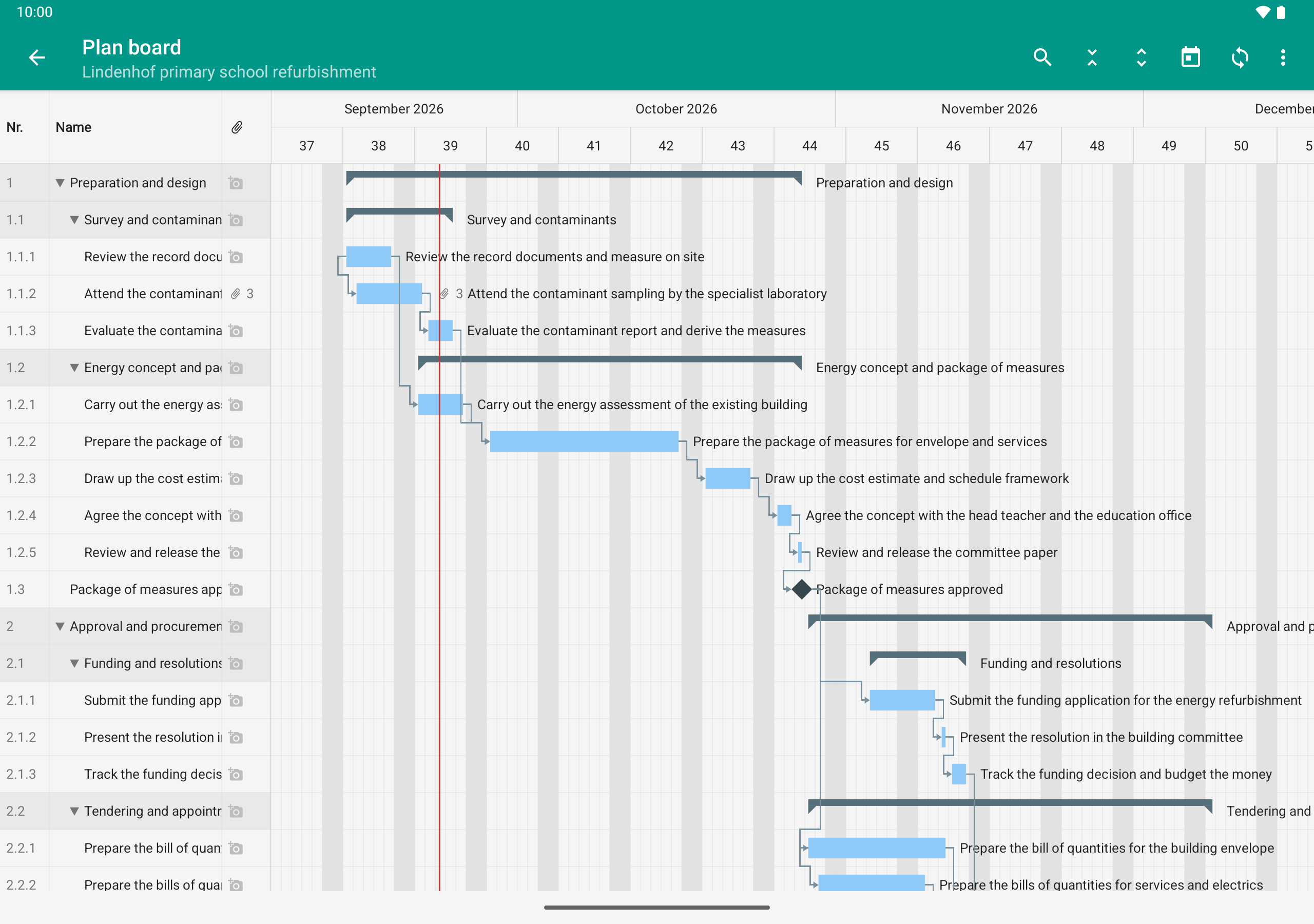
The project plan from Rillsoft Project, read-only on the tablet: tasks, bars, milestones and the photos attached to them.
Good to know
The project is remembered. The next time, the plan board of this project opens directly. You choose a different project with three-dot menu → Switch project. The back button always leads to the task list, not to the project selection.
Adjusting columns: In the three-dot menu you choose which columns are visible; the name always stays visible. You change the width by dragging the divider between two columns in the column header. The setting applies on the device to all projects. Long names are cut off in the table but appear in full next to the bars.
Refresh: The icon with the circling arrows reloads the plan. Without network, the plan board shows the state last loaded.
The plan board is read-only; dates and structure cannot be changed here.