Catch up on backlog
What you achieve: You find all tasks on which planned time up to today is still unreported, and report it as planned, if you like with a single swipe per task.
Before you start
You have the permission to report time (granted in Rillsoft Integration Server). Without this permission, there is no backlog and no clock icon.
Recognize a backlog
A task card with a backlog carries an orange hours field with a clock and a number of hours at the top left. It shows the planned hours up to and including today that have not been reported yet. Future planned time never creates a backlog. No field means: everything up to today is reported.
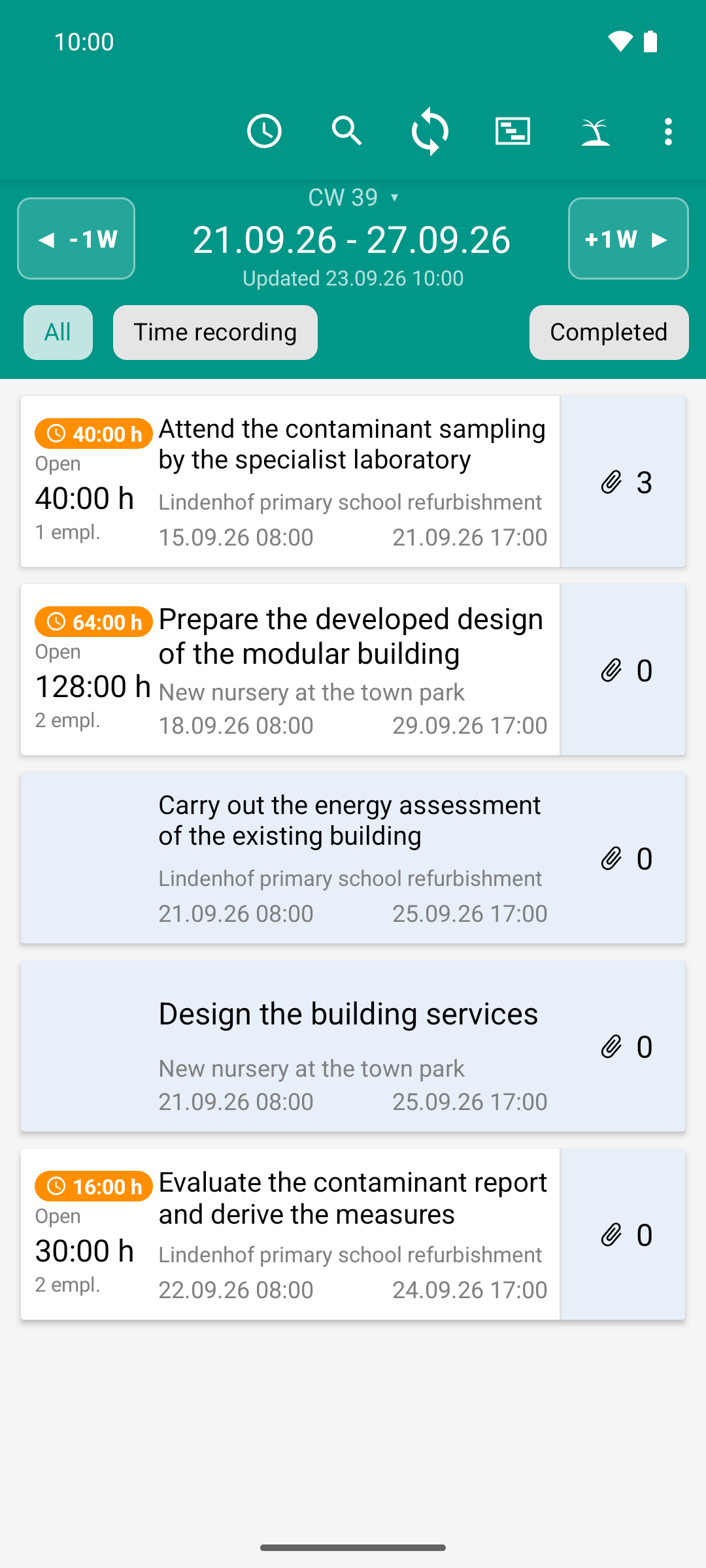
The task list is the starting point: one card per task with project, period, open hours and the number of photos. The orange badge shows where hours are still to be reported.
Steps
In the top bar of the task list, tap the clock icon (“Backlog filter”). It turns orange. The list now shows all tasks with a backlog, regardless of the selected week.
Swipe a task card to the right. The revealed background is orange, with a clock and the text of what will be reported, e.g., “report 12:30 h”.
At the bottom, the bar “N shifts (H h) reported as planned” appears with Undo.
If the report is to apply, do nothing. As soon as the bar disappears, the app reports.
If you made a mistake, tap Undo. Then nothing is reported.
Repeat this for the other cards. Finally, tap the clock icon again to turn the filter off.
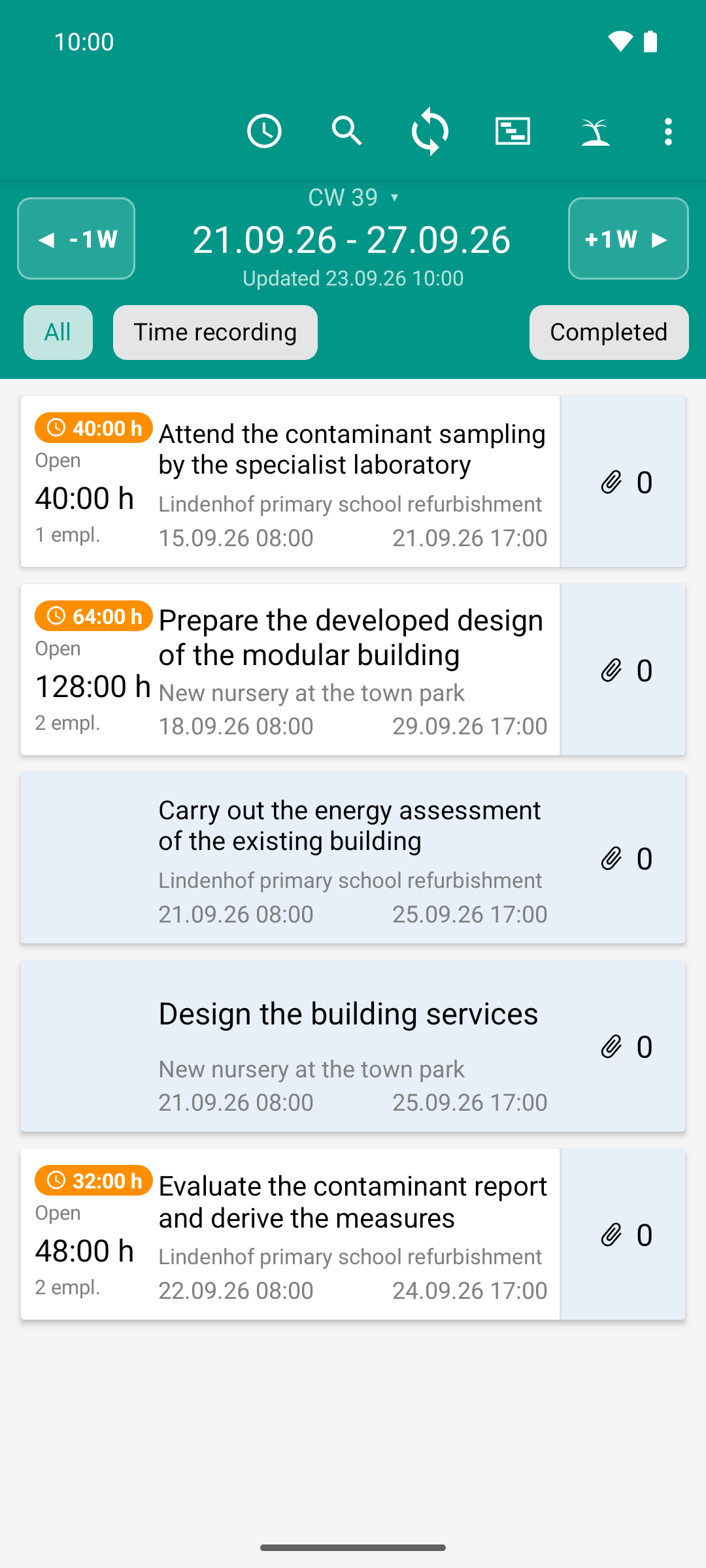
The week shows three tasks with a backlog, 136 hours in total. Whether earlier weeks hold more cannot be seen here.
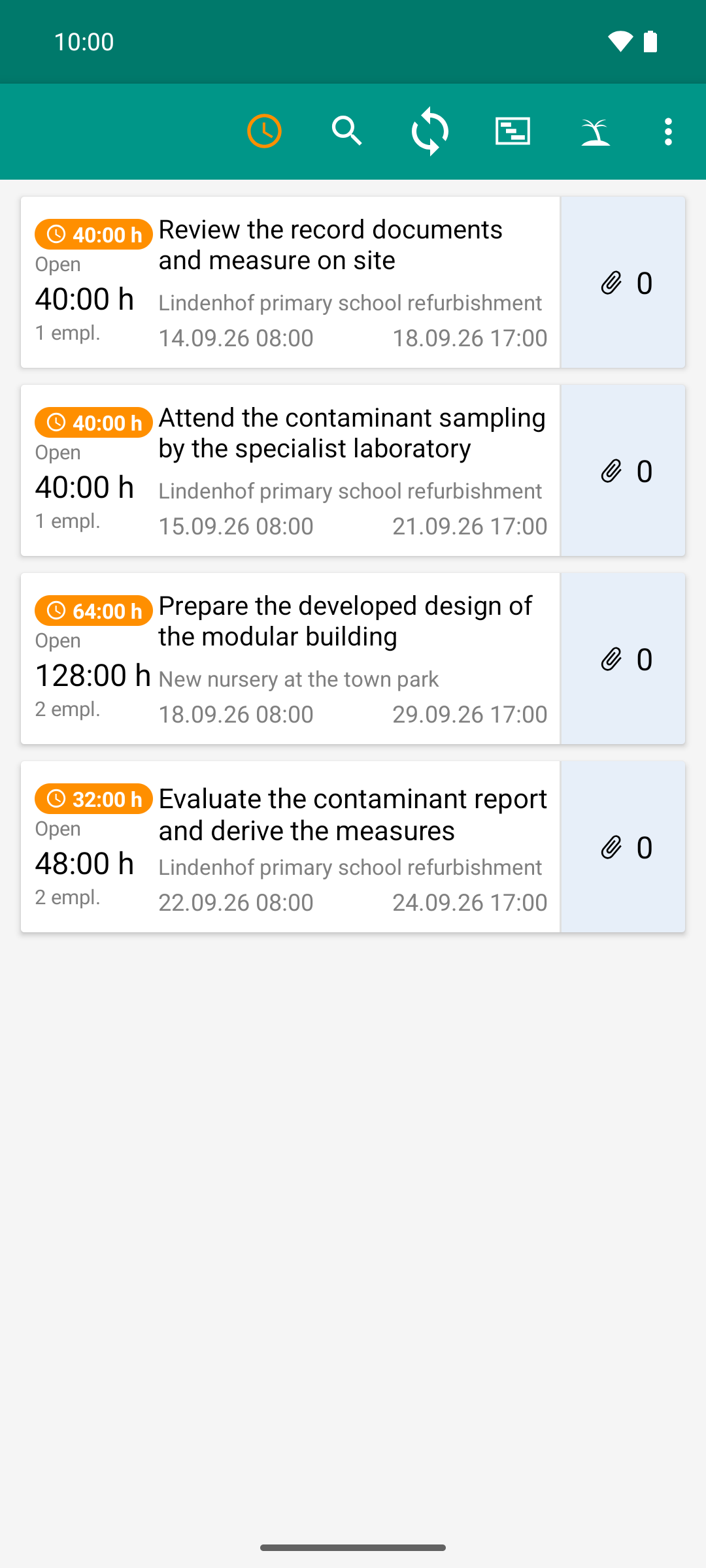
The same view with the backlog filter: three cards become four, 136 hours become 176. The filter leaves the week behind and also finds the task from the week before.
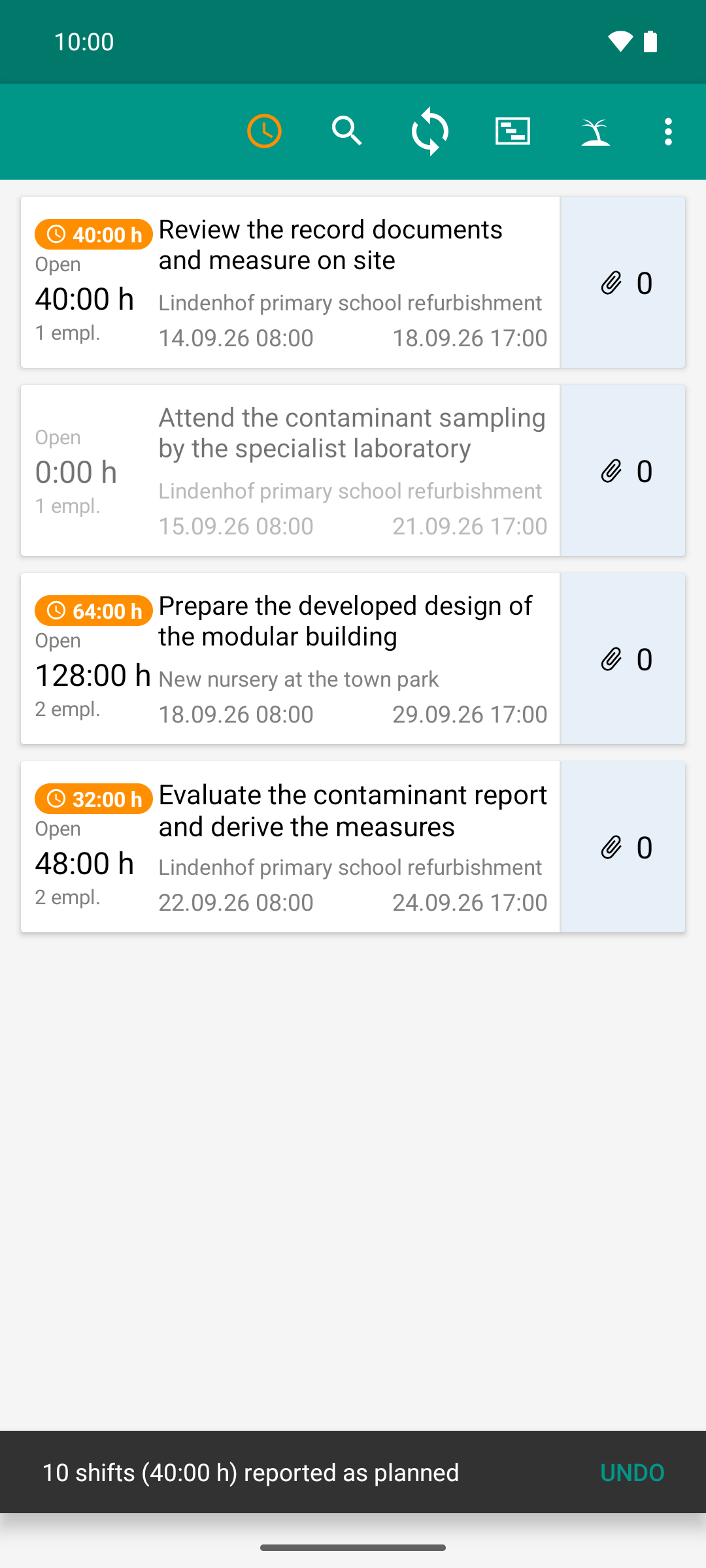
A swipe to the right reports the plan: ten shifts, 40 hours. The card turns gray, nothing is open anymore. While “Undo” is shown at the bottom, this can still be taken back; after that the card leaves the filter.
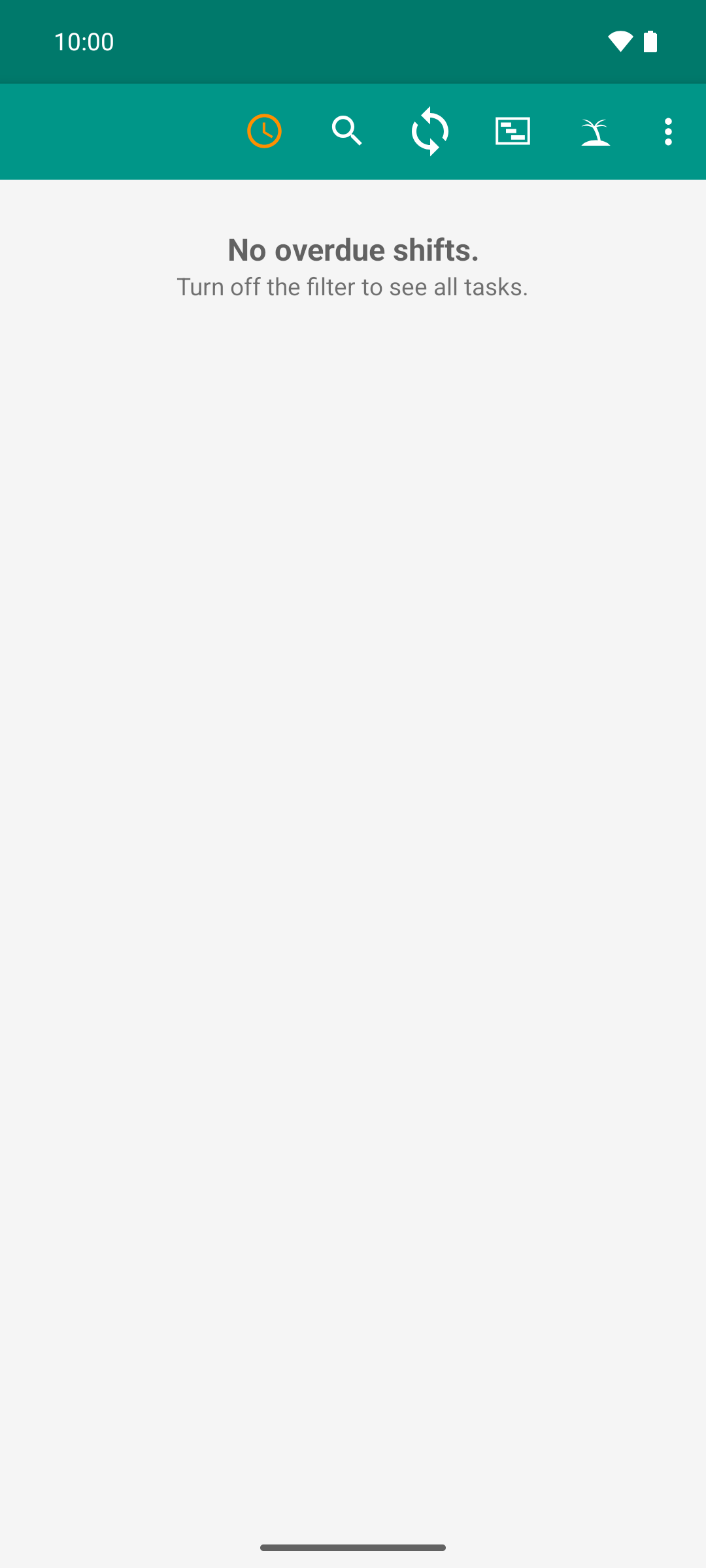
After four swipes the backlog is zero: 176 hours reported in 44 shifts, the filter finds nothing more. One tap on the clock turns it off.
Result
For each open shift up to today, there is now a report with exactly the planned times. The field disappears, and the task drops out of the filtered list without refreshing.
In time recording, the shifts carry one tick ✓ or, if the server confirms them right away, two ticks ✓✓.
Go through the days one by one
If not all days match the plan, open the task instead of swiping:
Tap the task card.
In the top bar of time recording, tap the clock icon (“Only unreported days”). It turns orange. Days that are already reported are hidden.
Check each day, adjust the times if needed, and report them with the paper plane. Reported days disappear from the list right away.
When all days are reported, it says “All days reported.” there.
The filter setting is kept, also for other tasks.
Good to know
Swipe direction: To the right means report. To the left means approve and works only with the permission to approve time. Without this permission, the background stays gray, and the card snaps back without effect.
Only sent once the bar is gone: If the app is closed while Undo is still visible, nothing is reported. If you swipe another card during this time, the previous report is carried out right away.
The filter only knows loaded weeks. It searches what is already on the device. Right after signing in, earlier weeks are therefore missing until you have paged back to them once with -1W.
Filters exclude each other: The backlog filter and the approval filter are never on at the same time. Turning one on turns the other off. The cards remain fully usable in the backlog filter.
No backlog with remaining effort 0: If you have reported the remaining effort as 0 for a person (see Report remaining effort and a note), their unreported planned shifts no longer create a backlog.
As planned means literally as planned. If you worked different hours, open the task and adjust the times before sending.