Report your first hours
What you achieve: Your working time for today is reported — with two taps if you worked as planned.
Before you start
You are signed in (Set up the app and sign in).
You are scheduled on the task and allowed to report time for it.
Steps
In the task list, tap the card of the task you worked on.
Time recording opens. At the top you see the task, project and period, below it the effort (Planned, Actual, Open) and a card for each day with the planned shifts.
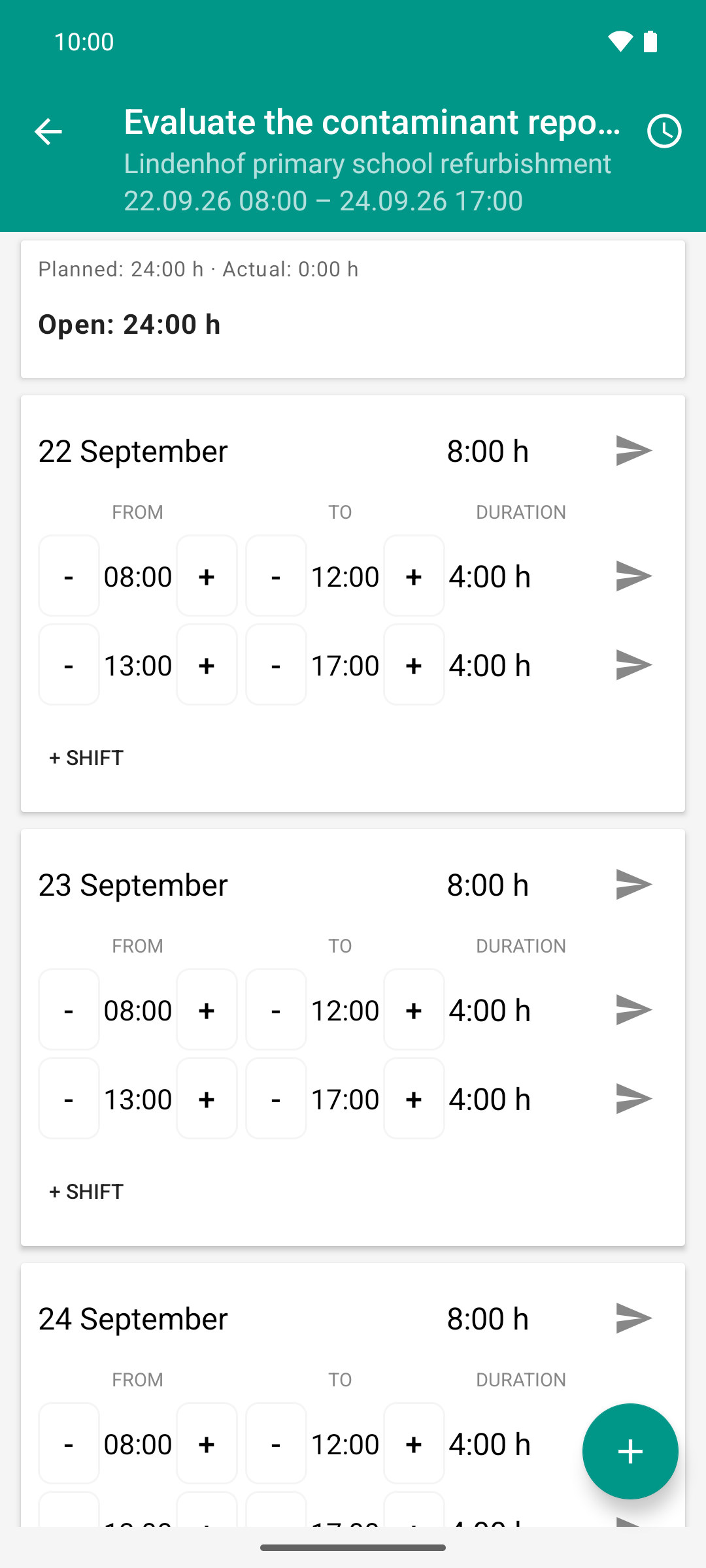
Tuesday before anything is reported: the plan expects eight hours, actual is 0:00 h, the full 24:00 h of the task are open.
If you worked differently from the plan, set the start (From) and end (To) with – and +. The app calculates the duration itself.
Tap the paper plane on the right of the row with the date. This reports all shifts of that day at once. To report a single shift, use the paper plane in its row.
Result
The paper plane is replaced by a different icon:
Clock — reported, but not yet on the server (for example, without network).
✓ — reported, waiting for approval.
✓✓ — confirmed. The times are locked and can no longer be changed in the app.
Your company decides whether a report as planned is confirmed right away (Automatic approval).
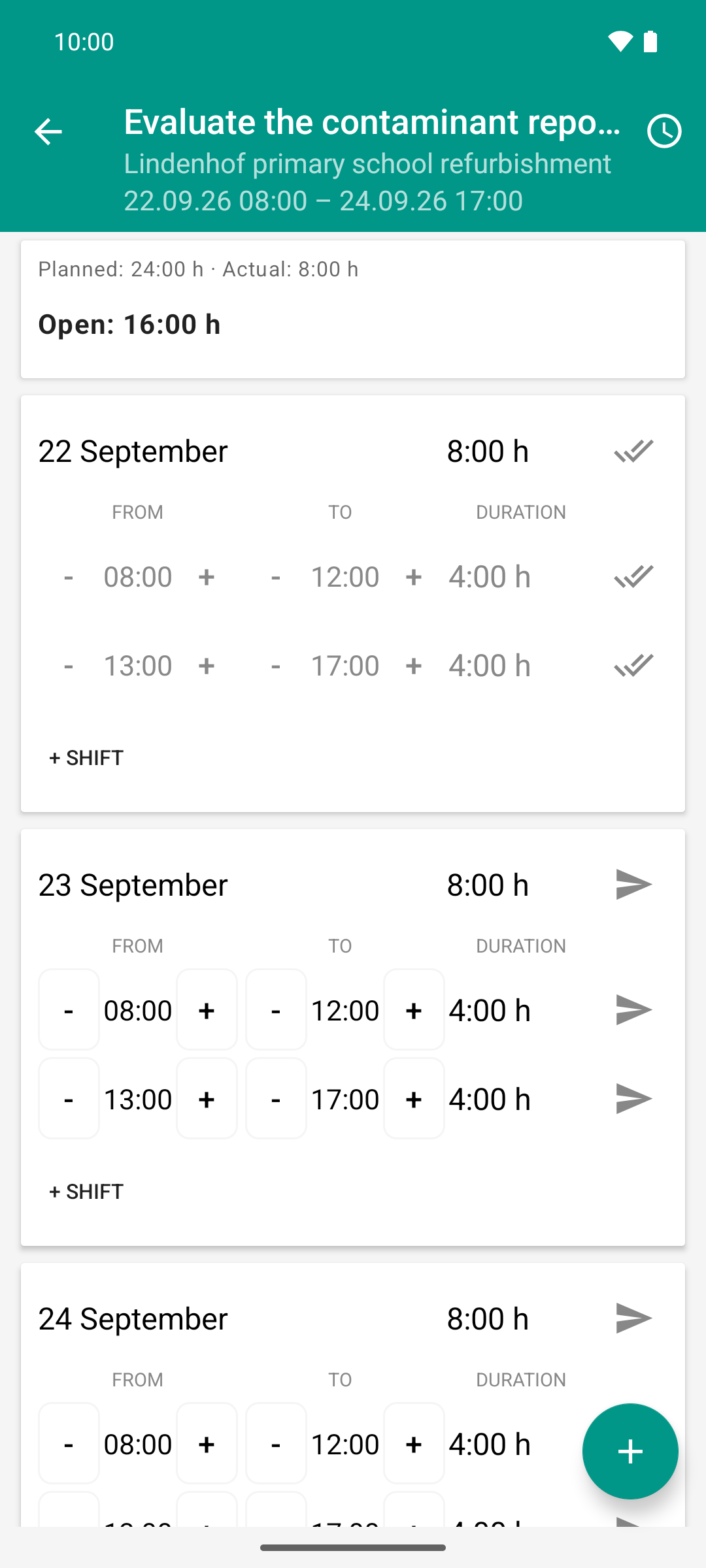
One tap on the day arrow reports the day as planned. Compared to image 1, actual rose from 0:00 h to 8:00 h - and the double tick shows it is already approved, without the team lead stepping in.
Back in the task list, the orange backlog field on the card has become smaller or has disappeared.
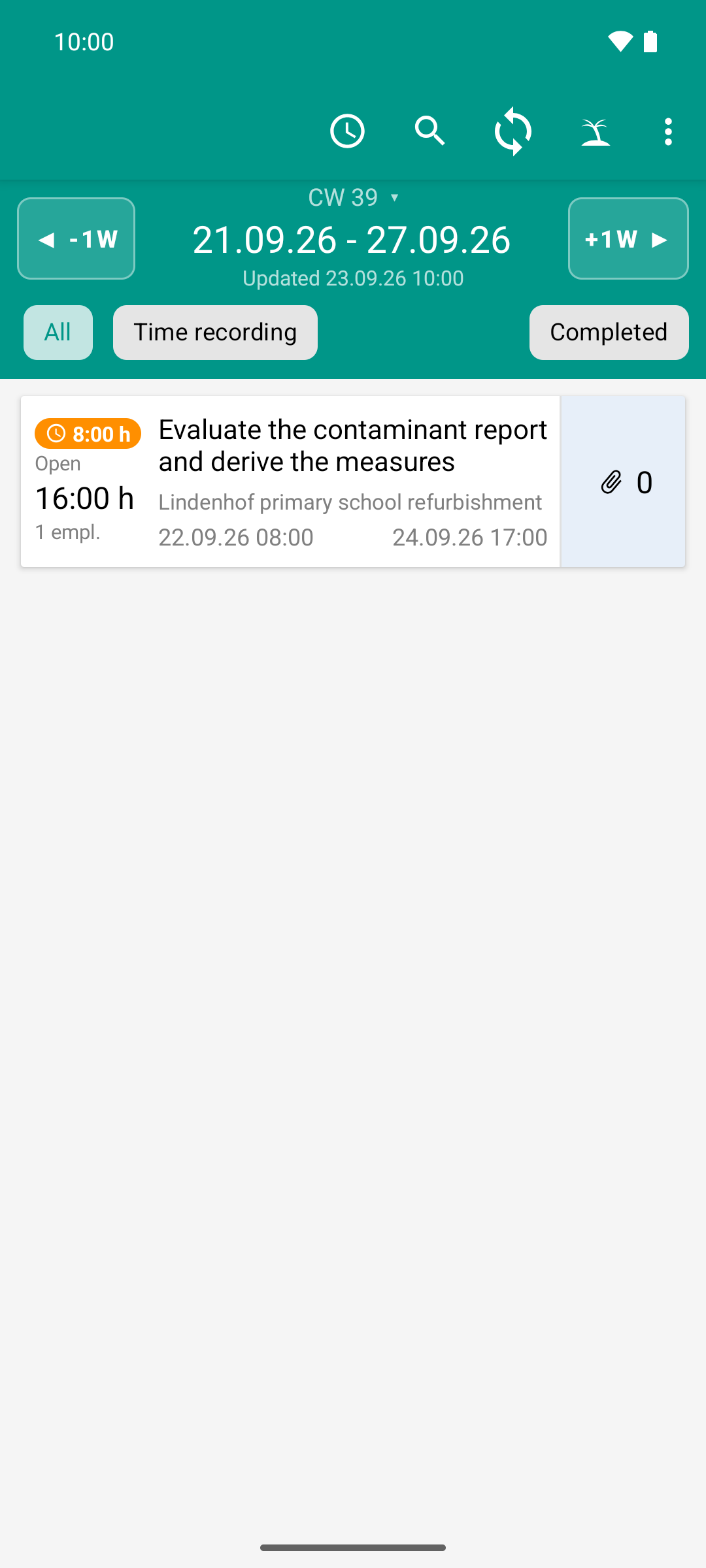
One day reported, and the list follows: the backlog drops from 16:00 h to 8:00 h, 16 instead of 24 hours stay open. What is left is today, Wednesday.
Good to know
Without network you report the same way. The report waits on the device, the sync counter in the header counts it, and it is sent the next time there is a connection (Working offline and synchronizing).
Reporting for several people? Then time recording shows a name bar at the top, see Report time for several people.
Several days of backlog? Swiping is faster, see Catch up on backlog.