Working offline and synchronizing
This page explains what Rillsoft Connect can do without network, when the app synchronizes its data with Rillsoft Integration Server and what happens to a report that does not get through.
The principle: stored data first, then the network
The app keeps everything you need for your work on the device. When you open a screen, it shows the stored data right away and at the same time asks the server whether there is anything new. If the answer comes, the display is updated. If it does not come, the stored data stays on the screen, and you keep working.
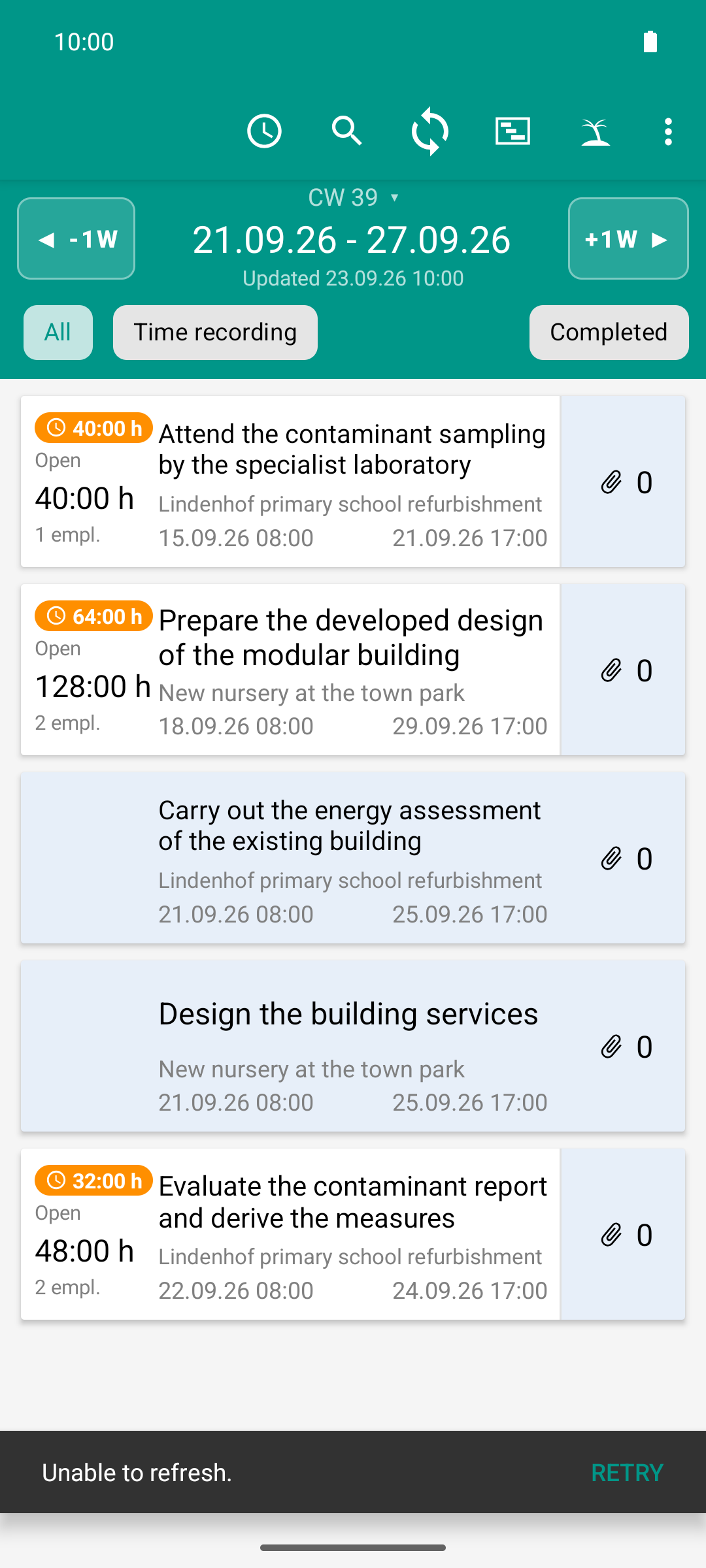
Without network the list stays - work goes on. The bar at the bottom says the refresh failed and offers to retry.
The first sync after signing in
After the first sign-in, the app fetches all data in one go. While this takes, the task list shows “Loading your data…” with a circular progress indicator, and the header shows “Loading…”.
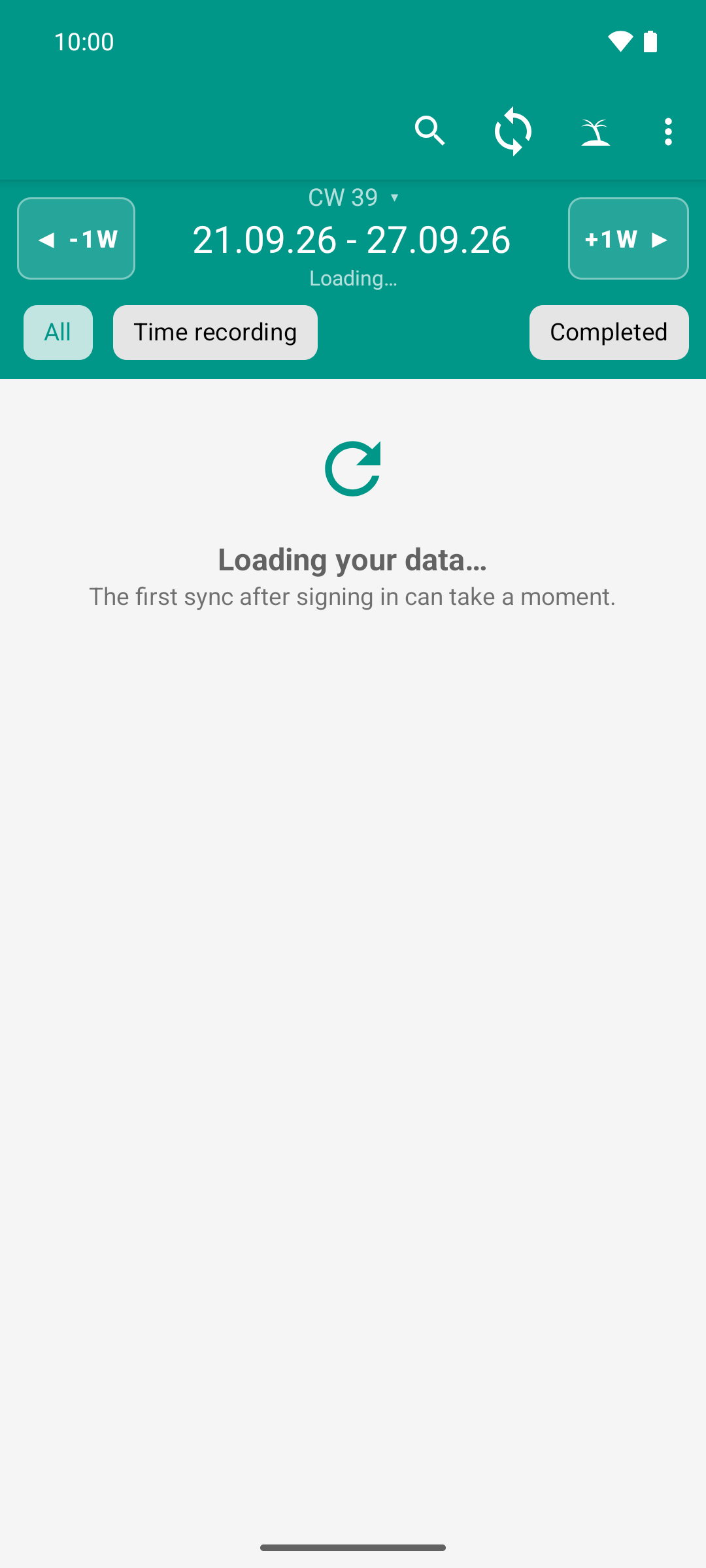
After the first login the app fetches the data. Instead of an empty screen it shows that work is in progress.
For the displayed period, this sync brings more than just the task cards:
the planned times and already reported times of all tasks you are allowed to report time on — including tasks you have never opened,
the details of the documents on the task, so that the counter in the blue column is correct (the app downloads the files themselves only when needed, see Photo quality and data usage),
your permissions, that is, which icons and actions the app offers you (see Permissions and what they hide).
If you load the task list once in the morning over Wi-Fi, you can therefore report time and review times on every task of this period during the day without network.
If the first sync fails, the progress indicator stays, and “Unable to refresh.” appears at the bottom with Retry.
When the app synchronizes
Occasion |
What happens |
|---|---|
You page to a different period |
If this period was last fetched less than an hour ago, the app shows it without asking the server. Otherwise it shows the stored data right away and fetches the new data in the background. |
You swipe down in the list |
The app always asks the server. |
You open the time recording of a task |
The app fetches the current state of this task, for example new confirmations. Without network, the stored data stays visible. |
You open the document list |
New documents are downloaded, photos left behind are uploaded. |
You open the vacation requests |
The app fetches the requests of the people you manage and the team’s vacation calendar. |
A report was transferred successfully |
All stored periods count as outdated and are fetched again the next time you page to them. |
The Updated line below the date range of the task list shows the last successful fetch.
Preload
With the Preload setting (Off, +4 weeks or +3 months; the default is Off), the app also fetches the upcoming periods in the background after a quick sync. The first time, it also takes along up to two weeks in the past that have never been loaded. After that, you page through these periods without waiting, even without network.
Preloading runs at most every 15 minutes. With Wi-Fi only (default: on), it does not use a metered mobile network. See Settings.
The queue
Everything you change in the app is saved on the device right away and put into a queue:
reported shifts and days,
reported remaining effort and notes,
approvals you gave without network,
photos and files you took, attached or deleted,
vacation requests you submitted or canceled.
The app transfers the queue on its own as soon as there is a connection. You do not have to do anything for this. The queue survives closing and reopening the app and also app updates.
The sync counter
The icon with the circular arrows in the top bar of the task list is the sync counter. Its number tells you how many changes have not reached the server yet. The number comes straight from the stored data: it shows what is really still pending, not what the app assumes.
Tap the sync counter to start the sync right away. Afterwards, a bar at the bottom reports “Synchronized” or “Synchronization failed” and, in case of an error, names the cause, for example “Waiting for network”.
Important
Counter gone does not mean confirmed. When the counter is empty, your report has reached the server. Whether it is also confirmed is only shown by the two ticks ✓✓. See The path of a report.
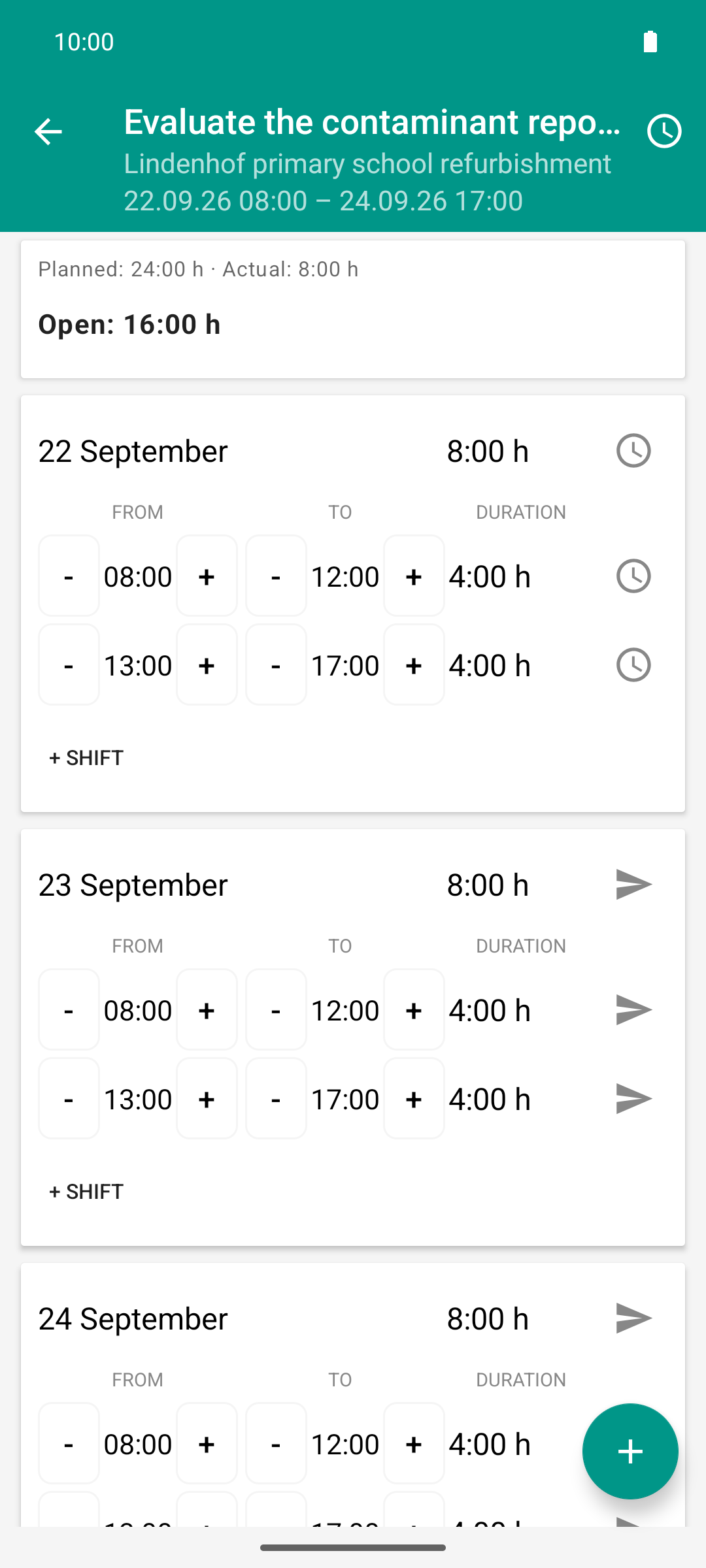
Reporting works without network too. The clock on both shifts says: the report is stored on the device and waits for the connection.
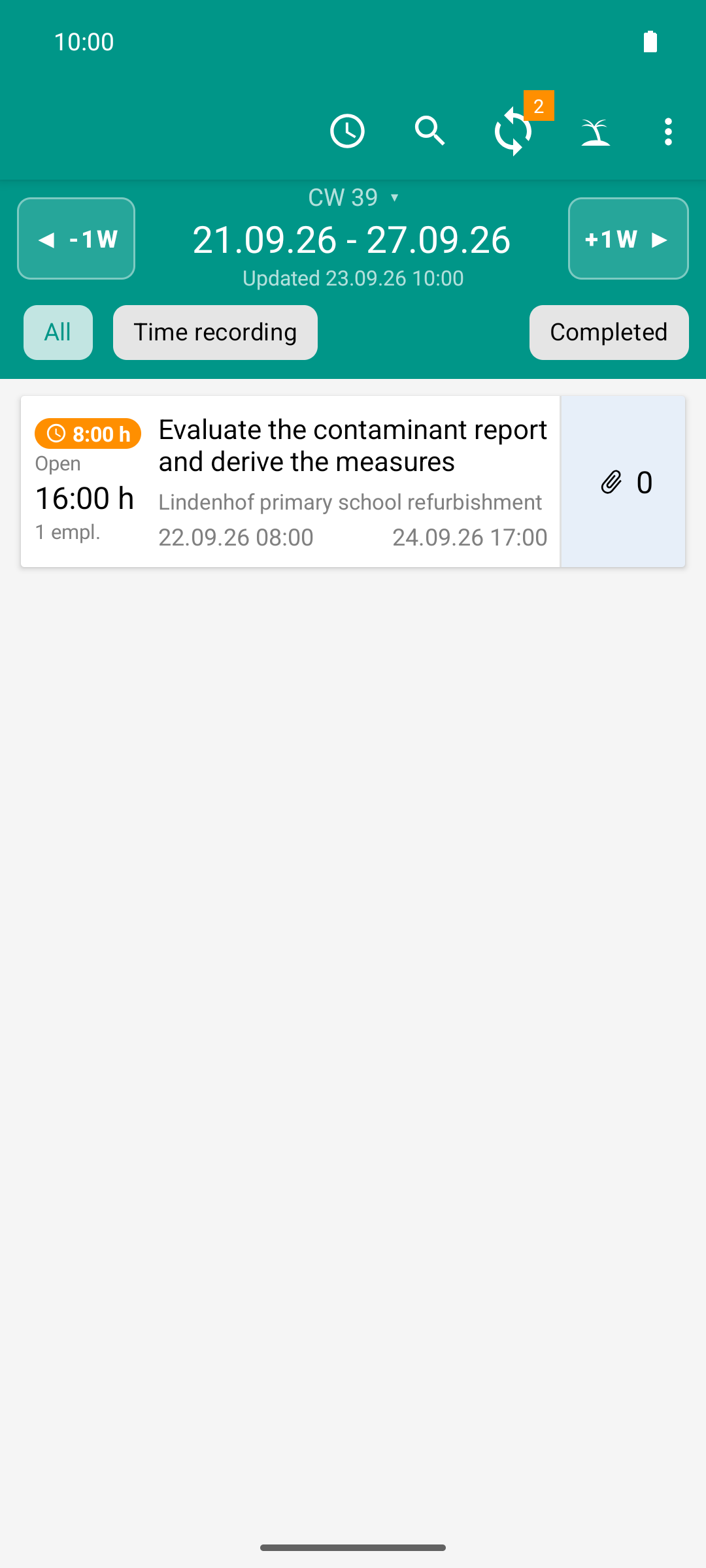
Back in the list, the sync counter keeps count: 2 shifts are waiting for the network. The backlog has still dropped from 16 to 8 hours already.
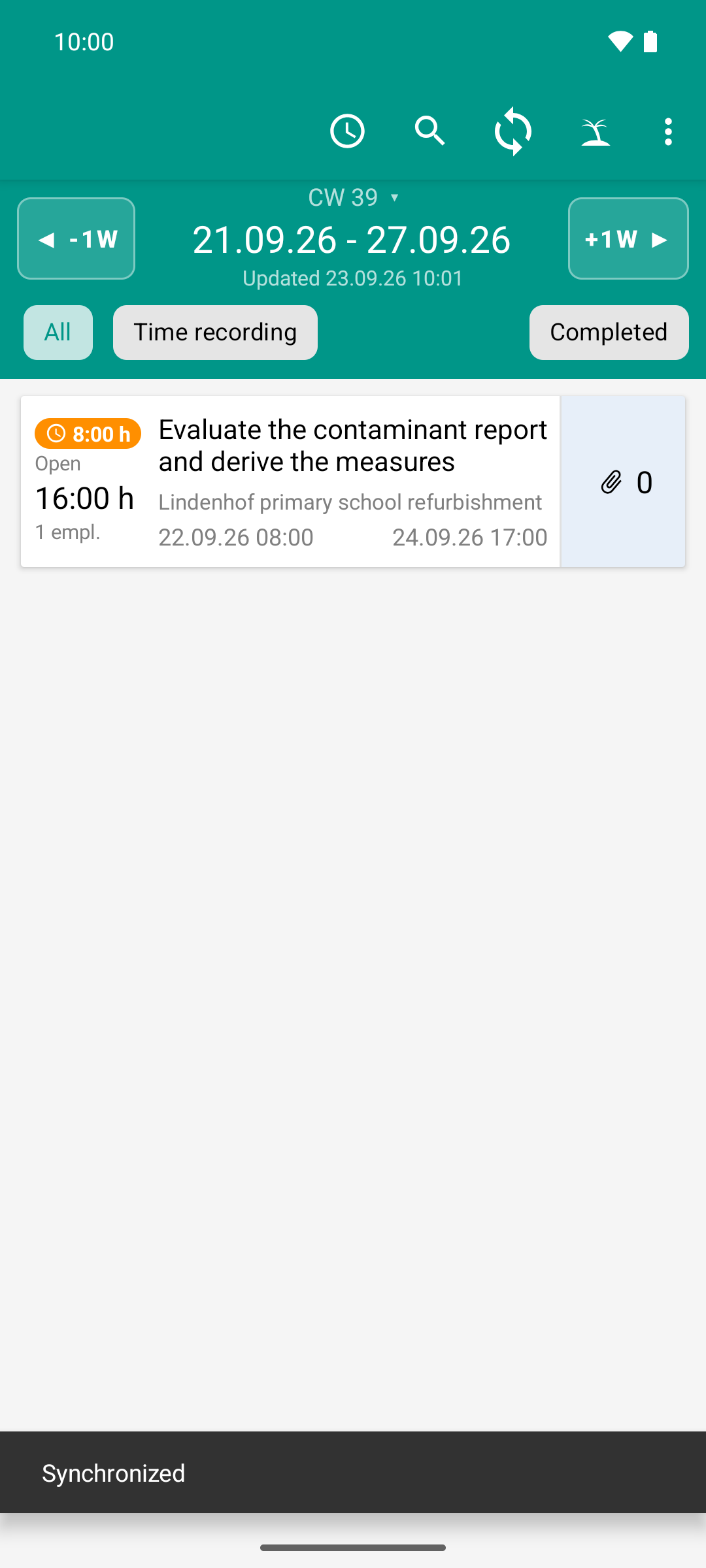
The network is back: a tap on the counter starts the sync, 2 waiting shifts become 0. The app would have done it on its own as well.
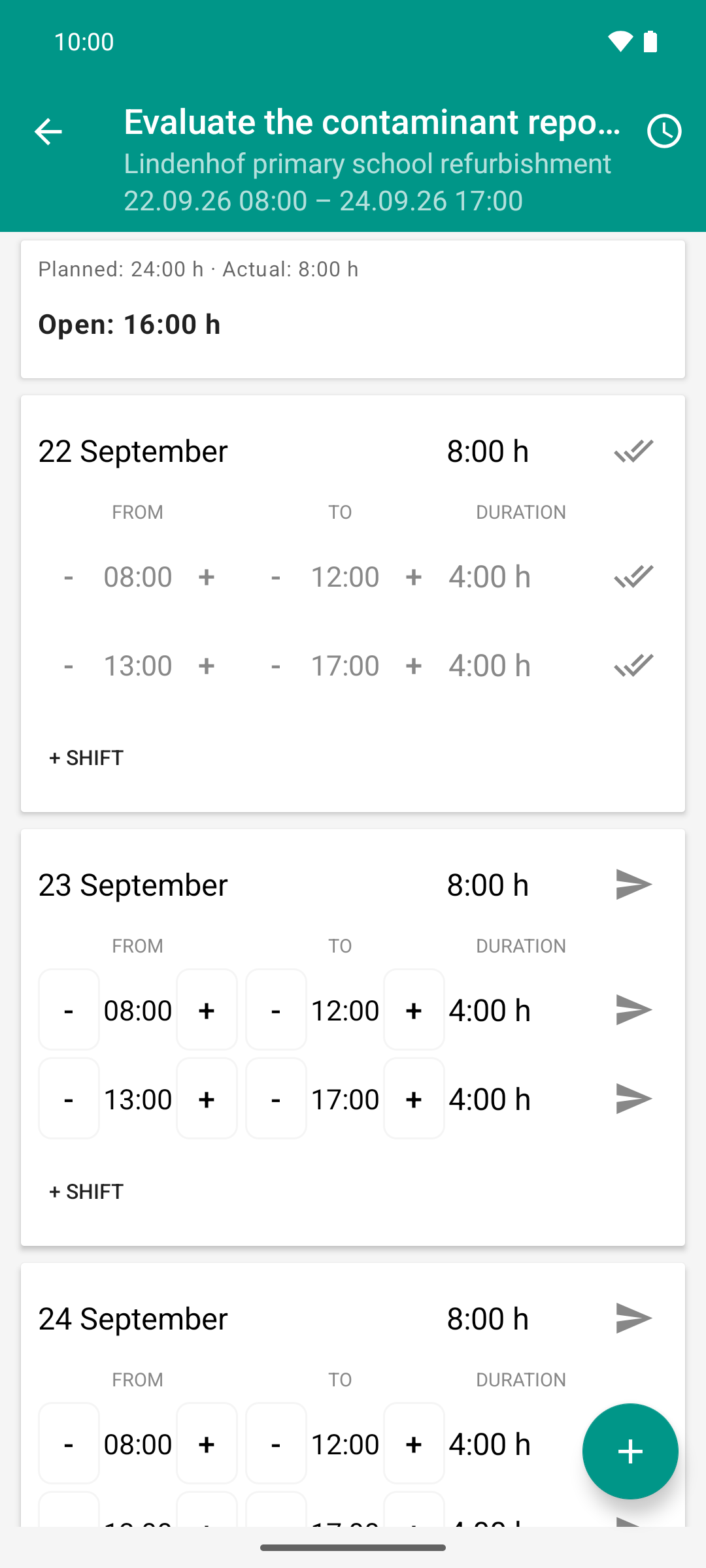
The same view as in image 1, the clock has become two ticks: the server has accepted the eight hours and, because they match the plan, confirmed them right away.
If a transfer fails
The app distinguishes two kinds of errors.
Temporary: no network, a poor network or a problem on the server. The change stays in the queue and keeps counting in the sync counter. The app retries on its own, at growing intervals, until the server answers again. Nothing is lost. If the connection drops in the middle of a transfer, the second attempt does not create a duplicate report: the day is replaced, not created again.
Permanent: the server has rejected the change. The app then does not try again, and the sync counter no longer counts it. So that nothing disappears silently, the app shows the rejection where it applies:
Area |
How you see the rejection |
|---|---|
Times |
The row stays red as “Report rejected”; the bar at the bottom gives the server’s reason. If the task was removed on the server, open reports are marked “Task was removed on the server”. |
Approvals given offline |
The approval is withdrawn. The times show up as open again and in the Approval filter. |
Photos and files |
The entry in the document list shows a warning triangle. The server’s message appears once as a short notice. |
Vacation requests |
The row shows “Failed” in red and the server’s message. You can swipe the entry away. |
An overview of all messages is in Messages and errors.
If your sign-in expires
The sign-in does not renew itself. If the server rejects the sign-in, the app takes you to the sign-in screen. All data not yet transferred stays on the device. After you sign in again, the next sync transfers it.
Sign out only with network
When you sign out, the app deletes the data on the device. That is why this only works with an internet connection, and the app tells you beforehand what has not been transferred yet. See Sign out and switch accounts.
Time of day and day boundary
The app calculates with the time and time zone of your device. A day ends at midnight local time. What “today” is, which week the task list opens and what counts as backlog therefore depend on the device’s clock.