View photos on the plan board
What you achieve: You see on the plan board which tasks have photos and documents, open them with one tap and, if needed, add the first photo.
Before you start
The plan board of a project is open (see Read the project plan on the tablet).
You have the permission to view documents. Without this permission, the Photos column offers nothing for tasks without documents.
Steps
Look at the Photos column of the table (header: paper clip). A paper clip with a number, for example “3”, gives the number of documents. A pale camera icon with a plus means: nothing there yet.
Tap the cell of a task with a number. The document list of the task opens directly.
Or tap the cell with the camera icon. The empty document list opens with the note “No documents yet”; at the bottom are the buttons for document, gallery and photo.
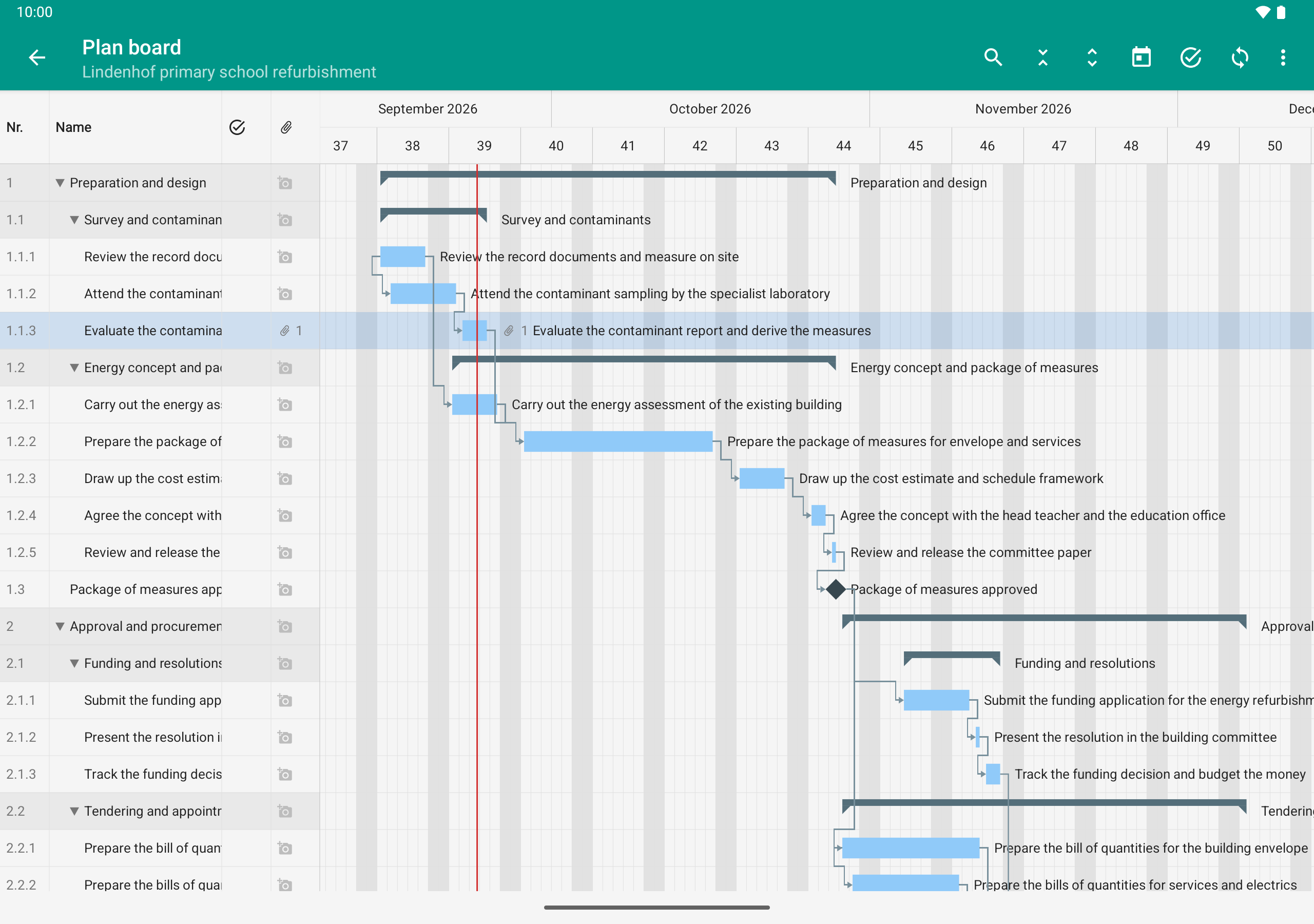
After the approval the 1 in the approval column is gone; the 1 for photos stays. The search is closed, the row it found stays highlighted.
Result
You see the photos and documents of the task with file name, description and creator, or you take the first photo. With Back you return to the plan board.
Good to know
The same number also appears in the chart, directly at the end of the bar before the name.
The same route exists via the detail view: tap the bar, then Open photos (n).
The plan board loads the number automatically when you choose a project or refresh the plan. Without network, the last state stays until the next refresh.
Subprojects can have photos, too.