Report a day as planned
What you achieve: You report the planned times of a day as worked time with two taps.
Before you start
You are assigned to the task as an employee.
You have the permission to report time. It is granted in Rillsoft Integration Server (Roles and permissions).
There are planned shifts for the day. If the day is missing, add it (see Good to know).
Steps
In the task list, tap the task card, on the name of the task, not on the right column with the paper clip. Time recording opens directly, without choosing a person.
Find the day. Each planned shift is a row with From, To and Duration, with the paper plane (Send) to the right.
Report:
the whole day: Tap the paper plane in the header row of the day, next to the day total. All open shifts of the day are reported at once.
just one shift: Tap the paper plane in the row of that shift.
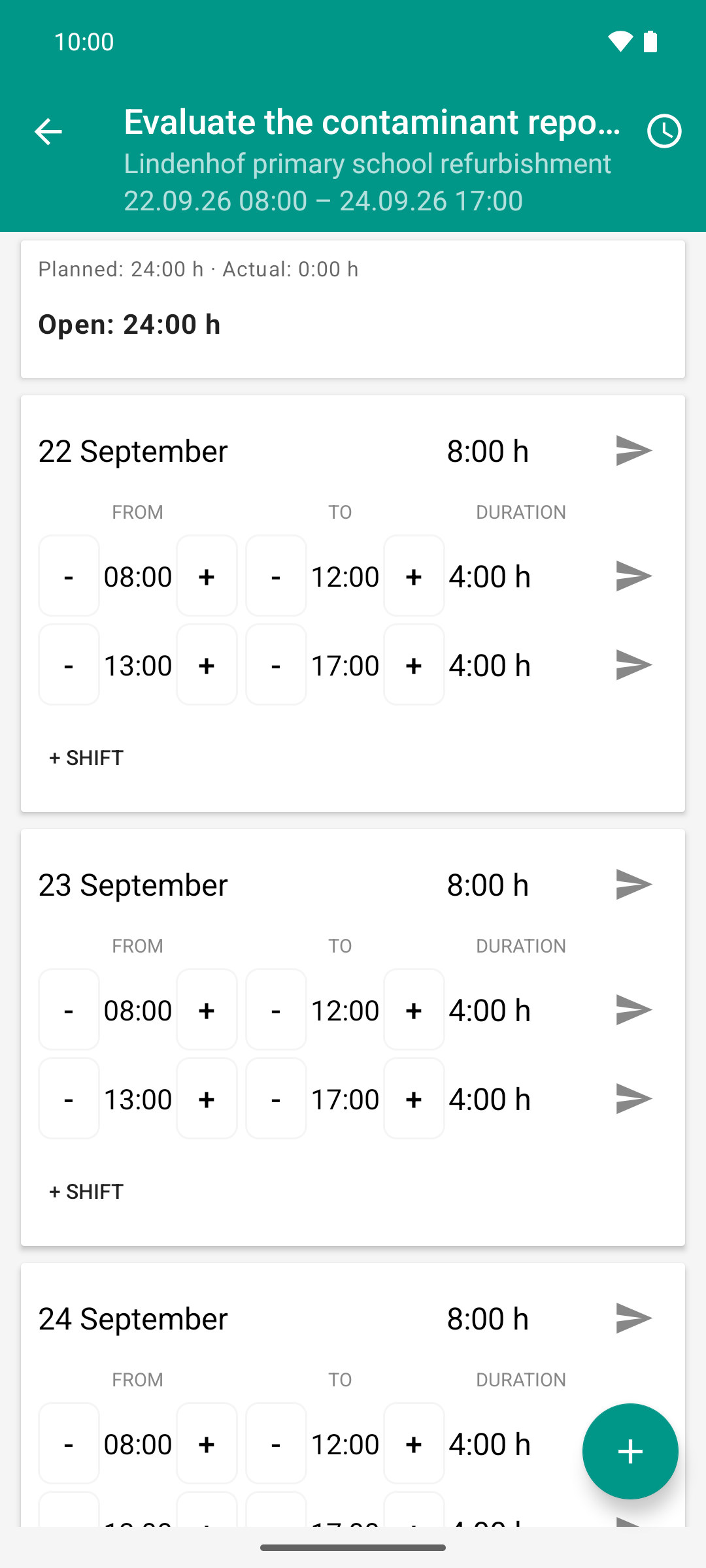
Tuesday before anything is reported: the plan expects eight hours, actual is 0:00 h, the full 24:00 h of the task are open.
Result
Instead of the paper plane, the shift first shows a clock (waiting for transfer), then a tick ✓ (received by the server, waiting for approval).
If the report matches the plan, the server can confirm it right away: then two ticks ✓✓ appear at once, and the rows are grayed out and locked. Whether this happens depends on a setting of your tenant (see Automatic approval).
At the top, in the effort card, Actual rises by the reported hours, Open drops accordingly.
In the task list, the orange backlog field on the card disappears as soon as everything up to today is reported.
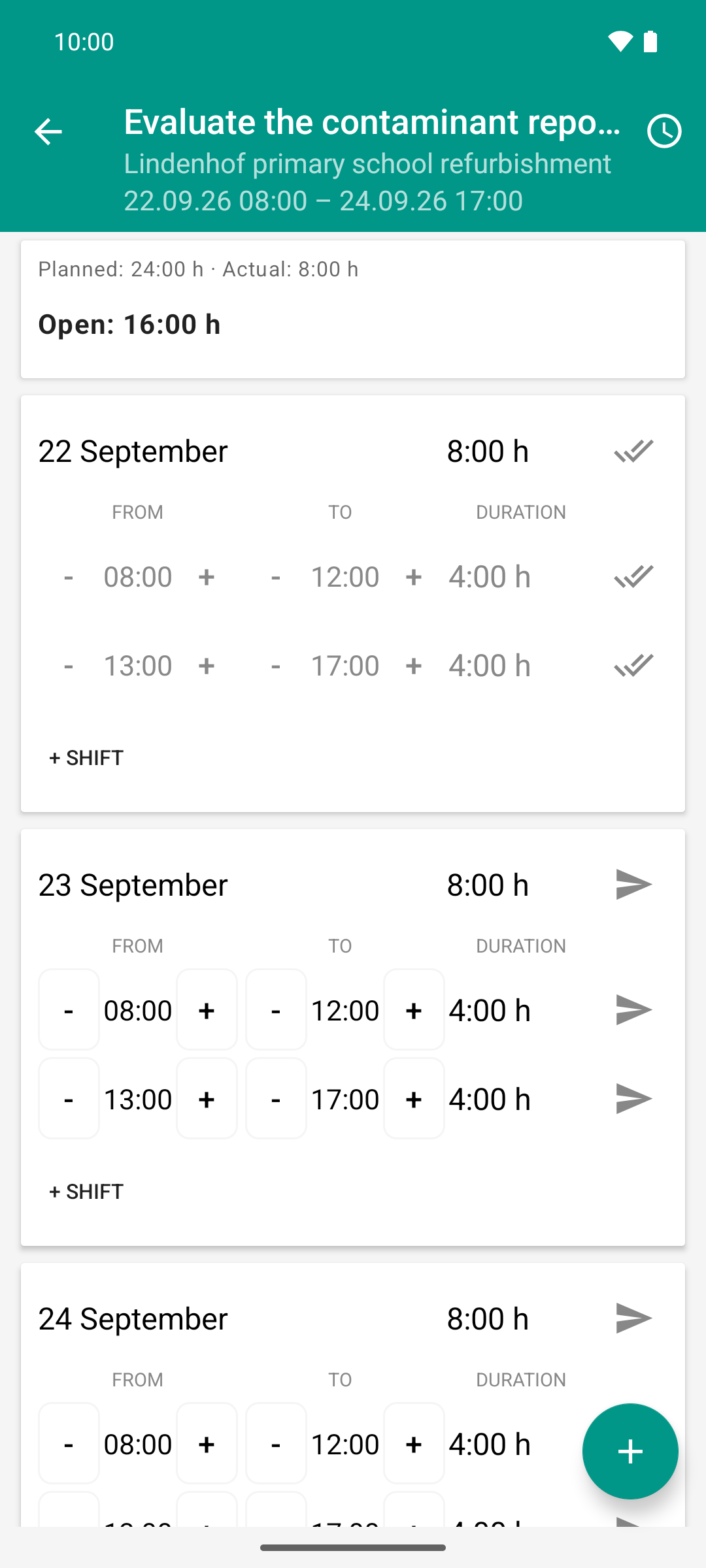
One tap on the day arrow reports the day as planned. Compared to image 1, actual rose from 0:00 h to 8:00 h - and the double tick shows it is already approved, without the team lead stepping in.
Good to know
The icon in the header row of the day always shows the weakest status of all shifts of the day. If one shift is still open, the paper plane stays there.
Day missing: Tap the round + button at the bottom right and pick the date (today is preset). The app creates the shifts following the pattern of the day recorded last. If there is no shift yet, it uses the default workday from the Settings (preset 08:00–12:00 and 13:00–17:00). These shifts are only drafts: the server only receives what you report with the paper plane.
Without network, the app still accepts the report and transfers it as soon as there is a connection again. The sync counter in the top bar of the task list shows how much is still pending.
If the day differs from the plan, change the times with - and + before sending (see Report overtime and have it approved and Correct a shift).