Approve or reject vacation
What you achieve: As a supervisor, you decide on a vacation request from your team, directly in the app.
Before you start
You have the permission to approve vacation in Rillsoft Integration Server, and the person belongs to your area in vacation planning. Permissions and assignments are maintained by the administration of Rillsoft Integration Server.
Without this permission, you cannot tap a request in the app, and there are no buttons to decide.
Steps
In the header of the task list, tap the palm tree (Vacation Request).
Tap an open request, that is, one with the status Requested. The decision view opens from the bottom: period with workdays, name and type, the requester’s note and the buttons REJECT and APPROVE.
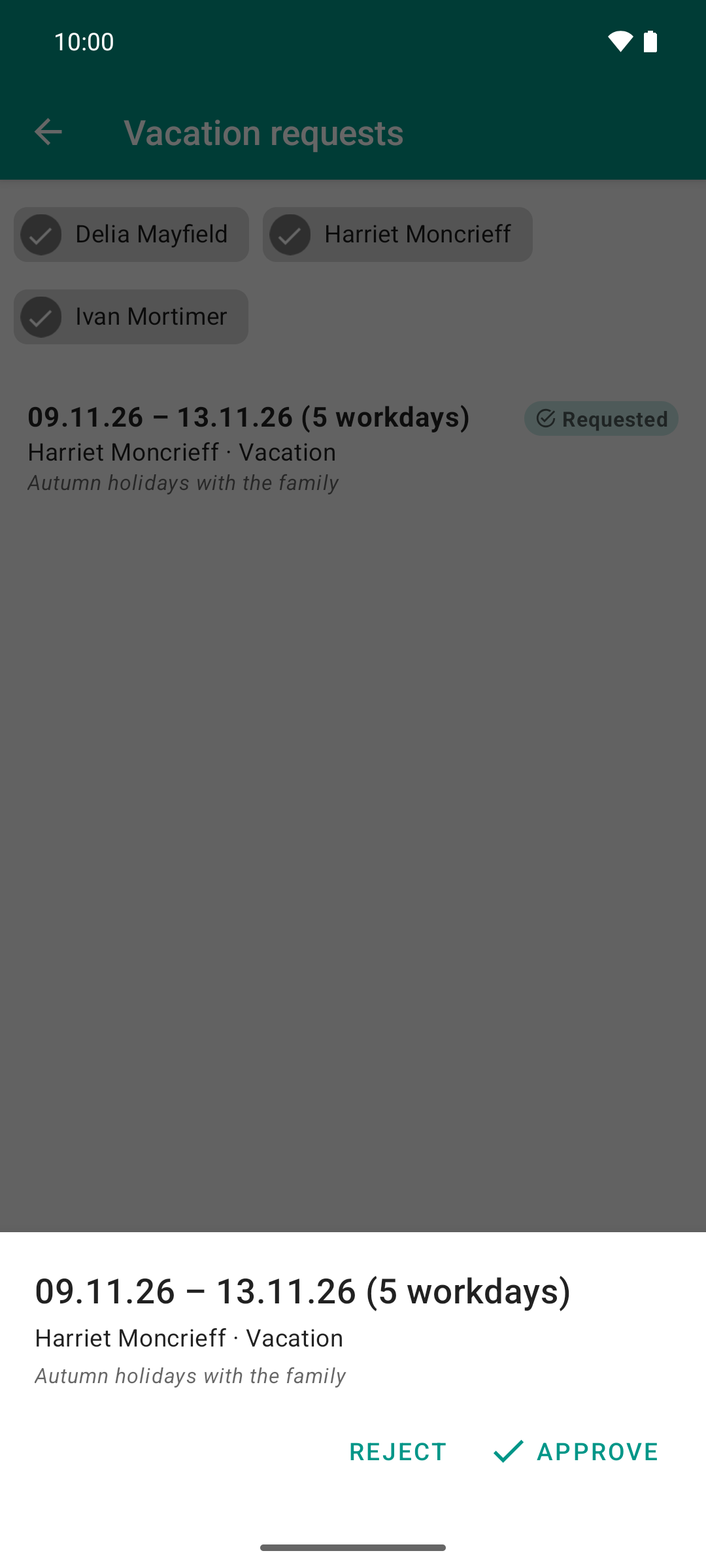
The role changes: the team lead taps the open request and decides in the same app. Rejecting needs a reason, approving does not.
Tap APPROVE — or REJECT. A rejection requires a reason; without one, the request is not rejected.
Result
The new status, Approved or Rejected, appears on the right of the row. A reason appears below the note, starting with “Reply:”. The requester sees the same state after their next sync.
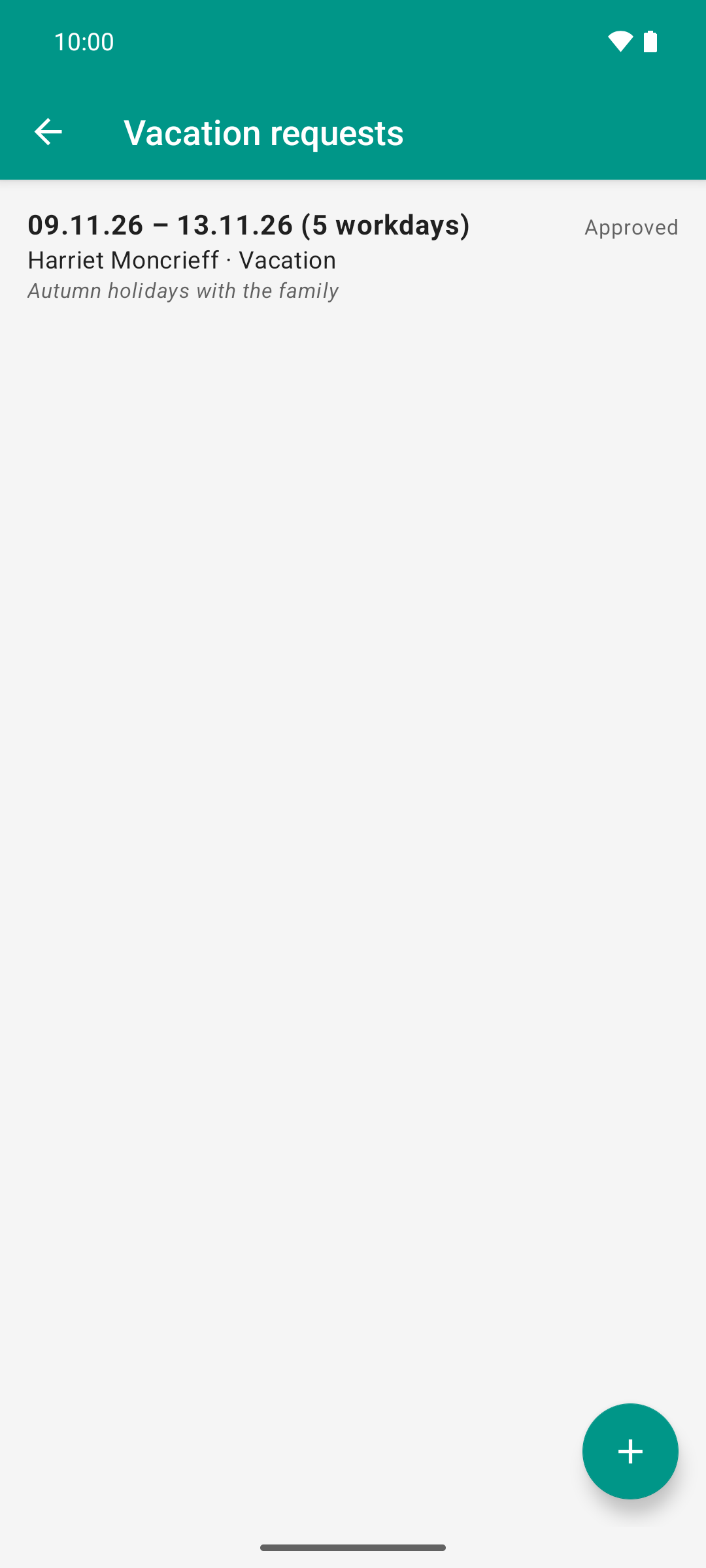
After the pull-to-refresh it says “Approved” instead of “Requested”. Compared to image 2 exactly one word changed - the decision from image 3.
Good to know
Without network, the app remembers your decision and sends it at the next sync.
Already decided on the web? The same request can also be decided on the web in Rillsoft Integration Server (Vacation in Rillsoft Integration Server). If the request has already been decided there, the app takes back your decision, reloads the list and shows the server’s state.
Requests from people outside your area in vacation planning appear neither at the top nor under “Team vacations”. This is intended.
The supervisor’s view
If you manage vacation for several people, your vacation list looks like this:
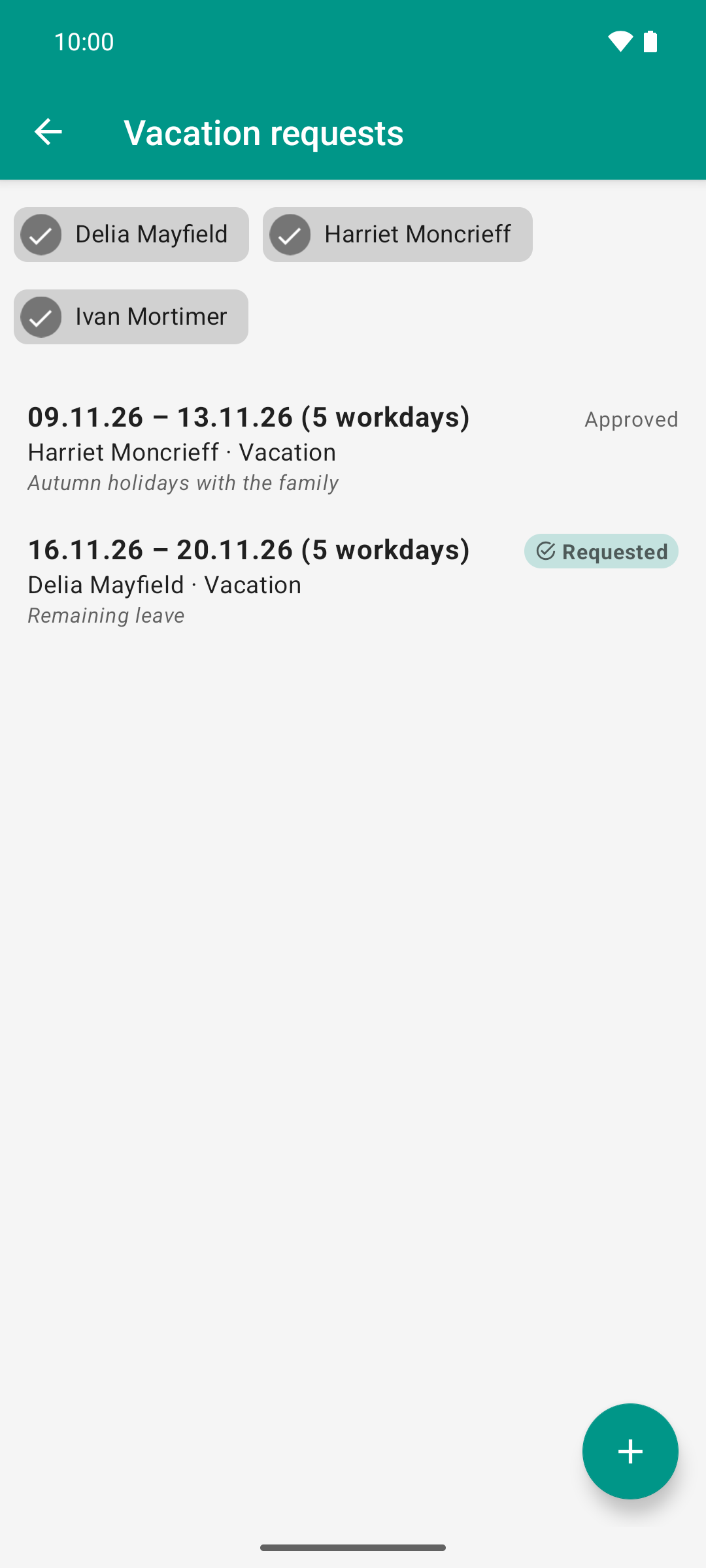
The team lead sees the team’s requests in one list, with workdays and approval status.
Name bar at the top: one name chip for each person you manage.
Tap hides this person’s requests; tapping again brings them back. The other people stay visible.
Press and hold opens the single view of this person; their name then appears below the title in the header.
Upper block: the requests of all people you manage, sorted by start date. You can edit these rows like your own: request vacation for these people and, with the permission to do so, cancel.
Team vacations: below, shown paler, the absences of colleagues you do not manage yourself. Read-only. Anyone already listed at the top does not appear here again. If there are no such entries, the block is missing.