View documents
What you achieve: You view the photos and files of a task, including those the project lead has uploaded, and see which of them are new.
Before you start
You have the permission to view documents. Permissions are granted by the administration in Rillsoft Integration Server. Without the permission, the blue-tinted column is missing on the task card.
For documents that are not yet on the device, you need a network.
Steps
In the task list, tap the blue-tinted column of the task card. The number in it counts all documents, including new ones.
In the document list, new documents first show ⬇ and an empty field instead of the thumbnail. The app loads them automatically. Afterwards they show a blue dot ● (loaded, not yet viewed).
Tap an entry:
An image opens in the app’s image viewer. At the top are the file name and description.
Any other file, for example a PDF, opens in the matching app on the device.
In the image viewer, zoom with two fingers. Swipe left or right to move to the next or previous image in the list.
The arrow at the top left takes you back to the list.
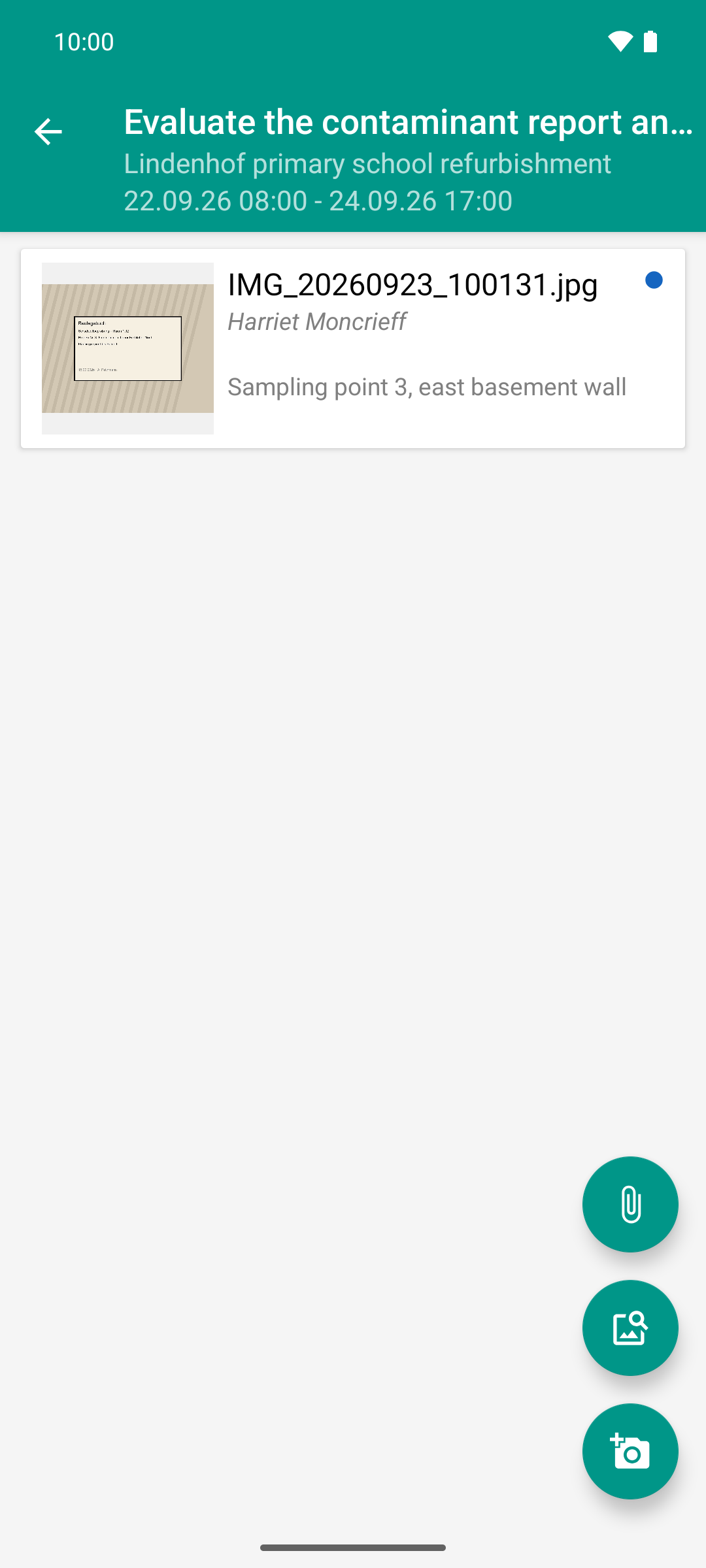
The role changes: the photo has reached the project lead, with Moncrieff as the author. The tick has become a blue dot, which means new, not yet viewed.
Result
Every document you open counts as viewed: ● becomes ✓.
Every image you swipe to in the image viewer also counts as viewed. The blue dot in the list shows which ones are still open.
Good to know
If you tap an image before it is loaded, the app shows the note “Photo is still downloading.”. Wait until ● appears.
Below the file name you see who uploaded the document. For your own photos that have not been transferred yet, this line is missing.
Swiping only moves between images if the image is not zoomed in. In a zoomed image, swiping moves the visible section. At the start and end of the list nothing happens.
The image viewer only moves through images that are already on the device.
If there is no app on the device for the file type, the app shows a note.
Without network you only see what is already on the device. How the app preloads documents and clears old files from the device is described under Photo quality and data usage.
In the image viewer you can change the description, replace the photo or delete it, see Describe or replace a photo.