Attach and delete files
What you achieve: You attach an image from the gallery or any file, for example a PDF, to a task. You delete entries that do not belong there – one at a time or several at once, with the option to undo.
Before you start
The document list of the task is open (tap the blue-tinted column of the task card, see Take a photo for a task).
You have the permission to create or delete documents. Permissions are granted by the administration in Rillsoft Integration Server.
Steps
Attach an image from the gallery
At the bottom right, tap the round button with the image icon (the middle one of the three buttons).
If Android asks for permission, allow access to your images.
Select the image.
Attach a file
Tap the round button with the paper clip (the top one of the three buttons).
The Android file picker opens. Select the file.
Delete one entry
Swipe the entry in the document list to the left.
At the bottom, the bar Deleted: 1 appears with the action Undo. If you want to keep the entry, tap it.
Delete several entries
Press and hold an entry. The header shows Selected: 1.
Tap further entries or choose Select all.
Tap Delete. The bar Deleted: with the count and Undo appears.
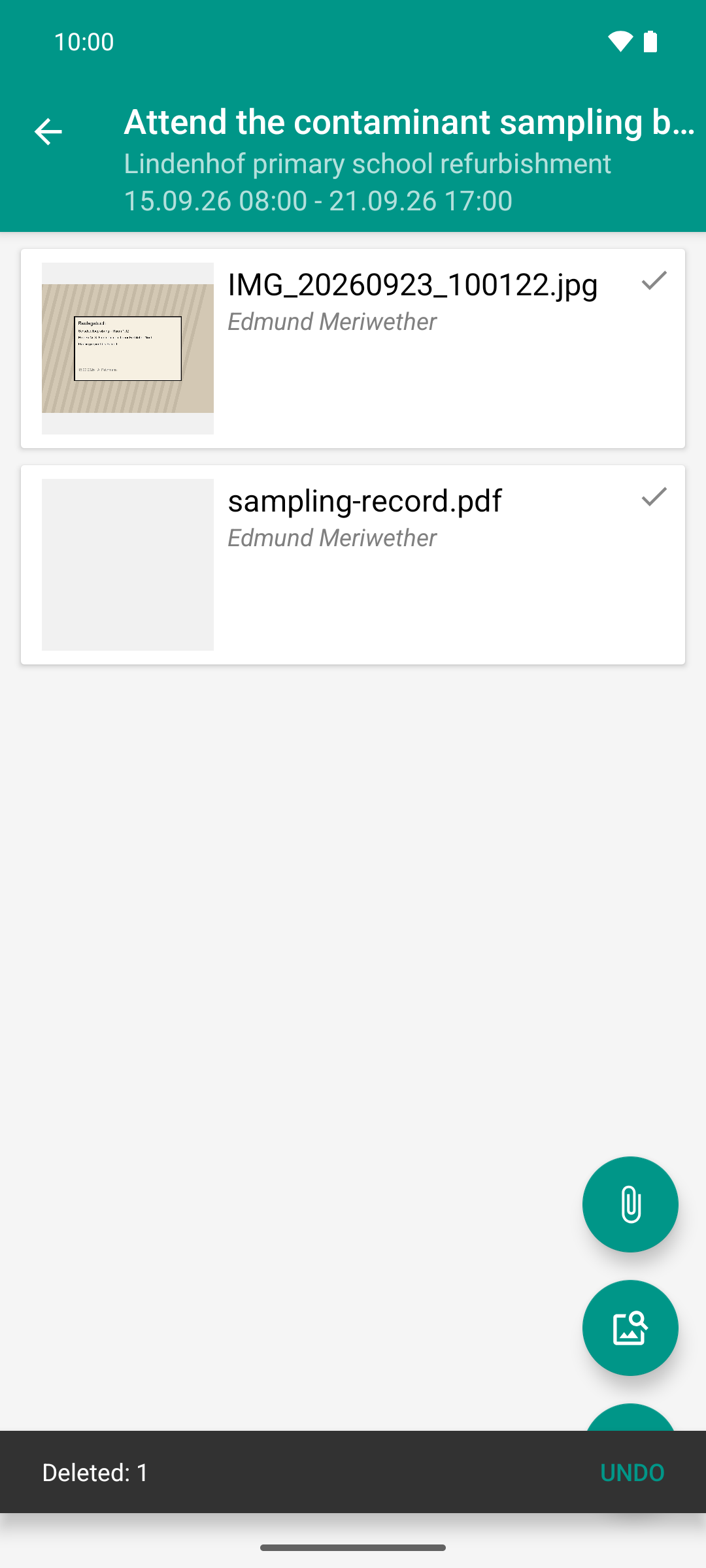
Files can be attached to the task next to photos, with their original name. A swipe to the left deletes; while the bar is shown, “Undo” brings the entry back.
Result
An attached image or file appears in the list right away, with the clock and the bar Saved · Describe, just like a camera photo. After the transfer it shows a tick ✓.
A file keeps its original name and is transferred unchanged. The app reduces images from the gallery like camera photos, according to the setting Photo quality.
Deleted entries disappear from the list, and the number on the task card goes down.
With Undo everything is back, unchanged on the device and on the server. When the bar expires, the entry is also deleted on the server at the next sync. The document is then gone for the project lead, too.
The icons in the document list
On the right of each entry, an icon shows the state:
Icon |
Meaning |
|---|---|
Clock |
The transfer to the server is still pending, for example because there is no network. |
Warning triangle |
The server has finally rejected the transfer, for example because of an unsupported file type or a file that is too large. The server’s message appears briefly on the screen once. |
⬇ |
The document is known but not yet loaded onto the device. |
● (blue dot) |
Loaded but not yet viewed. |
✓ |
Transferred and viewed. |
Good to know
A tap on an image opens the app’s image viewer; a tap on any other file (for example a PDF) opens the matching app on the device. See View documents.
If you pull the list down, the app fetches the latest state from the server and transfers whatever is still pending.
New attempt after a warning triangle: If the server has rejected an uploaded document, a changed description or Replace starts a new attempt (see Describe or replace a photo). If loading onto the device failed, pull the list down.
Deleting without network: The deletion waits until the network is back.
If the server rejects a deletion, for example because the permission is missing, the entry reappears with an error text. The document is then not deleted.
You can also delete single photos in the image viewer with Delete.