Request vacation and track the status
What you achieve: You submit a request for vacation, special leave or sick leave directly in the app and see there whether it is requested, approved or rejected.
Your supervisor decides on the request, in the app or on the web in Rillsoft Integration Server.
Before you start
You have the permission to enter vacation in Rillsoft Integration Server. Without a vacation permission, the Vacation Request icon (a palm tree on an island) is missing entirely from the header of the task list. Permissions are granted by the administration of Rillsoft Integration Server.
The type Sick leave only appears if you also have the permission to enter sick leave.
You do not need a network connection to save. The request is sent at the next sync.
Steps
In the header of the task list, tap the palm tree (Vacation Request). The list of your requests opens. If it is empty, it says “No vacation entries.”
At the bottom right, tap the plus button. The dialog New vacation request opens.
If you manage vacation for several people, choose the person under Employee. If you only enter vacation for yourself, this field is missing.
Choose the Type: Vacation, Special leave or, with the corresponding permission, Sick leave.
Use the calendar icon to choose From (first day of vacation) and To (last day of vacation). If the end is before the chosen start, it moves along.
Enter a Note if needed. It is optional.
Tap SAVE.
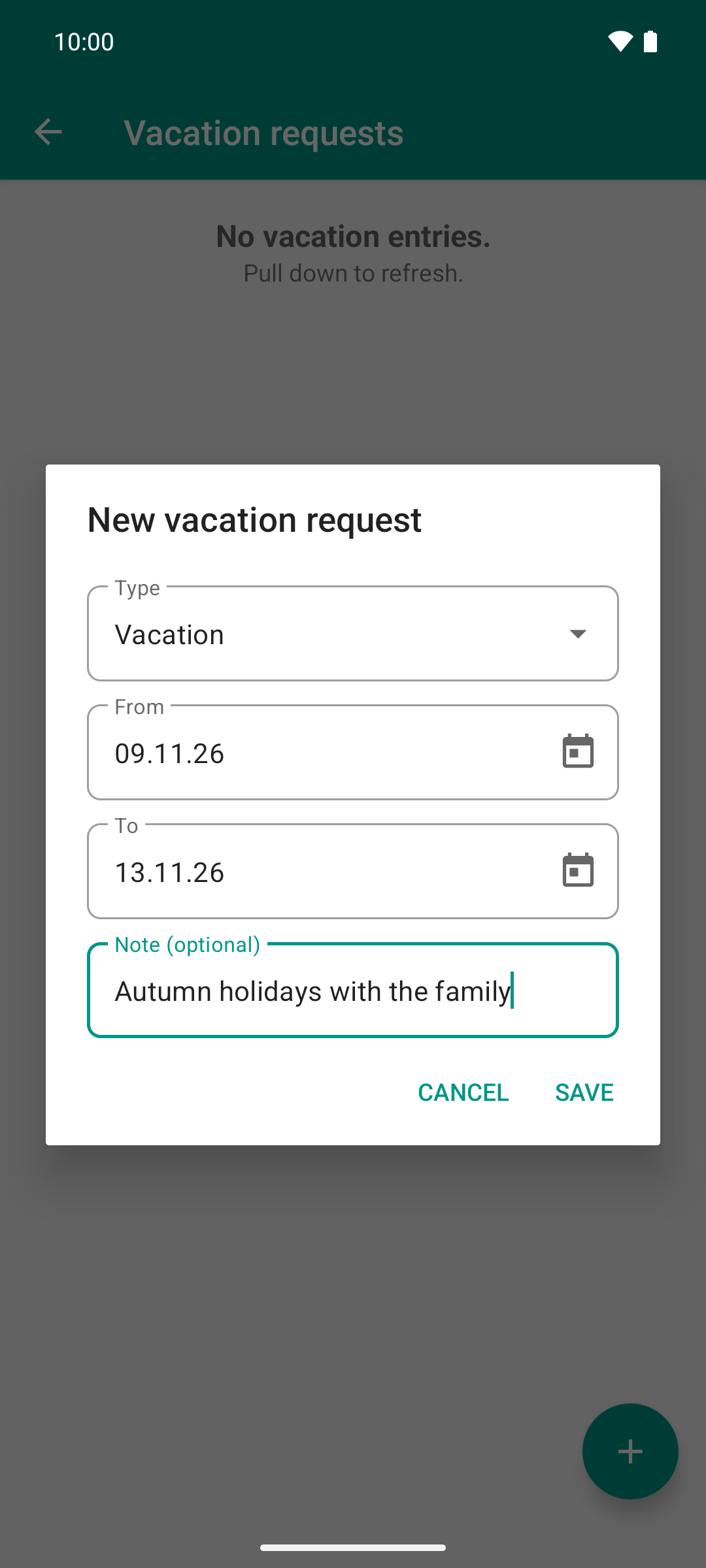
The request takes four fields. The workdays are counted by the server, not by the app.
Result
The request appears in the list right away, even without network: period, “Name · Type”, your note and, on the right, the status Requested. The sync counter in the header of the task list includes the request until it is sent.
After the sync, the number of workdays appears after the period, for example “(5 workdays)”. This number is calculated by Rillsoft Integration Server; as long as it is missing, the request has not arrived yet.
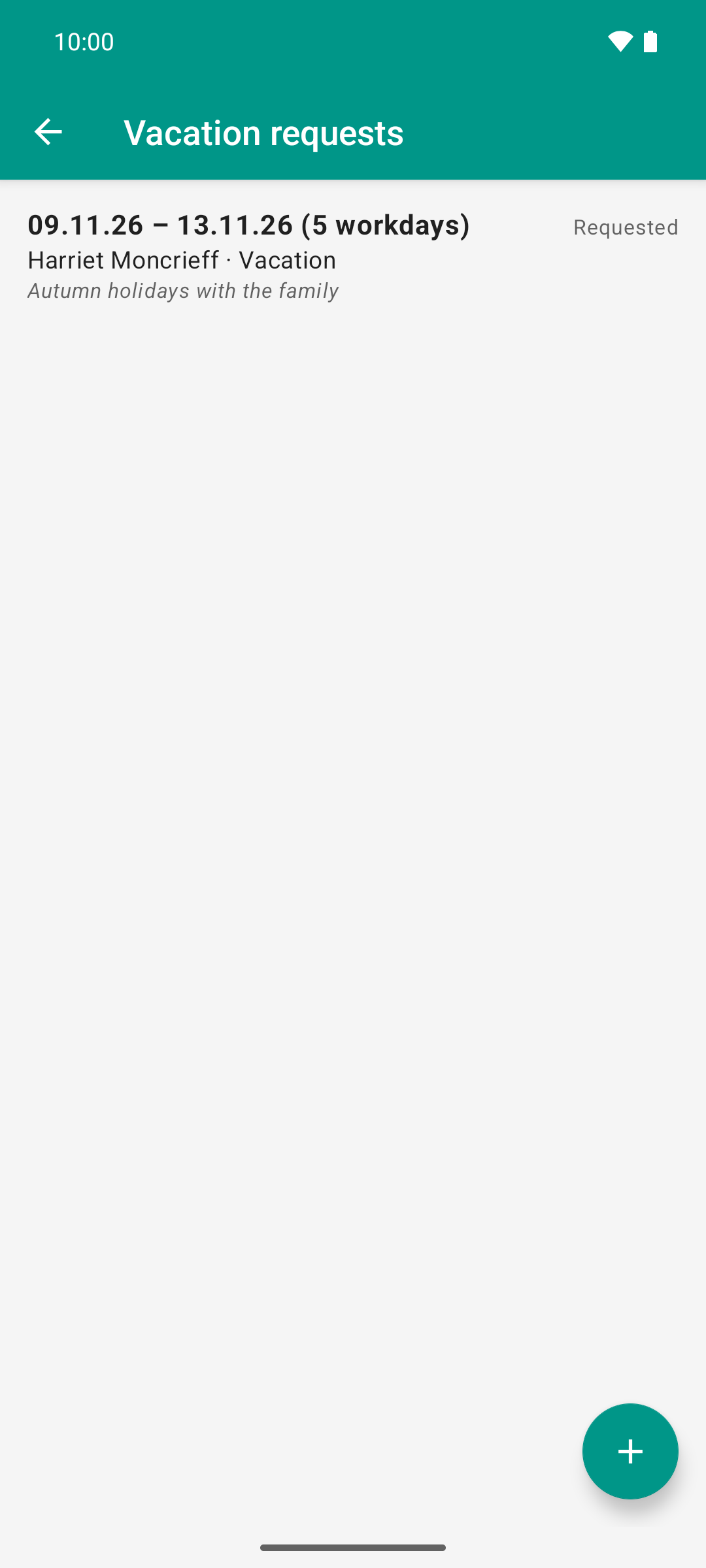
Saved means requested: the server accepted the request and counted five workdays. Nothing is decided yet.
Your supervisor decides on the request, in the app or on the web in Rillsoft Integration Server (Approve or reject vacation).
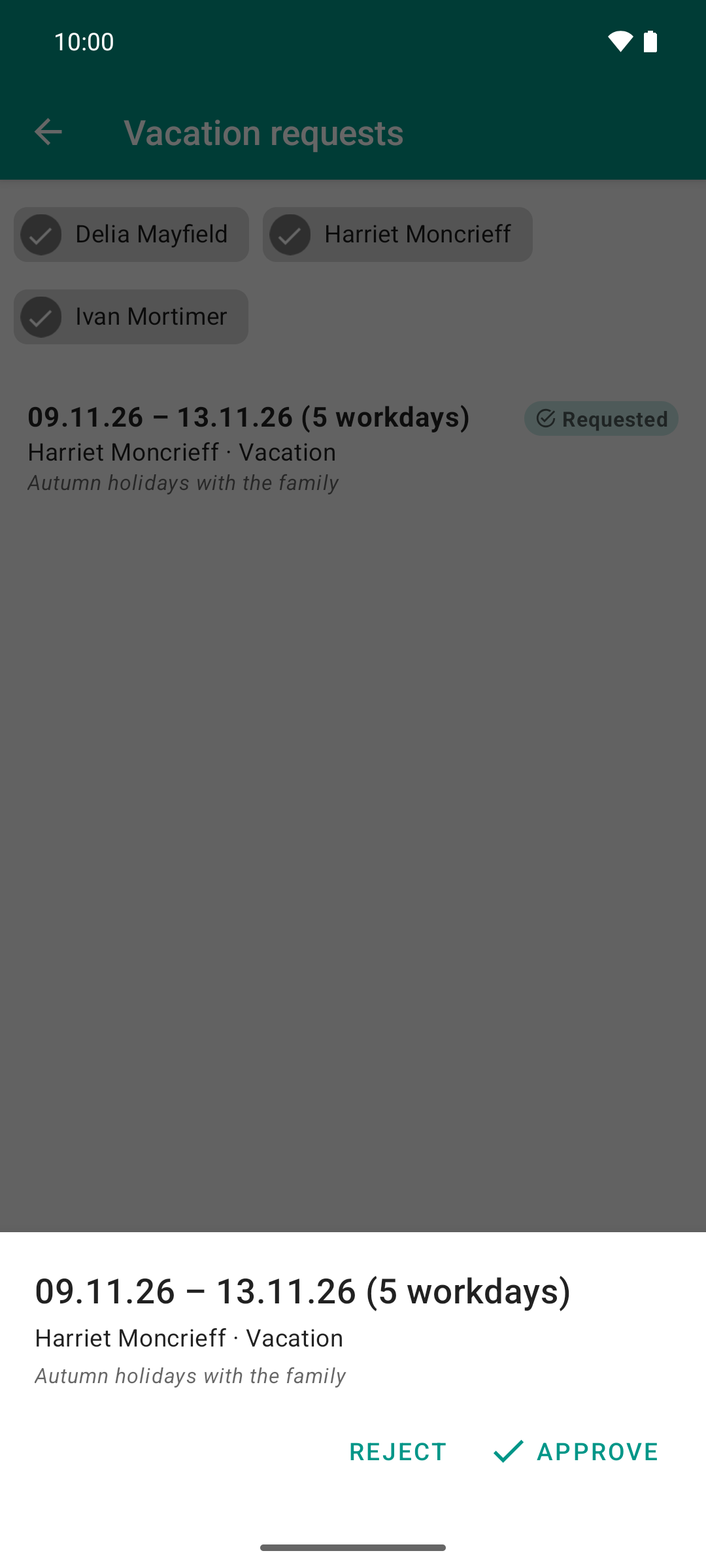
The role changes: the team lead taps the open request and decides in the same app. Rejecting needs a reason, approving does not.
Pull the list down to load the latest state. The right side then shows Approved or Rejected, and a reply comment appears below the note, starting with “Reply:”.
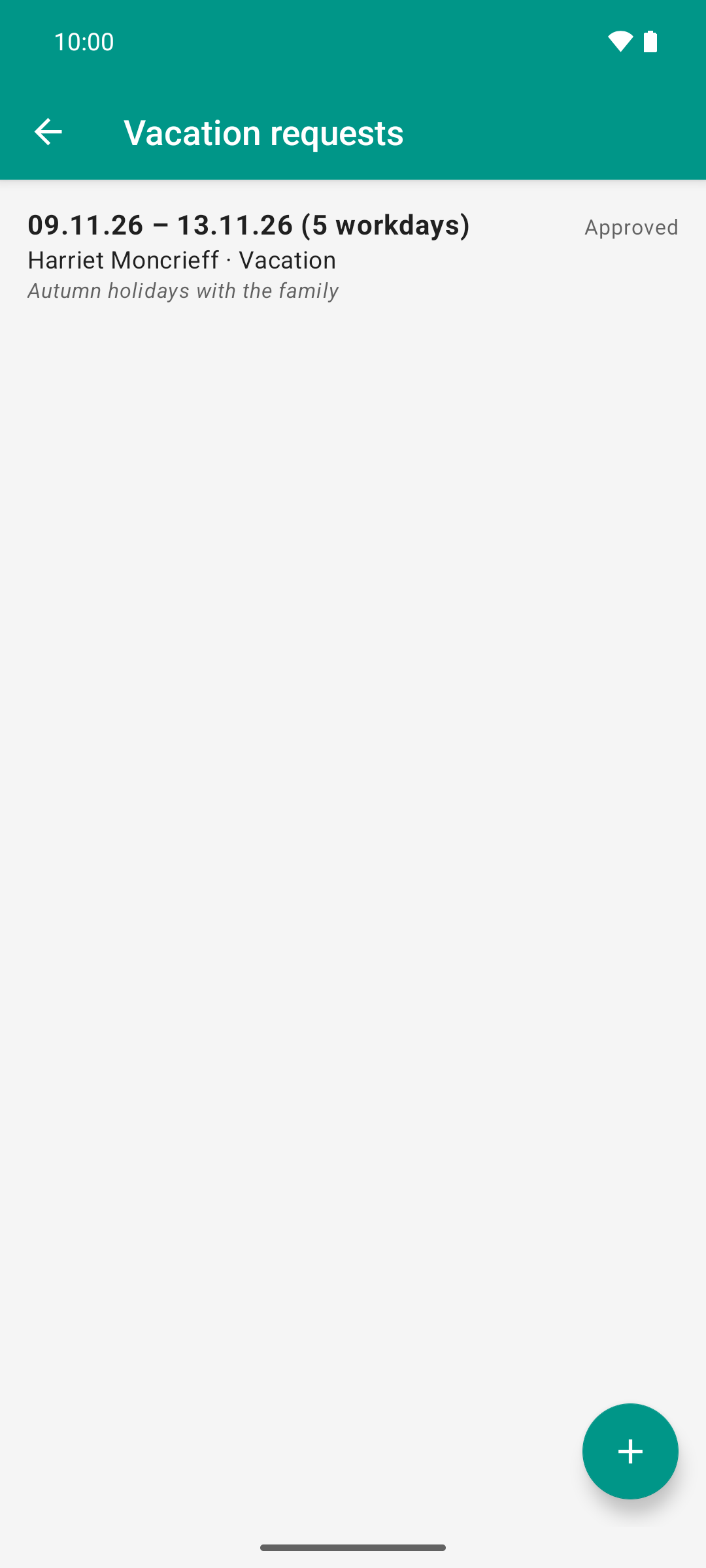
After the pull-to-refresh it says “Approved” instead of “Requested”. Compared to image 2 exactly one word changed - the decision from image 3.
Good to know
SAVE stays disabled as long as the request is not valid. The reason is shown below the fields:
“Start date is after the end date.”
“Start date is in the past.”
“Overlaps an existing request.” – of the same person. Rejected and canceled requests do not count.
Colleagues in the same period: If colleagues from your team already have vacation entered or requested in the chosen period, the dialog shows a note, for example “1 colleague is on vacation in this period.” Rejected and canceled requests do not count, and anyone with several entries in the period counts once. This is only a note; you can still save.
“Failed” in red: If Rillsoft Integration Server rejects the request when it is sent, Failed appears on the right in red, with the server’s message above it (“Rejected by server: …”). This happens, for example, if an entry already exists for the same period that the app could not know about offline. The app then does not try again. Swipe the row away and submit the request again with a different period.
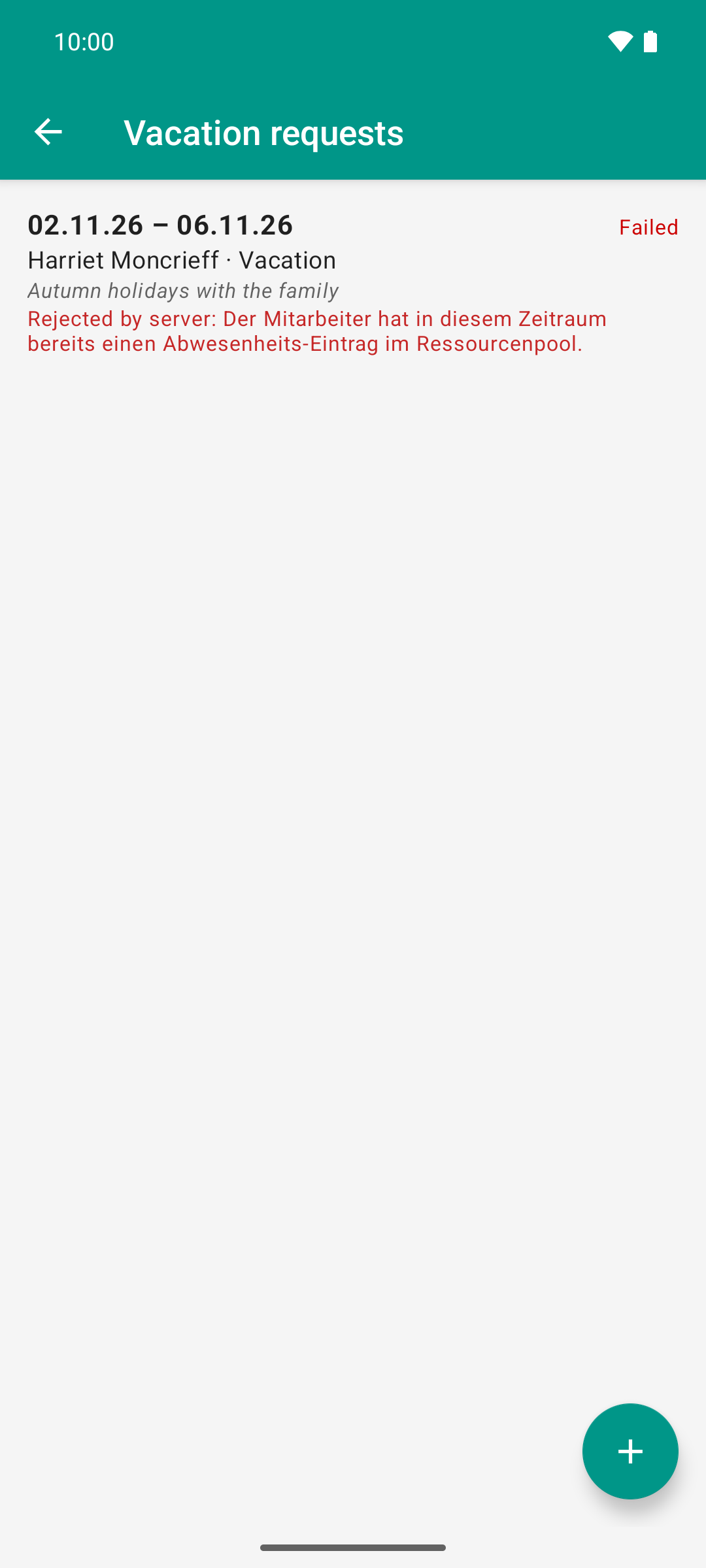
If the server rejects a request, it stays in the list in red and gives the reason. Nothing has been created; a swipe to the side discards it.
No network: The request stays in the list, even after the app is restarted, and goes out without any action from you as soon as the network is back.
Team vacations: Below your requests there can be a block “Team vacations” with the absences of your colleagues. These rows are shown paler and are read-only.
When signing out, the app warns you if vacation requests have not been sent yet.