Find a task on the plan board
What you achieve: You find a task in a large project plan by its name or code and then see it in its place in the plan.
Before you start
The plan board of a project is open (see Read the project plan on the tablet).
Steps
In the header of the plan board, tap the magnifier.
Enter at least three characters. If you enter several terms, all of them must occur.
In the list of matches, tap the row you want.
Close the search with the arrow in the search bar.
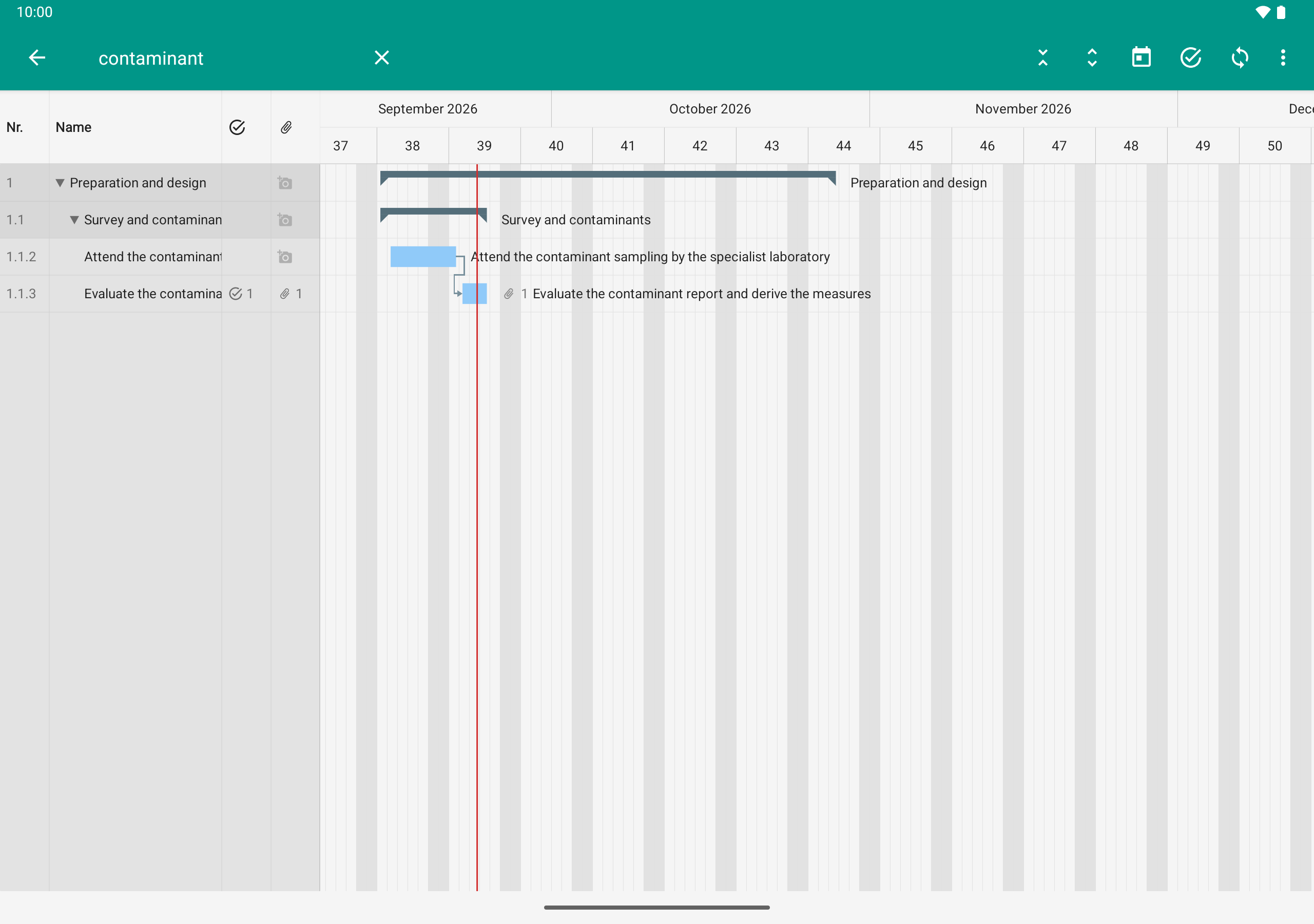
The same board with a search: of all tasks, two remain. The contaminant report has one open time entry and one photo.
Result
During the search, the table and the chart show only the matches, plus the subprojects they are in, as a path. The search covers the name and code of the task, also in the middle of a word. The Nr. column keeps the numbers of the full plan.
If exactly one task, milestone or subproject matches, it is highlighted right away.
After closing, you see the whole plan again. The highlighted row stays highlighted; collapsed subprojects above it open, and the row is brought into view in the table and the chart.
Good to know
If there are no matches, the note “No matches.” appears.
Collapsing and expanding subprojects has no effect during the search.
The search works as in the task list. The search text is kept when you rotate the tablet; it is cleared when you switch projects.