Report remaining effort and a note
What you achieve: You report how many hours you still need for the task, and give the reason for a change in a note.
Before you start
You have the permission to report time.
You have opened time recording for the task (tap the task card).
The effort card
The effort card is always at the top of time recording:
Planned · Actual: planned hours and hours reported so far.
Open: X h: what is still to be done. If you have reported a remaining effort, your value is shown here, otherwise planned minus actual, never less than 0.
Over plan: +X h in orange instead of “Open” if more has been reported than planned.
Note: … if there is a note.
Remaining effort and note carry the same icons as shifts: clock (waiting for transfer), ✓ (sent), ✓✓ (confirmed).
Steps
Tap the effort card. The sheet Remaining effort & note opens from the bottom.
Set the remaining effort: with - and +, or tap the value and enter it directly, as hours and minutes (H:MM), in whole hours or as a decimal number. The suggestion is the current value of “Open”. Planned and actual are shown below for comparison.
Write the reason in the note field (at most 2000 characters).
Tap Send.
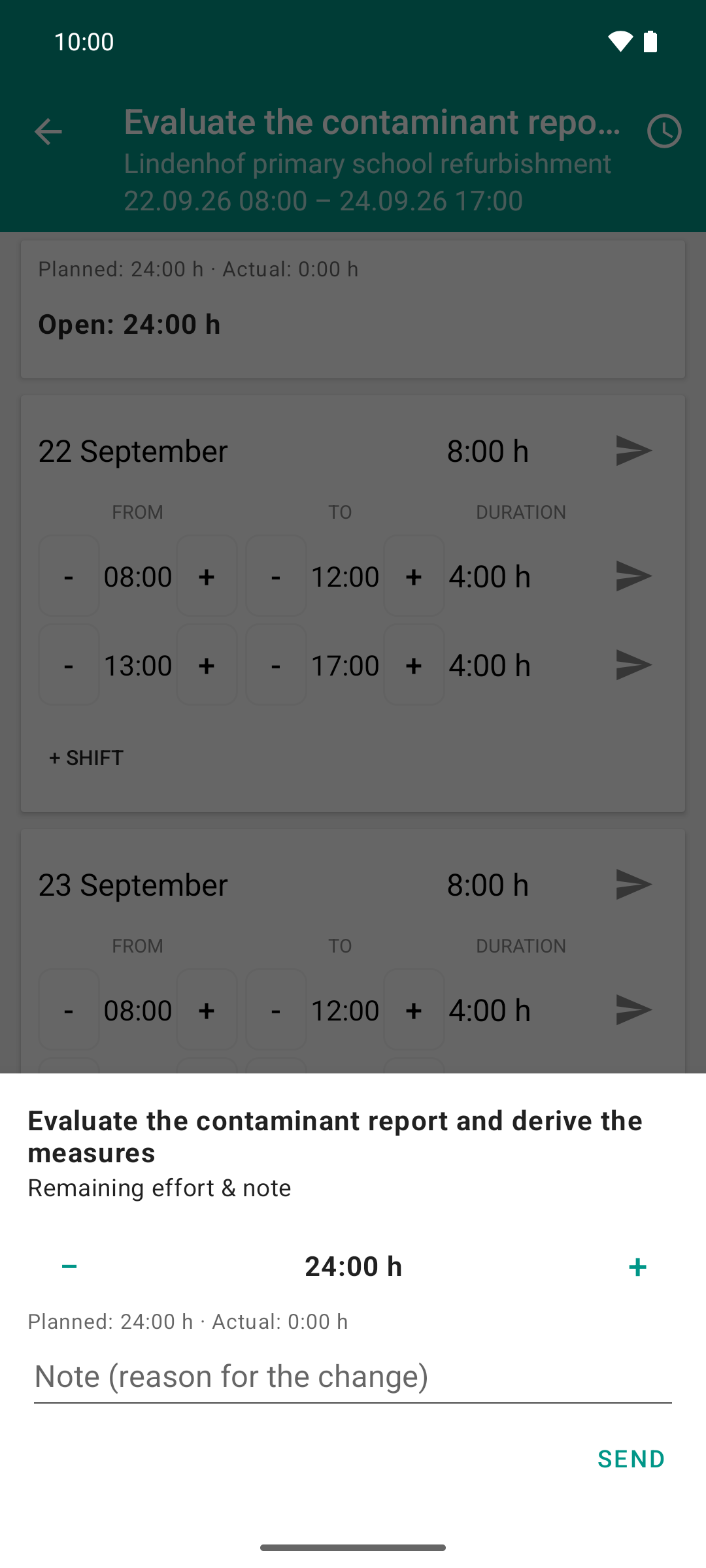
A tap on the effort card opens the sheet. It suggests what is open by the numbers: 24 hours, because nothing has been reported yet.
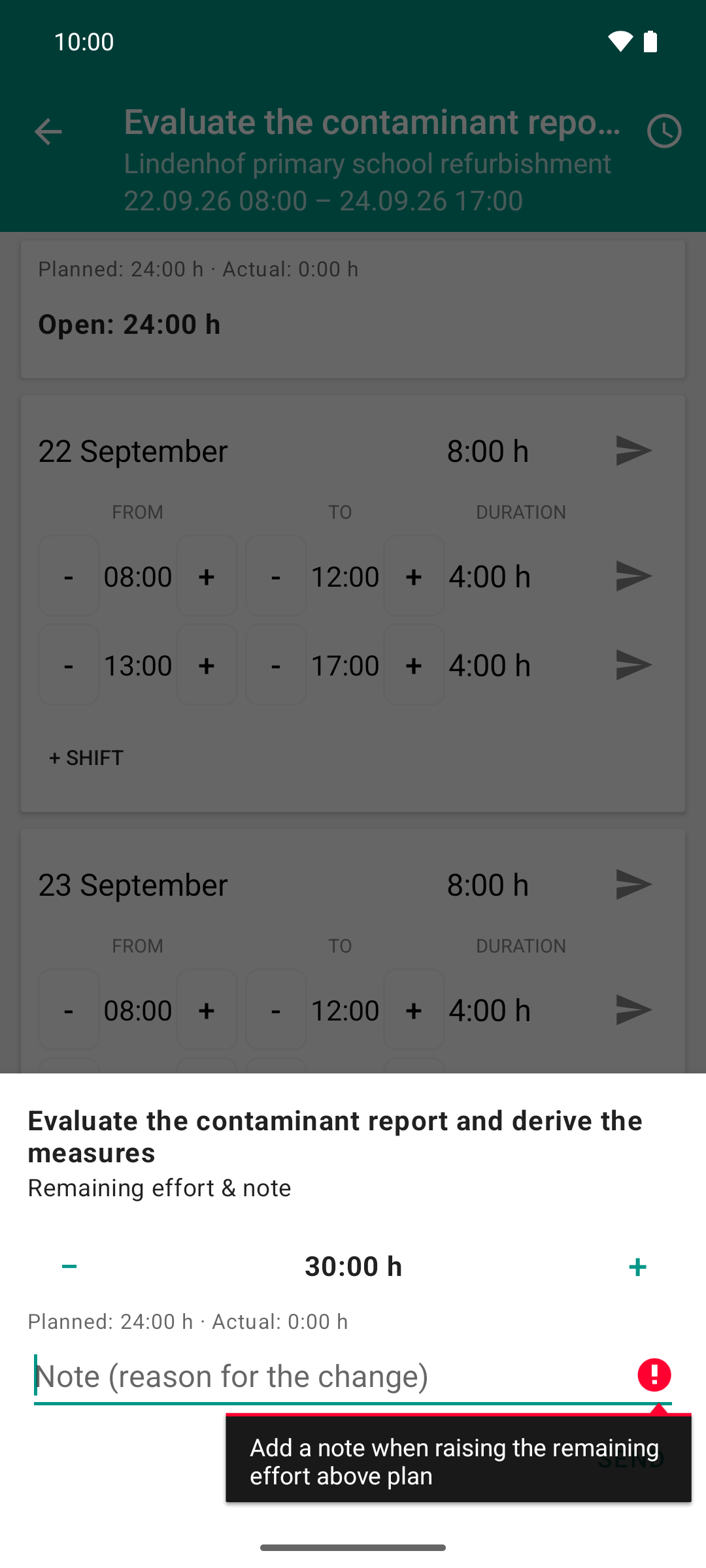
The same sheet, the remaining effort is now 30 instead of 24 hours. Without a reason the app does not send it: whoever reports more effort than planned has to say why.
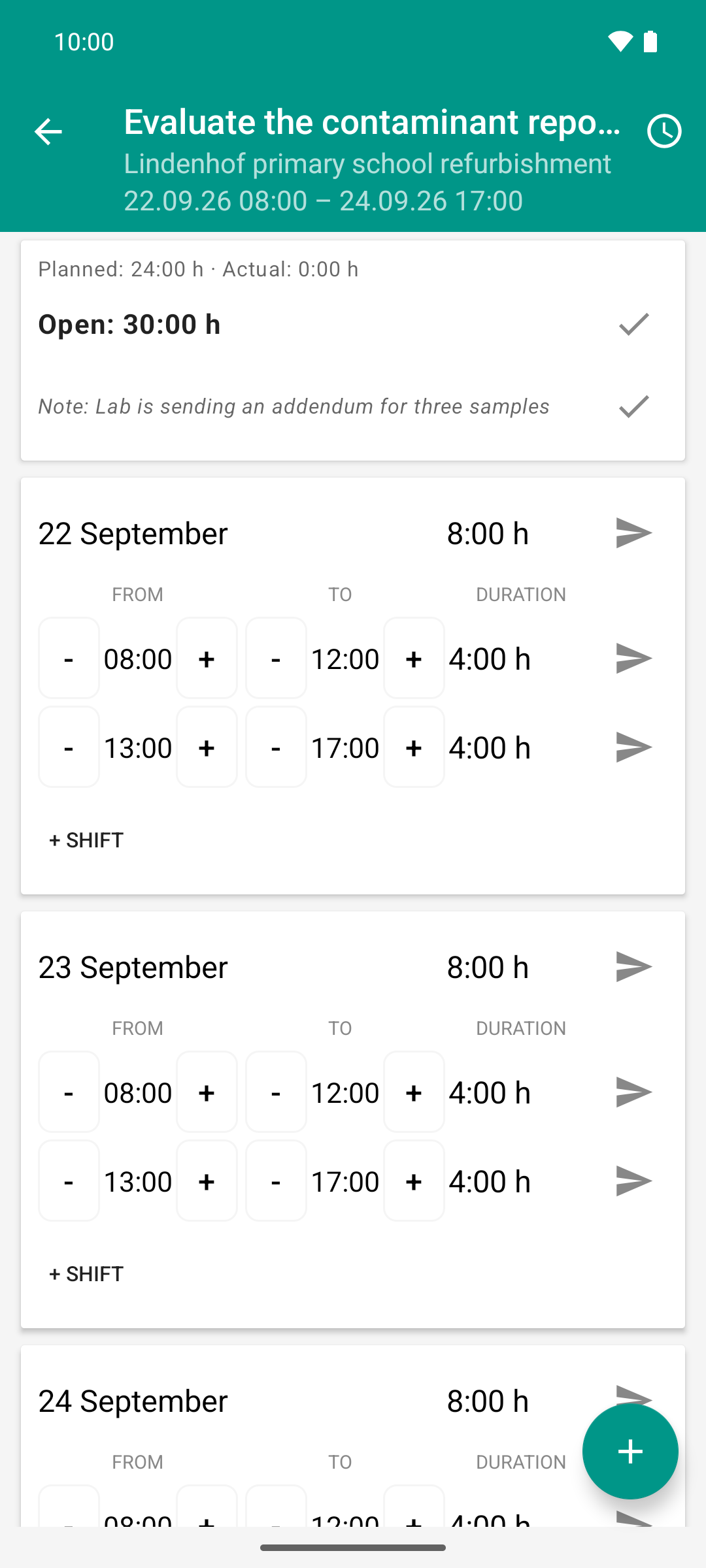
With a note it goes through: open is now 30:00 h instead of 24:00 h, the reason is shown below. One tick means sent, the approval is still pending.
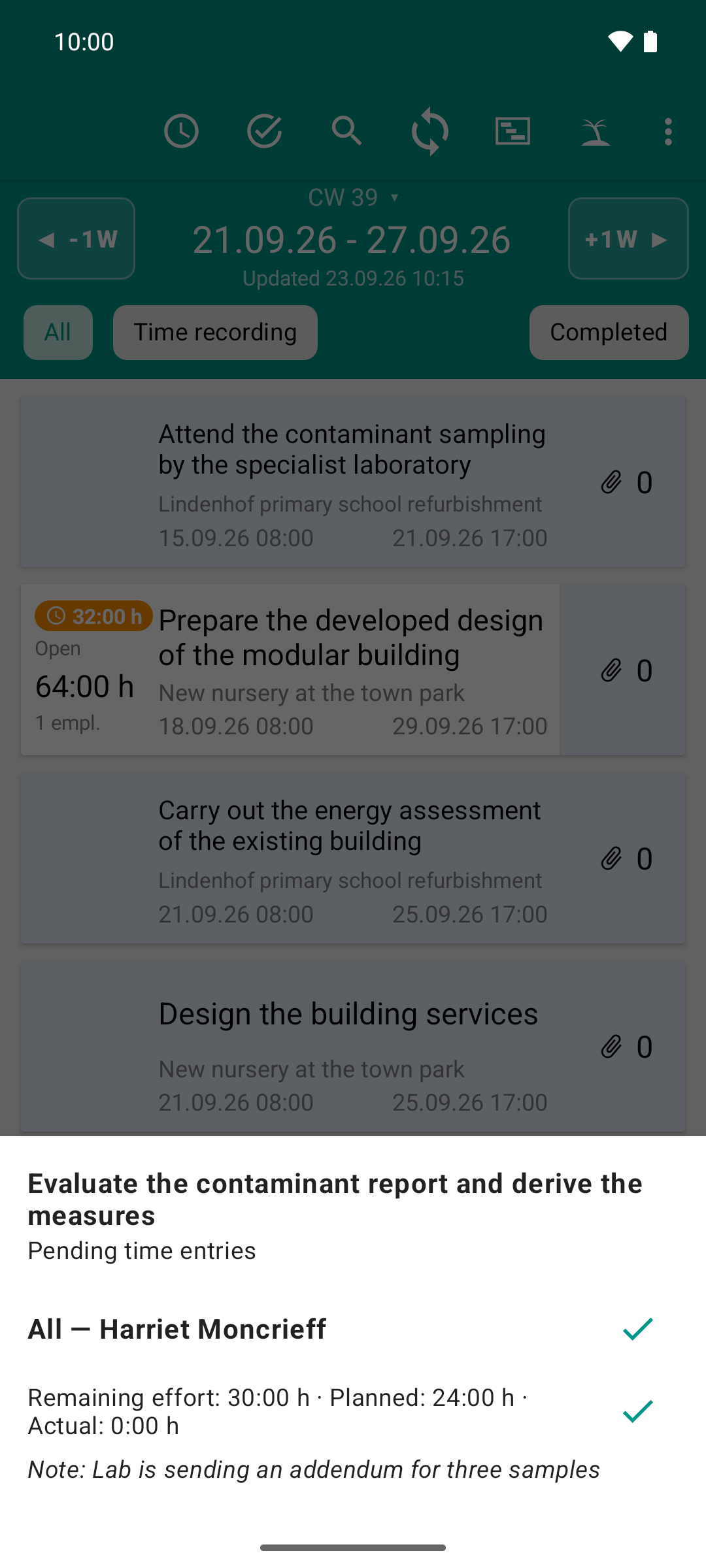
The role changes: the team lead sees the six extra hours and the reason at a glance. One tick confirms remaining effort and note together.
Result
The sheet closes. The effort card shows the new value under “Open” and the note row, both with one tick ✓.
In the task list, the card shows “Note: …” below the date.
Whoever approves time sees remaining effort and note in the approval view and confirms both together. Then they carry two ticks ✓✓.
Good to know
Raising only with a note. If you raise the remaining effort above the remaining effort by the numbers, the app refuses to send without a note: an error appears at the note field, and the sheet stays open. Lowering, confirming the suggestion or reporting 0 works without a note.
Sending unchanged confirms the current forecast.
Remaining effort 0 means: there is nothing left to do here for this person. Their unreported planned shifts then no longer count as backlog.
Delete the note: Clear the note field and send.
Several people: If you report for several people, the sheet has its own block with the name for each selected person. The effort card adds up the hours of the selected people.
Over plan: If you report time although “Open” is already at 0, the app offers “Over plan — adjust remaining effort / note?” once. Adjust opens this sheet.
A remaining effort is never confirmed automatically; it always needs an approval.
You cannot set progress in percent in the app (see What the app cannot do).