Sign out and switch accounts
What you achieve: You sign out so that another person can use the device with their own account. Nothing of yours remains visible.
Before you start
The device has an internet connection. You cannot sign out without network.
Ideally, all changes have been sent. The sync counter in the header shows whether anything is still pending.
Steps
Open the three-dot menu and choose Settings.
Under Account, Signed in as shows which account you are signed in with.
Tap Sign out.
Read the confirmation dialog. It lists unsent changes, separated into time entries, documents and vacation requests. If anything is listed there, do not confirm; send the changes first.
Confirm signing out. The sign-in screen appears.
The next person signs in with their own account, see Set up the app and sign in.
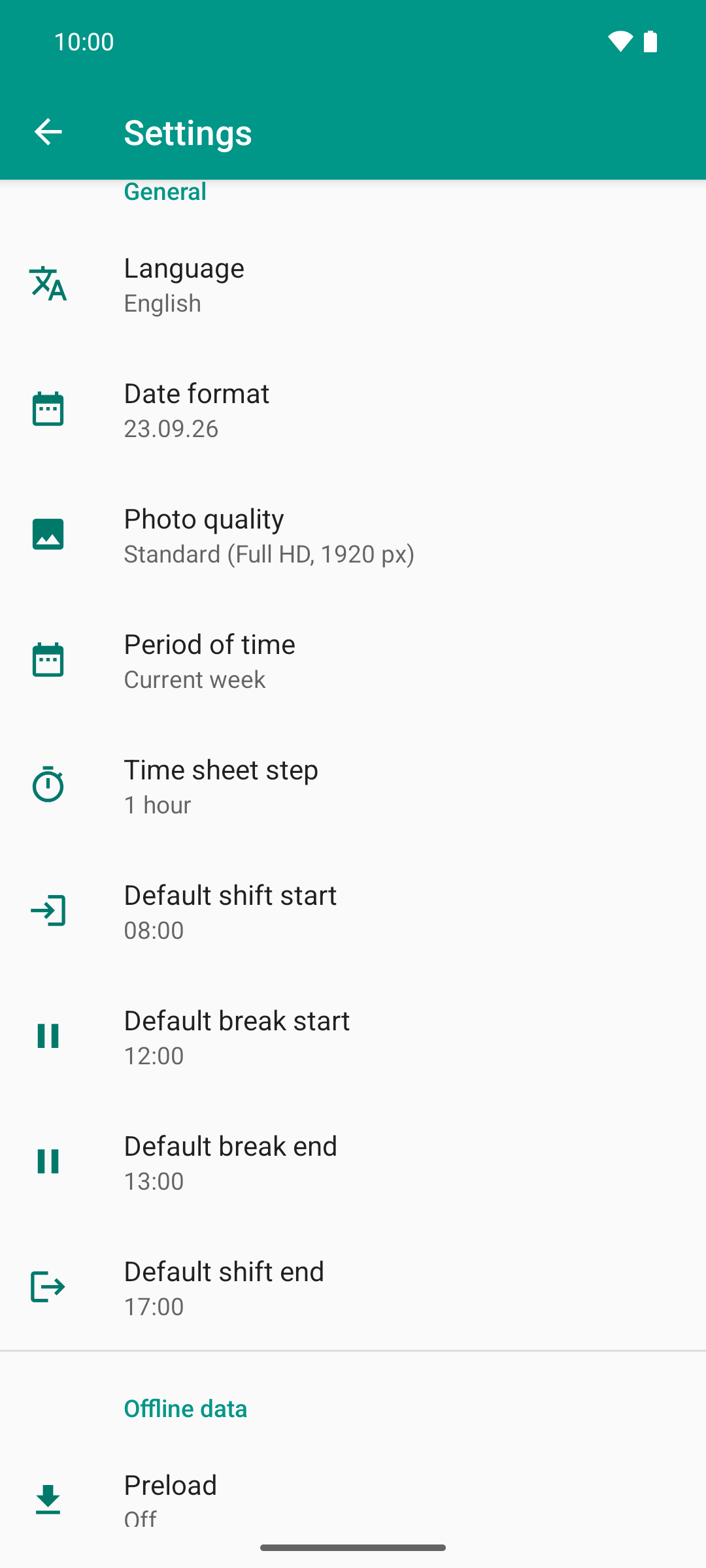
Display and time recording in one place: language, date format, photo quality, period, the time sheet step and the default times new shifts start with.
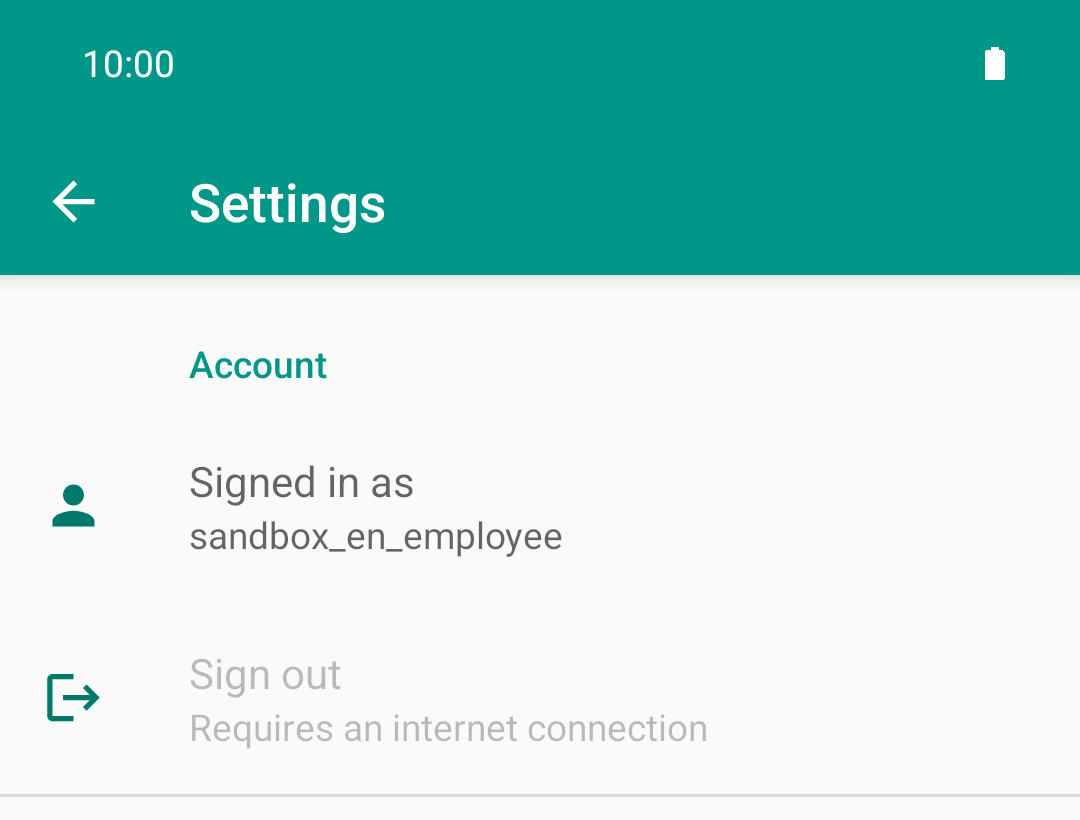
Without network the app does not let you sign out. Otherwise unsent data would be left behind, and the next sign-in needs the server anyway.
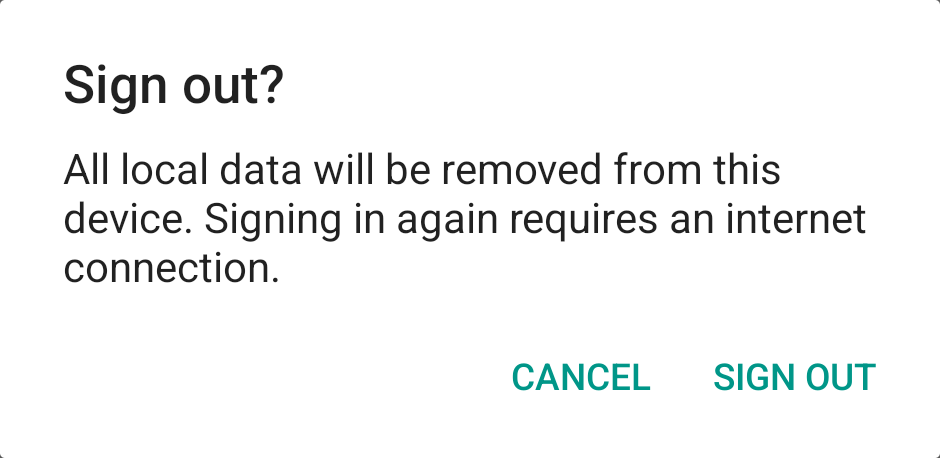
With network, “Sign out” is active again. The dialog says what happens; if there were a line about unsent changes here, now would be the moment to cancel.
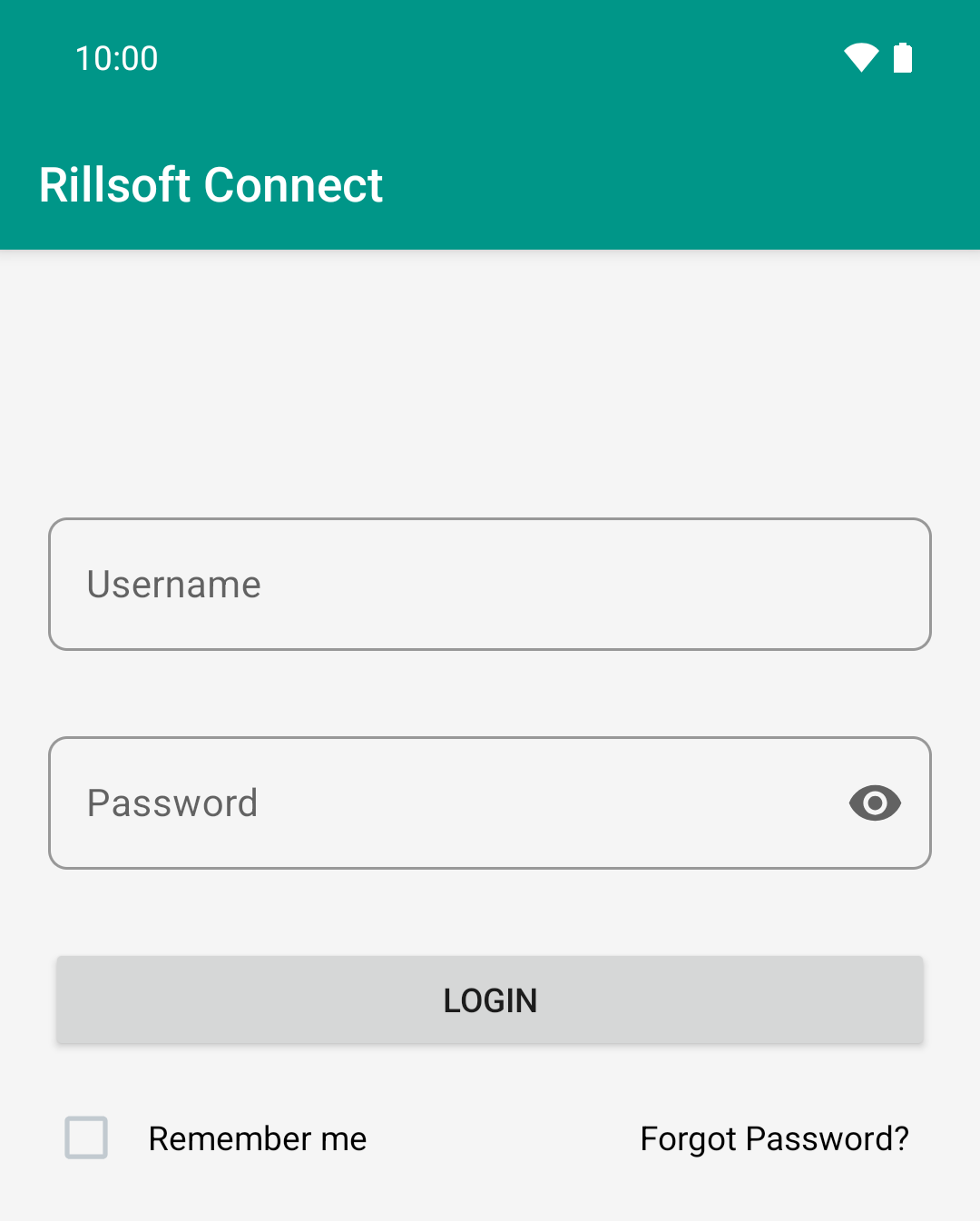
After signing out the device is empty: no list, no name in the field. The next person signs in with their own account.
Result
After the new sign-in, the app loads the task list fresh.
In the settings, Signed in as shows the new account.
Time entries, documents and vacation requests of the previous account are no longer visible.
What signing out deletes and what stays
Deleted from the device:
the sign-in and the credentials saved with Remember me,
all app data on the device, that is, tasks, time entries, vacation requests and document lists,
the photos and files stored on the device,
transfers that are still running or waiting. Anything not sent by then is lost.
The display settings are kept, for example language, date format and shift times.
Good to know
Without network, Sign out is grayed out, with the note that an internet connection is required. If the network comes back while the settings are open, close and reopen them; only then is Sign out active again. This way no unsent data is left behind, and the next sign-in needs the server anyway.
Sign-in expired: If the server rejects your sign-in, the app shows the sign-in screen. Simply sign in again. This is not a sign-out: your data on the device, including unsent time entries and approvals, is kept.
Changing the server: If you change the server while you are signed in, the app asks for confirmation and removes the data from the device.
To switch accounts, you do not need to reinstall the app. Always use Sign out.