Review and approve time
What you achieve: You see where reported time is waiting for you, compare it with the plan and approve it, for one day, one person or the whole task.
Before you start
You have the permission to approve time for the people whose time you review. It is granted in Rillsoft Integration Server (Roles and permissions). The icons for it only appear once the app knows your permissions.
Where approvals are waiting
Teal hours field at the bottom left of the task card: a tick in a circle and the total of the hours waiting for approval. Open reports of remaining effort and note are included.
Tick icon (“Approval filter”) in the top bar of the task list: turns the approval filter on (icon orange) and off (white). When it is on, the list shows all tasks with open time entries, regardless of the selected week.
Steps
In the top bar, tap the tick icon. It turns orange.
Tap a task card. In the approval filter, this opens the approval view, not time recording. Without the filter, tap the teal hours field for this.
Read the approval view Pending time entries. There is one block per person (or per group of people with the same values):
A title with the full names. If the block covers all people with open reports, it starts with “All —”, e.g., “All — Harriet Moncrieff”. Otherwise a counter follows, e.g., “(1/2)”.
If there is an open report of remaining effort or note, the very top shows “Remaining effort: X h · Planned: Y h · Actual: Z h” and below it the note in full length.
Balance up to …: reported minus planned on this task before the first open day. Negative means backlog, positive means overtime.
The table DATE · PLANNED · REPORTED. Deviations are shown directly in the row, e.g., “10:00 h (+2:00)”. What is already confirmed is shown below it, e.g., “4:00 h confirmed”. Days without a planned shift show “no plan”.
Approve what is correct with the teal tick:
Tick on the block: everything of this person or group;
Tick on a day row: only this day (appears from two days on);
Tick on the remaining effort row: remaining effort and note together;
All at the top of the header: the whole task (appears from two blocks on).
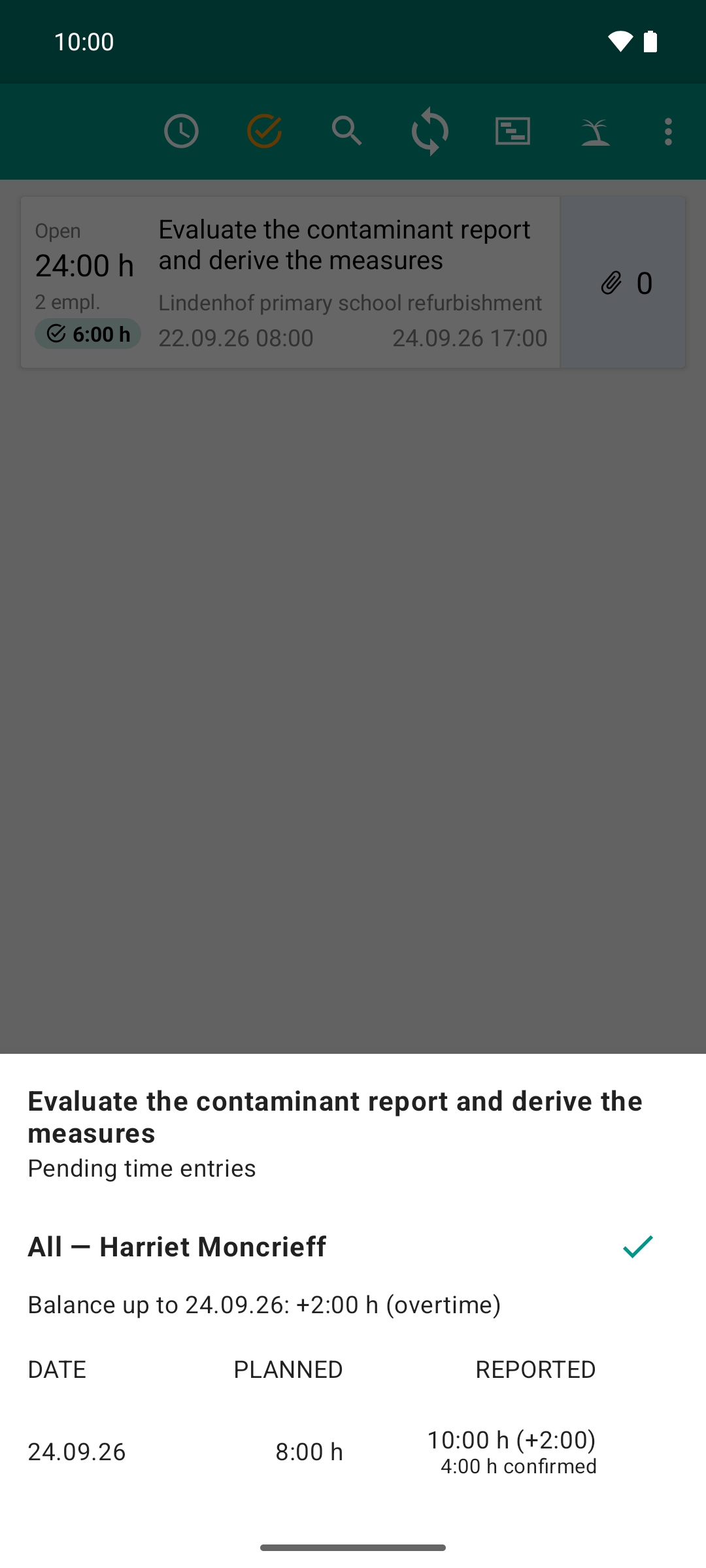
The team lead sees what is still open: ten hours on Thursday, two above plan. The server confirmed the planned morning; only the six afternoon hours are left to decide.
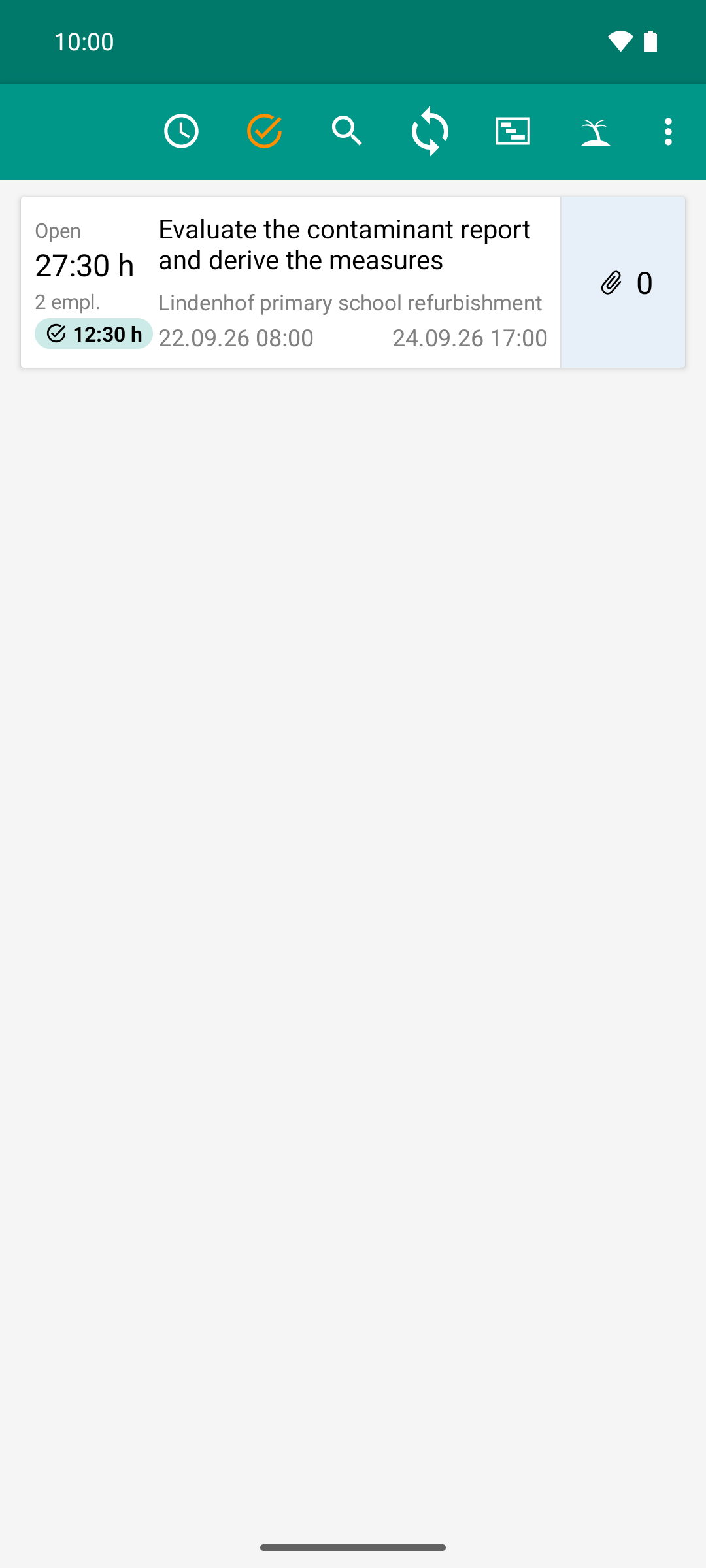
The approval filter shows only what waits for the team lead: one task, two people, 12:30 hours over plan in total.
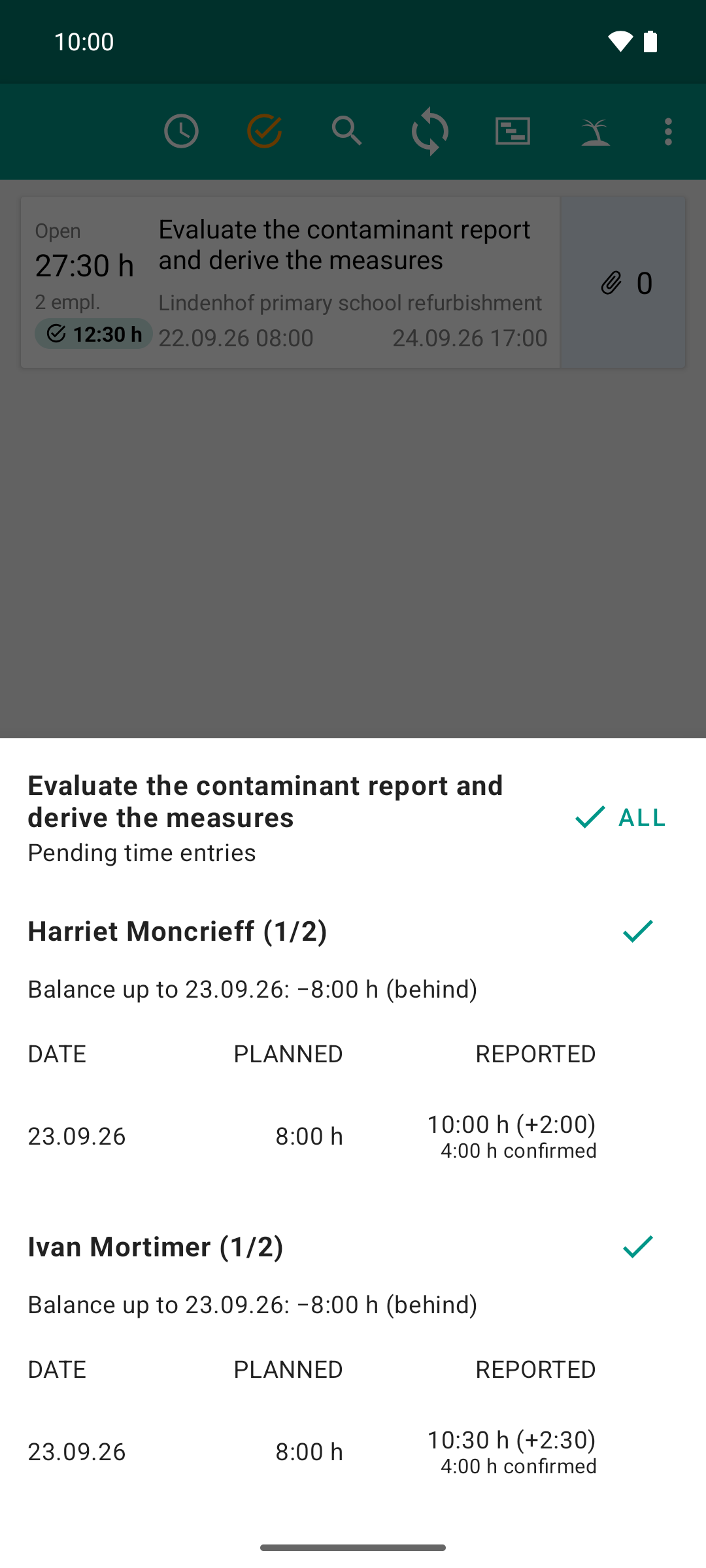
The card opens the approval view: one block per person with plan, report and difference. Two blocks means “All” appears at the top for both together.
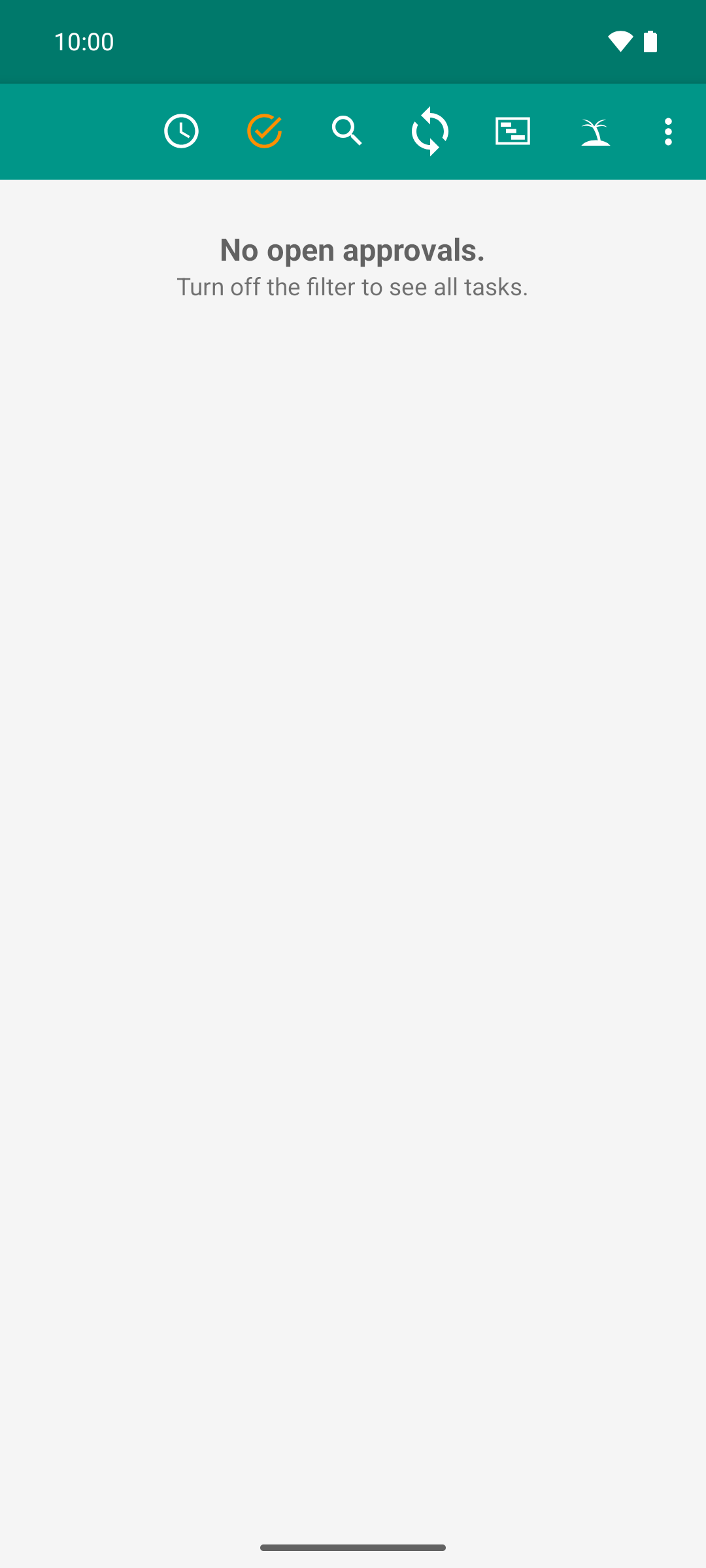
One tap on “All”, and none of the 12:30 open hours is left: the task drops out of the filter, the list is empty.
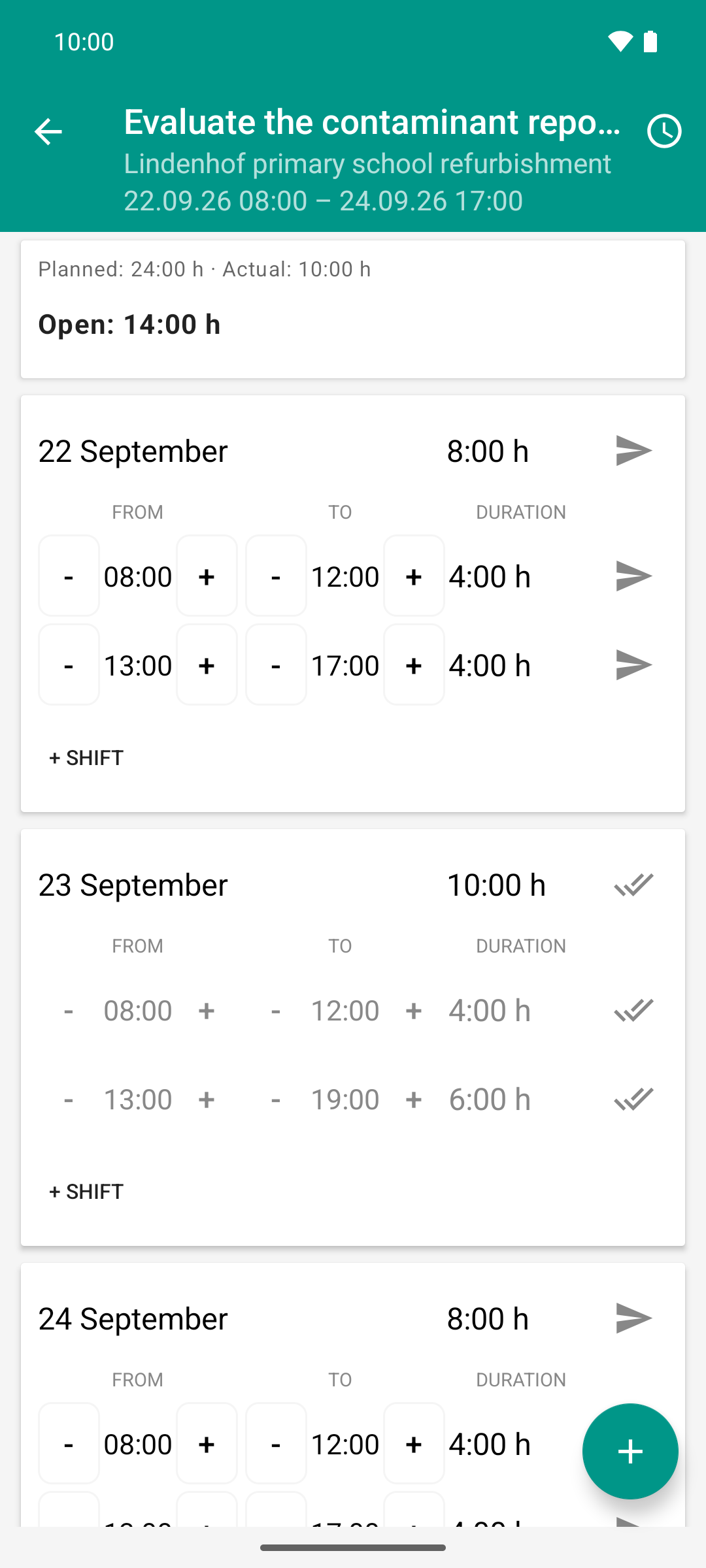
The role changes to Moncrieff: the afternoon shift until 19:00 now shows two ticks instead of one. Approved means confirmed and locked.
Result
What you approved disappears from the view, and the hours field on the card drops accordingly. If nothing is open anymore, the view closes, and the task drops out of the filtered list.
If nothing at all is open anymore, the list shows “No open approvals.” with the hint “Turn off the filter to see all tasks.”
For the reporting person, the shifts carry two ticks ✓✓ and are locked.
Faster: swipe the card to the left
If you swipe a task card to the left, the app approves everything that the teal hours field counts. The background is teal with a tick and text, e.g., “approve 16:30 h” (remaining effort only: “approve effort change”). At the bottom, a bar with Undo appears. The approval is only carried out when the bar disappears without Undo. Swiping works with and without the approval filter. You do not see a comparison with the plan in this case.
Good to know
Approval is final. Confirmed time can no longer be changed in the app. So check it in the approval view beforehand.
Partial success: If an approval only partly works, the app reports “N of M entries released.” What did not work stays open and can be approved. If everything fails, the message starts with “Confirmation failed:” and gives the server’s reason.
In time recording, the tick ✓ of a sent shift is teal for you. Tapping it approves this shift.
Without the permission, there is neither the tick icon in the top bar nor the teal hours field. Swiping to the left stays gray, and the card snaps back without effect. The reports stay open until someone with the permission approves them.
Your own reports can be confirmed right away if you may report and approve and your tenant is set up that way (see Automatic approval). They then never appear in the approval filter.
The approval filter and the backlog filter exclude each other.
Approving also works without network (Approve time without network) and on the plan board (Approve time on the plan board).