Set up the app and sign in
What you achieve: Rillsoft Connect is installed, connected to your server and signed in; the first sync has run and the task list is ready.
Before you start
An Android phone or tablet with an internet connection.
A user account in Rillsoft Integration Server (username and password). Your administrators create the account.
The address of your server — only needed if your company does not use the Rillsoft Cloud but runs its own server.
Steps
Install Rillsoft Connect from the Google Play Store and start the app.
The app appears in the language of your device: German if the device is set to German, otherwise English. You can change this later under Settings.
Check the Server line below the input fields.
The preset is
https://www.rillsoft.cloud. If your company runs its own server, tap the line and enter its address. You can leave outhttps://; the app adds it.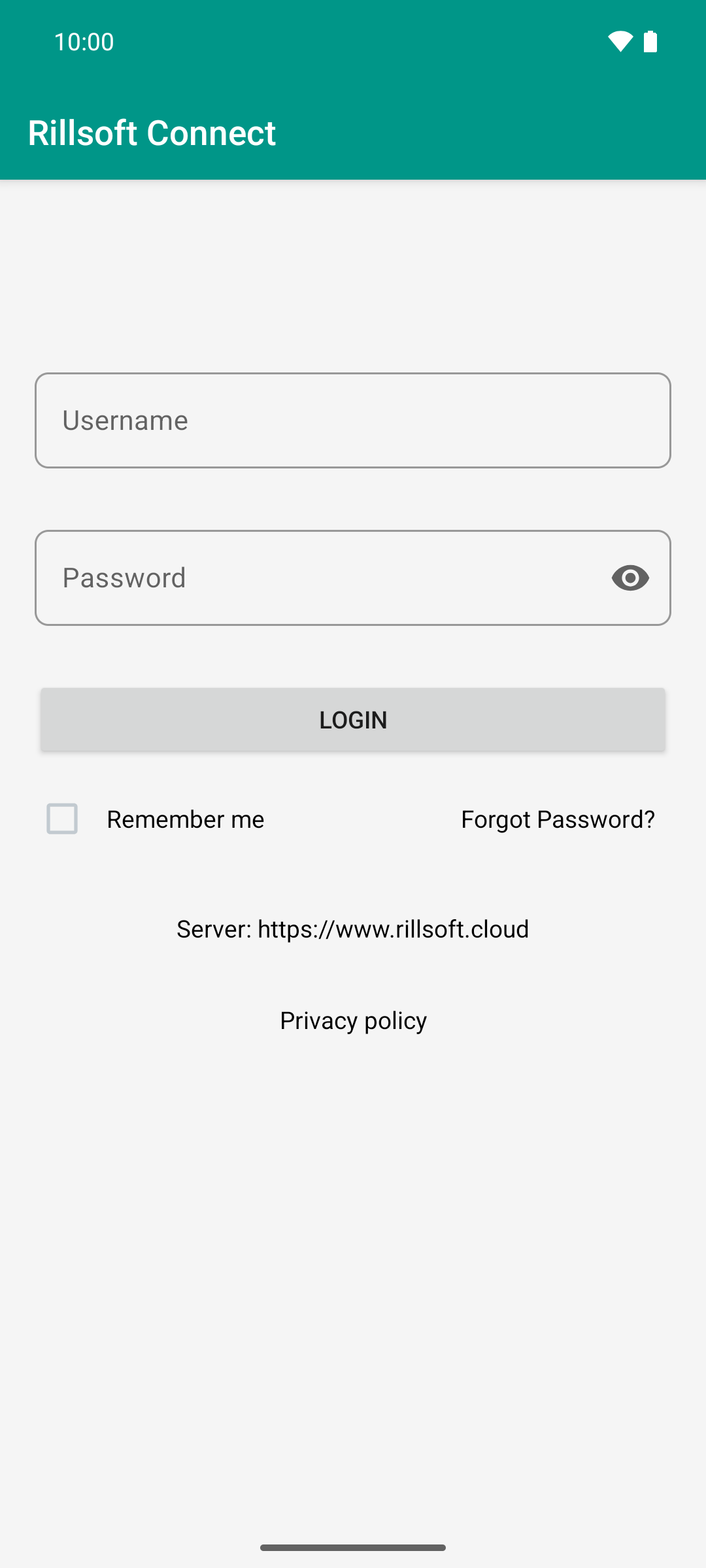
The server address comes first: the cloud is preset, self-hosted installations enter their own address here.
Enter your Username and Password. The eye icon in the password field shows the password in plain text in case you mistyped it.
If you want, tick Remember me. The app then remembers your username and password on this device.
Tap LOGIN.
Wait for the first sync. The app fetches all projects, tasks and planned shifts that you are allowed to see in one go. This usually takes only a few seconds.
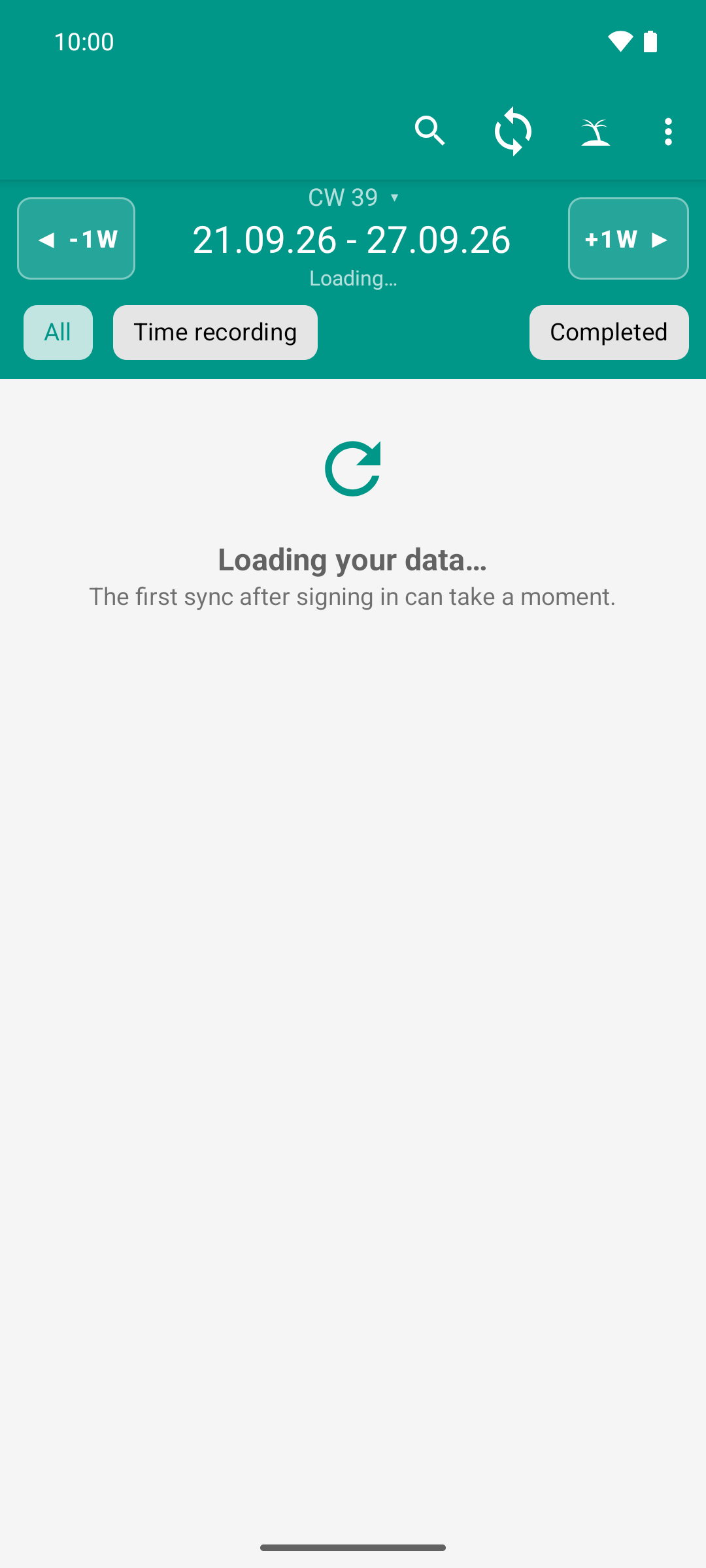
After the first login the app fetches the data. Instead of an empty screen it shows that work is in progress.
Result
The task list appears with the tasks of the current week. At the top you see the calendar week with the date range and the line “Updated …” with the time of the sync.
From now on the app also works without network: everything needed for your tasks is stored on the device.
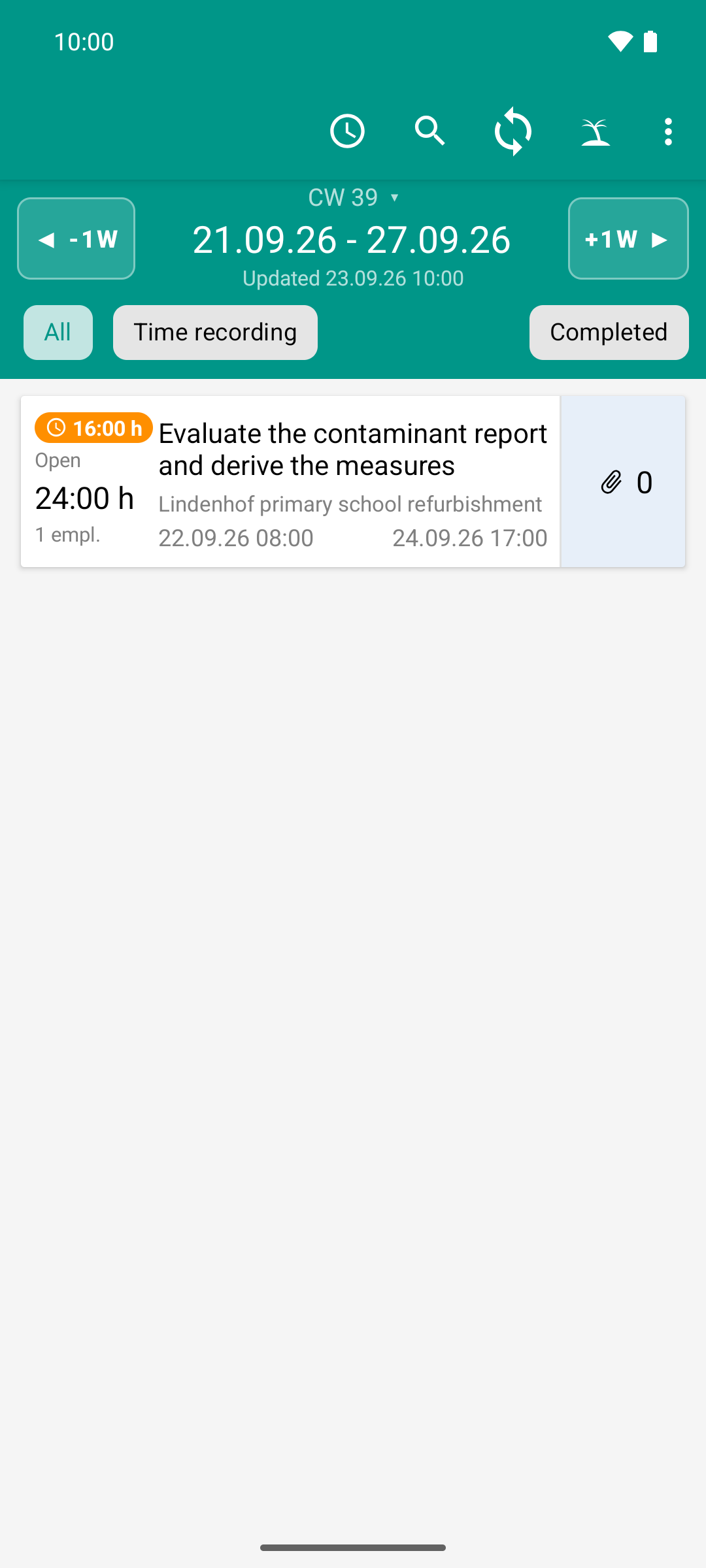
After the first sign-in the week is there. The orange field says what to do: 16 hours are planned from Monday to today and not yet reported.
Good to know
The server is a setting. You do not have to reinstall the app to change the server. If you change the server while you are signed in, the app asks for confirmation and clears the data on the device.
Sign-in expired: If the server requires you to sign in again, the sign-in screen appears again. Whatever you recorded on the device is kept and sent after you sign in.
No tick at “Remember me”: The app then remembers only your display name, not the password.
Sign-in fails? See Messages and errors.
See also
Read the task list — what the list shows
Report your first hours — report your first hour