Correct a shift
What you achieve: You change the start or end of a shift, add a shift or a day, and report the corrected time as long as it has not been approved yet.
Before you start
You have the permission to report time.
The shift has not been confirmed yet (no double tick ✓✓).
Steps
Tap the task card. Time recording shows the days of the task.
On the day you want, find the shift and change the time:
with - and + to the left and right of From or To. Each tap moves the time by the step from the Settings;
or tap the time and set it exactly in the time picker.
Duration and the day total update immediately. You cannot type them in.
Tap the paper plane (Send) in the row of the shift, or in the header row of the day to report all open shifts of the day.
Result
The shift shows the new time, first with a clock (waiting for transfer), then with one tick ✓, or two ticks ✓✓ if the server confirms it right away. A shift that was already sent but not yet confirmed is simply replaced by the new report this way.
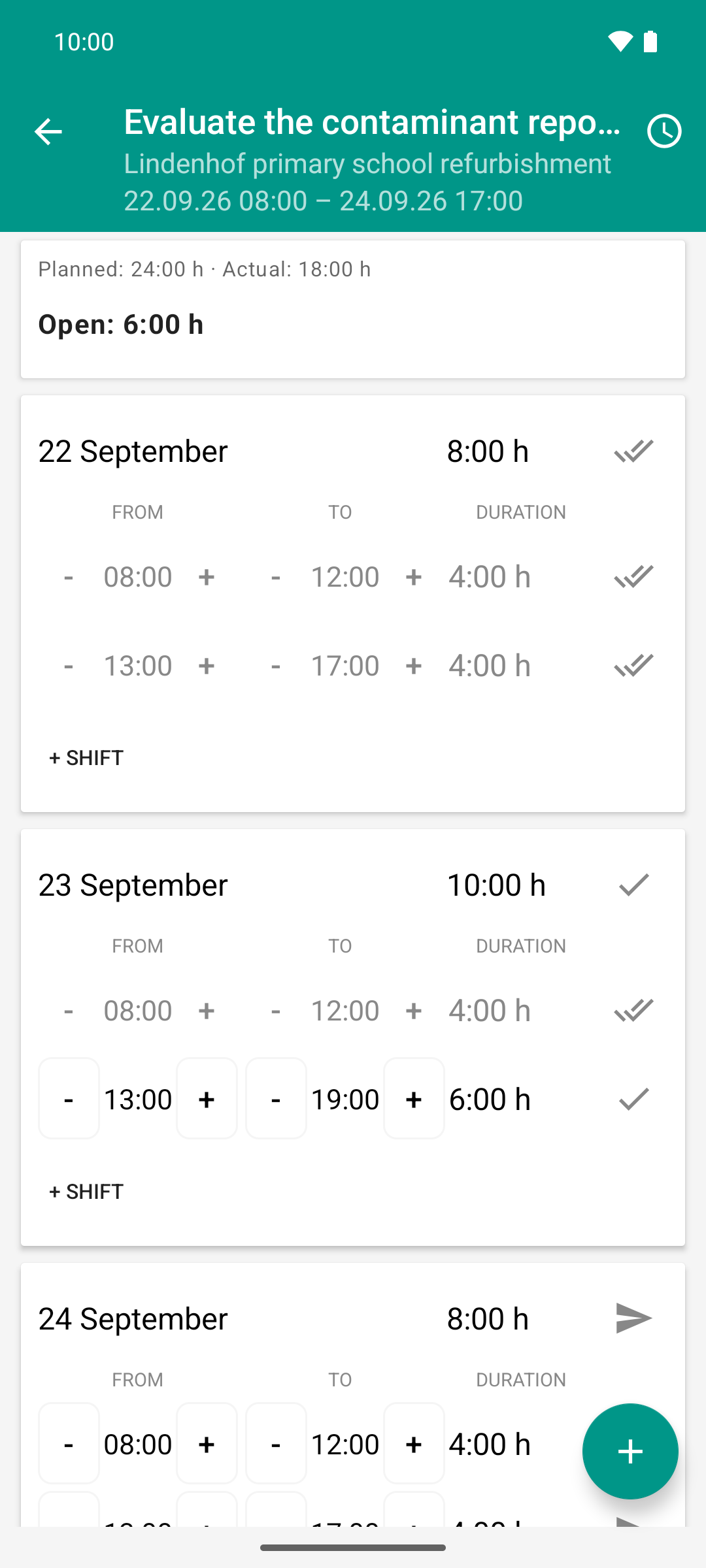
On Wednesday two extra hours are worked: the shift ends at 19:00, the day reaches 10:00 h. Actual rises from 8:00 h to 18:00 h; the planned morning is confirmed at once, the longer afternoon waits.
Add a shift or a day
+ Shift below the shifts of a day adds another shift, after the last one. If it no longer fits into the day there, it goes before the first one.
The round + button at the bottom right adds a day. Pick the date (today is preset). The app takes over the shifts of the day recorded last, otherwise the default workday from the settings.
If the date is outside the period of the task, the hint “Date is outside the task period” appears. You can still report. However, the server never confirms such reports automatically; they always need an approval.
New shifts are drafts with a paper plane. The server only receives what you report with the paper plane.
Good to know
Confirmed shifts are locked. With two ticks ✓✓, times and buttons are grayed out. They can then only be changed by someone who approves time, on the web in Rillsoft Integration Server (Time sheet).
There is no delete function. This is intentional. A shift created by mistake and never reported disappears by itself at the next sync, for example when you open the task again or pull down the task list.
Unsent changes are lost. If you change a time and do not send it, the server’s state is shown again at the next sync. Only what has been reported stays.
The icon in the header row of the day always shows the weakest status of the day. If one shift is confirmed and another is still open, the paper plane stays there.