Approve time without network
What you achieve: You review and approve time even without a connection, for example on the construction site. The app transfers the approval as soon as there is network again.
Before you start
You have the permission to approve time.
The app has loaded the data with network at least once, for example after signing in. After that, all values for the comparison are on the device.
Steps
Without network, approve as usual: turn on the approval filter, tap the task card and tap the matching tick in the approval view, or swipe the card to the left and let the bar with Undo run out (see Review and approve time).
Look at the sync counter in the top bar: it counts the approval as still to be transferred.
As soon as there is network again, the app transfers by itself. You can also tap the sync counter to start the sync right away.
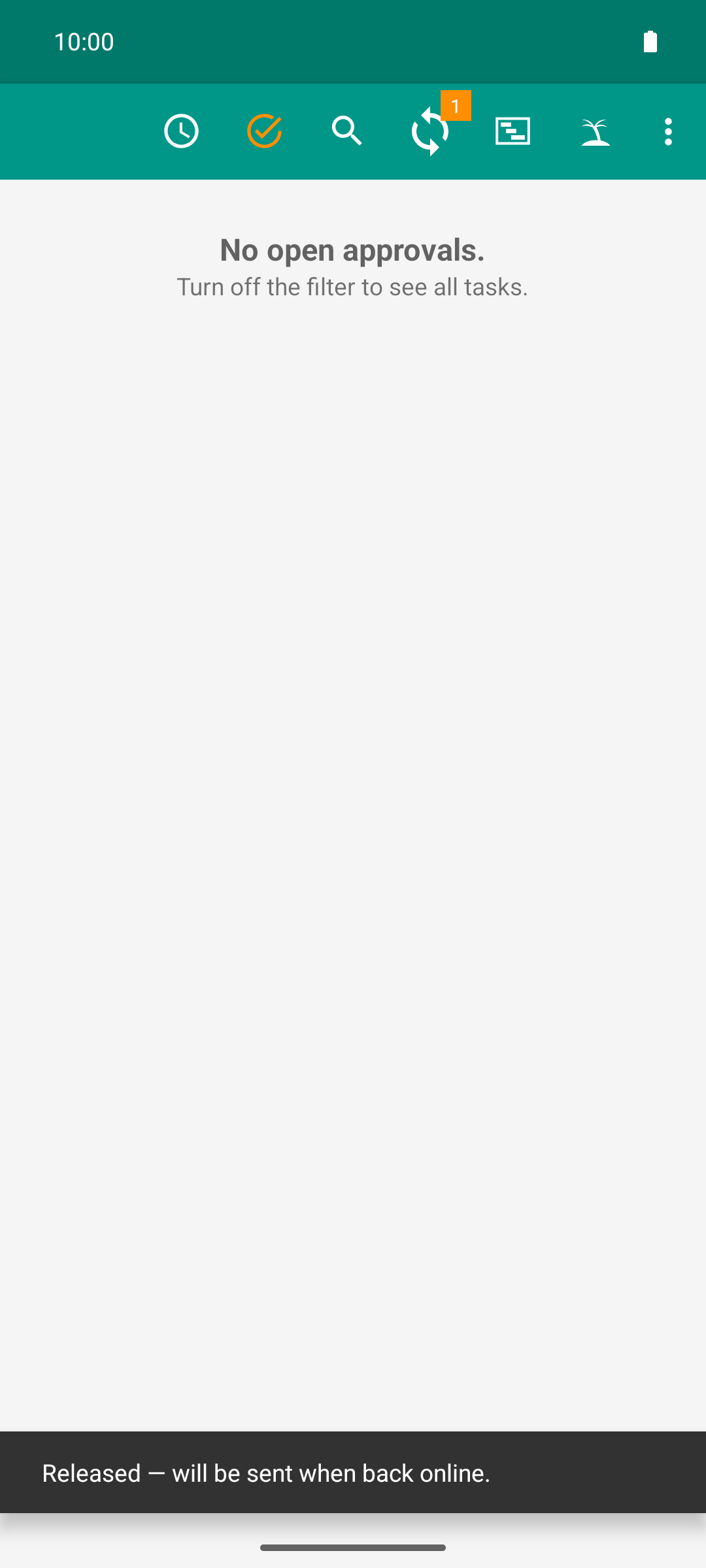
Approving works on site without network too: in the app the approval applies right away, the sync counter keeps it, and at the next network contact it goes to the server.
Result
The approval applies in the app right away. The bar says “Released — will be sent when back online.” The card leaves the filtered list.
After the sync, the app reports “Synchronized”, and the sync counter is empty. For the reporting person, the shifts then show two ticks ✓✓.
Good to know
Nothing is lost. An approval given offline stays saved, even if the app loads new data in the meantime.
If the server rejects it: If the server finally rejects an approval, it is withdrawn in the app. The time entry appears again in the approval filter and can be reviewed again. If only the sign-in has expired or the server has a fault, the approval stays in the queue and is transferred again later.
Messages during a manual sync: “Session expired — please sign in again”, “Rejected by the server” or “Waiting for network” give the reason if it did not work.
Remaining effort and note can be approved without network as well.
How the app works without network is explained in Working offline and synchronizing.